Wednesday, 29 April 2020

Your Nintendo Switch Won’t Connect to the Internet? Here’s What to Do

Are you having network problems with your Nintendo Switch? Whether you can’t get your system online at all, keep seeing an error code, or have disconnection issues when trying to play a certain game online, these problems can be frustrating.

In this article, we walk you through several steps to hopefully fix your Nintendo Switch internet problems and get you back online and playing games again.

1. Restart Your Nintendo Switch

Like any electronic device, restarting your Switch is an important first step to clear up temporary issues. Pressing the power button on your Switch only puts it into sleep mode, however, so there’s a good chance you haven’t power-cycled your system in some time.

To fully shut down your Switch, press and hold the physical Power button on the top-left of the system for several seconds. On the resulting menu, select Power Options and then Restart.

Switch Power Menu

After a few seconds, the system will reboot. Give it a moment, then see if it reconnects to the internet.

2. Reboot Your Networking Equipment

After rebooting your Switch, you should next power cycle your modem and router. Simply pull the plug on both devices (if you don’t have a combo unit), wait a minute, then plug them back in.

3. Make Sure You’re Not in Airplane Mode

When you put your Switch in Airplane Mode, it disables all wireless communication. While this helps you save battery when using the system on-the-go, it obviously keeps you from getting online, too.

You’ll know the system is in airplane mode if you see an airplane icon in the top-right corner of the homescreen. To toggle it, go to Settings > Airplane Mode. You can also hold the Home button to open the Quick Settings and change it from there.
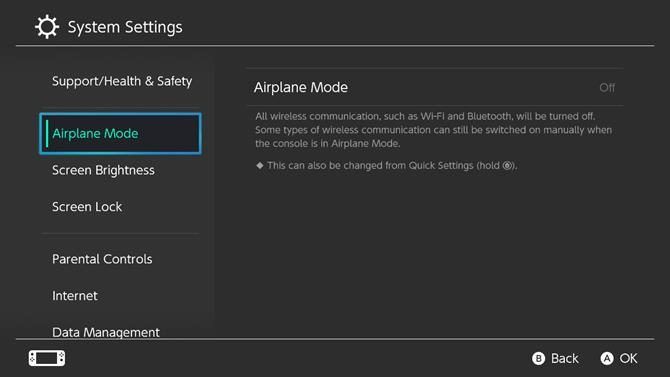
Switch Airplane Mode

Note that the Switch doesn’t let you enter airplane mode while docked.

4. Review Your Switch Network Settings

If you still can’t get online at all, it’s worth checking your Switch’s internet connection options so you can determine where the problem lies. Open the Settings menu from the homescreen and head to the Internet tab. Select Test Connection to run through a quick check and see if everything is correct.

Switch Network Test

If you don’t see the Connection test was successful message, take note of any error codes, as you may need to research them online later. You should walk through the Internet Settings on the previous page to make sure you’ve set up everything correctly.

Select your network and choose Change settings to make sure the info is up-to-date. You can also erase the connection and set it up anew if you prefer. A common reason for network issues is mistyping the Wi-Fi password, for example.

At this point, you should also test other devices on your network to make sure they can get online. If they can’t, follow our general guide to troubleshooting network issues.

5. Check Nintendo’s Network Maintenance Page

There’s a chance that Nintendo’s online services could be experiencing an issue. Have a look at Nintendo’s Network Maintenance Information page for notices about any ongoing problems.

This page shows a message stating All servers are operating normally if the online services are working properly. Further down the page, you’ll see any scheduled maintenance windows where network services may be affected.

Nintendo Network Status Page

6. Install System and Game Updates

If you can’t get your Switch online, you, of course, won’t be able to download new system updates. However, there’s a chance that your system already downloaded an update but hasn’t installed it yet.

Applying that could fix your issue, so it’s worth checking now. Head to Settings > System and choose System Update to check.

Switch Install System Update

Online games won’t let you use network services unless the game is updated to the latest version. If you’re only having an issue with one game, you should check for updates to it. Games will usually check automatically when you launch them, but you can also do so manually.

Press the Plus or Minus button when highlighting a game, then go to Software Update > Via the Internet. If you’re around someone else who has a Switch and an updated copy of the game, select Match Version with Local Users instead. There you can create a group and install the update locally through someone else’s Switch.

Switch Install Game Update

7. Reduce Wi-Fi Interference

The Switch doesn’t have a super powerful Wi-Fi chip, so you may experience connection issues if you’re far away from your router. Keep an eye on the Wi-Fi indicator in the top-right of your Switch’s home screen to see how strong your connection is.

If possible, move closer to your router for a more stable connection. You should also try to reduce interference by moving other electronics and metal objects outside of the path between your Switch and router.

8. Purchase the Switch Ethernet Adapter

If you have serious connection problems when on Wi-Fi, you should consider purchasing the officially licensed HORI Ethernet adapter for the Nintendo Switch.

Nintendo Switch Wired Internet LAN Adapter by HORI Nintendo Switch Wired Internet LAN Adapter by HORI Buy Now On Amazon $29.99

This plugs into one of the USB ports on the console’s dock and lets you connect the system to your network with an Ethernet cable. A wired connection is much more stable than a wireless connection, so you should have fewer issues with this solution.

If connecting your Switch to your router directly isn’t an option, check out powerline adapters, which let you run Ethernet connections over the power lines in your house.

9. Perform Advanced Router Tweaks

If you continue to have issues even after all of these steps, Nintendo’s NAT troubleshooting page recommends looking into advanced settings on your router. These include connecting your Switch to the 5GHz band instead of 2.4GHz, putting your system in the DMZ, and more.

Since these settings vary greatly on different routers, discussing them is beyond the scope of this guide. Most people shouldn’t need to worry about them, but you can have a look at our router tips for gamers for more advice.

Get Your Switch Back Online

We’ve looked at the most important troubleshooting tips for Nintendo Switch connection issues. Whether you can’t get online at all or experience poor online performance, working your way through this list should fix your issue in almost all cases.

For more help, we’ve looked at how to test your home network speed and decipher the results.

Image Credits: Kyli Petersen/Shutterstock, SimpleIcon/Wikimedia Commons

Read the full article: Your Nintendo Switch Won’t Connect to the Internet? Here’s What to Do


from MakeUseOf https://ift.tt/35miCBK
via IFTTT

8 Life Skills That Video Games Can Teach You

kids-playing-video-games

Video games can help you succeed at life. That might sound crazy to say, especially when some people believe that video games cultivate immaturity, violence, and even addiction. However, like most kinds of media, video games can be both good and bad.

Video games can help shape you into a more productive member of society. They can teach you good traits, skills, and knowledge that you will carry with you for the rest of your life. So, here are the life skills that you can learn from playing video games.

1. Patience

Zen rocks
Image Credit: EliasSch/Pixabay

Old arcade games forced you to suffer through tons of repetitive gameplay to see how far you could go. Role-playing games with a level-up mechanic often encouraged repetitive monster fights to grow stronger. MMORPGs cemented the grinding concept while the free-to-play craze perfected it.

The ability to endure routine and repetition is one that will come in handy no matter what you pursue: grinding through homework, work projects, or money for a vacation.

Or in other words, the ability to suffer through something that’s unpleasant right now in order to secure for yourself something even better in the future. Some call it delayed gratification. Others call it patience and perseverance. Either way, life requires it.

2. Strategic Planning

Planning
Image Credit: Pexels/Pixabay

Puzzle games and strategy games will never go out of style and reach an even wider audience now thanks to mobile gaming. There are even puzzle games to play in your browser. Both casual and hardcore gamers love and appreciate the kind of gameplay that stimulates planning and strategy.

It doesn’t take much imagination to see why this is such a valuable life skill. Can anyone argue against the practicality of planning income vs. expenditure? Of laying out a realistic five-year plan? Of navigating a fulfilling career path? As long as these aren’t taken to the extreme, they can be very helpful.

But even more so, this kind of thinking a few steps ahead is immensely important in social contexts. Should I say what I’m about to say? If I do, what are the potential consequences? What’s the right way to approach a tense subject or situation? Again, don’t let it paralyze or overwhelm you, but it’s a good skill to have in moderation.

3. Socialization

Pair of friends
Image Credit: Free-Photos/Pixabay

Perhaps the most popular gaming stereotype is the antisocial gamer who resides in a basement. Look past the stereotype and gaming is just another outlet, rather than a fallback, for social interaction.

Starting with the earliest consoles, before broadband allowed online play to take off, gaming with friends involved a physical gathering in front of a single TV. Even in today’s climate of online multiplayer gaming, gamers can communicate over voice and video chat.

It could be argued that gaming enables stereotypically introspective individuals to be more social, ultimately improving social skills.

In the case of guilds and clans, socialization can evolve into leadership. It may sound silly, but there’s a lot of overlap between managing a guild and, say, managing a project team. Synchronizing schedules, mobilizing people towards a goal, inspiring motivation, and resolving interpersonal conflicts are all skills that can be learned from gaming and applied to real life.

4. Mental Prowess

Chess
Image Credit: jarmoluk/Pixabay

There are games specifically designed to train and improve brain functionality—Nintendo’s Brain Age was one of the biggest mainstream hits. It offered plenty of activities that help with mental math, reading speed, and concentration.

But brain training isn’t limited to games that explicitly train the brain. Sudoku is all about logical deduction. Tetris helps develop pattern recognition skills. In fact, there are plenty of mobile games that make you smarter by exercising memory, matching, and thinking outside the box.

Like muscles, the brain will atrophy if you don’t work it. The interactivity of games is one way to exercise your mind while having fun.

5. Empathy

Holding hands
Image Credit: Pexels/Pixabay

Game designers are really starting to explore and incorporate the emotional elements that exist in other forms of media; the most important element being narrative. Some of the most groundbreaking and revolutionary titles ever are those emotionally weighty games that jerk at your heartstrings.

These types of games force you to relate to the characters and imagine yourself in their shoes, even if their experience isn’t something you’ve personally lived through. Sometimes you are given a choice where there is seemingly no right or good outcome. These situations develop a player’s sense of sympathy and empathy.

6. Literacy

Reading
Image Credit: StockSnap/Pixabay

Video games that have a heavy narrative focus can help people learn languages and improve their literacy, even introducing them to words they might not come across elsewhere.

Classic point-and-click adventure games are the perfect example of this, where you had to read the dialog between characters in order to understand the story and often understand culture-specific phrases and jokes.

Games like Minecraft and The Sims also get people interested in telling their own stories. This can then leap off the screen onto the page, with many gamers inspired to write their own fan fiction based on their favorite series or even a new creation of their own.

These text-based adventure games are great examples of titles that improve literacy.

7. Hand-Eye Coordination

Archery
Image Credit: irinakeinanen/Pixabay

To play even the most basic video game, you need good hand-eye coordination. Whether that’s moving a character around or just clicking on something, the ability to synchronize your eye and hand movements is vital.

Of course, the better you are at this, the better you will be at some video games. Improve your hand-eye coordination and you won’t have to look down to see what button to press. Your reaction times will improve too.

Studies have shown that games help strengthen our hand-eye coordination. There’s so much that this skill helps with outside of games, whether it’s in sport, music, or just basic day-to-day tasks.

8. Observation

Binoculars
Image Credit: Free-Photos/Pixabay

You need to be aware of your surroundings in a game. Perhaps you’re on the battlefield and an enemy just landed in the distance or maybe you’re a detective and notice a vital bit of evidence in the corner of the room.

Some games take this further and are built around the concept of observation. For example, L.A. Noire requires you to study the expressions of people you interview to try to determine if they’re telling the truth or not.

In the real world, these observation skills can be used to inform us about our environment and the motives of other people.

How to Make a Living Playing Video Games

These are some of the many life skills that you can learn from video games. Obviously, constantly playing video games with no other interests or hobbies isn’t going to turn you into a well-rounded person, but they can support a varied lifestyle.

Plus, if you work hard and get lucky, you may even be able to earn a living from your hobby. With that in mind, here are some ways to make money playing video games.

Read the full article: 8 Life Skills That Video Games Can Teach You


from MakeUseOf https://ift.tt/2Yh48l8
via IFTTT

You Can Now Donate to Charity Using TikTok Donation Stickers

TikTok has launched a new in-app feature called Donation Stickers. These make it easy to donate to charity without ever leaving the TikTok app. And the first charities supported through Donation Stickers have all been affected by the coronavirus pandemic.

Helping Charities Survive the Coronavirus Crisis

The current COVID-19 crisis has affected almost every country around the world. It isn’t only killing people either; it’s threatening the livelihoods or businesses, individuals, and charities who rely on people being able to live “normal” lives.

While most businesses and individuals will bounce back from this crisis once lockdowns are ended, charities may struggle to survive. However, TikTok, which has seen an uplift in interest since lockdowns began, is doing what it can to help.

How to Use TikTok’s Donation Stickers

TikTok has launched Donation Stickers, which creators can embed directly in videos and live streams. When a viewer taps on the sticker, they will be guided to a pop-up window which will instruct them how to donate to charity without leaving the app.

To add a Donation Sticker to your TikTok, click on the ‘COVID-19’ Donation sticker in the editing page for your video. Then choose the organization you want to support, and place the sticker on your video. Finally, add a caption, and click “Post”.

TikTok has initially partnered with charities supporting communities affected by the pandemic. This includes the CDC Foundation, the James Beard Foundation, Meals on Wheels, MusiCares, the National PTA, the No Kid Fund, and The Actors Fund.

Donations are being managed by Tiltify, a charitable fundraising platform which processes donation transactions securely through its platform. And between now and May 27th (2020), TikTok will be matching all donations made through Donation Stickers.

Everything You Need to Know About TikTok

This is a fantastic initiative at a time when charities will be hurting for donations. And with TikTok a platform very much on the rise, let’s hope this leads many people to donate money to good causes. So if you see a donation sticker, please do click through.

If you have never even heard of TikTok, read about what TikTok is and how it works. If you’re new to TikTok and want to know the basics, read our TikTok tips for beginners. And if you want to build a fanbase, read our list of ways to get more TikTok followers.

Read the full article: You Can Now Donate to Charity Using TikTok Donation Stickers


from MakeUseOf https://ift.tt/35lnfMo
via IFTTT

Where to Learn Piano Online: The 5 Best Free Piano Learning Sites

Learning Piano

The piano is one of the most popular and versatile instruments you can learn to play. It shares much of its design with a keyboard and is a good starting place for anyone interested in playing music.

The percussion instrument forms the basis of many classical pieces, as well as being an integral part of popular music, too. On top of that, it’s a platform to learn a new skill, reduce stress, and inspire creativity.

Ready to dive in? Be sure to get a set of keys in front of you and check out the best sites for learning the piano online.

1. Piano Lessons

Piano Lessons screenshot

Piano Lessons is a free resource from the teachers at Pianote. While that service charges a fee to learn piano online, Piano Lessons is entirely free. The site combines guided online tutorials with instructional YouTube videos from their teachers to get you started.

If you’re just getting started on your journey, then Piano Lessons is the ideal place to begin. The tutorials are pitched at beginners, and incorporate elements of music theory, too. That said if you’d like to get more in-depth with the theory, check out the best sites to learn the basics of music theory.

They even offer free live piano lessons on their social media channels. Piano Lessons is aimed at beginners. So, if you find the Piano Lessons content helpful, and if your budget allows, it may be worth subscribing to the full Pianote service to continue your practice.

2. Pianu

Pianu website screenshot

For many people, their favorite artist is the reason they want to start playing music. It makes sense, then, that you’d want to learn to play your favorite songs, too. Pianu offers online piano lessons, but its free catalog of song tutorials should get you playing along with your popular songs in no time.

The Guitar Hero game series influenced many services, and the same interface is available here, too. The sheet music is displayed above a virtual keyboard. Highlighted boxes speed towards the relevant keys to let you know what you need to play. This would be a fun game in its own right, but the inclusion of sheet music helps you to learn what it is you are playing.

It also provides an easy visual aid for translating the keys, and the time you have to press them for, into transcribed music. Keeping your tablet or smartphone near your piano isn’t always practical, though. So, you may want to consider using the top sites to find and print free sheet music as well. There is also a free to access Fundamentals course, which guides you through the early stages of piano playing.

3. Skoove

Skoove website screenshot

Instead of reading instructions and tutorials, you may prefer a more interactive form of learning. That’s where Skoove comes in. The freemium service is compatible with PC, macOS, iPhone, and iPad. Skoove guides would-be pianists through the lesson, offering real-time feedback.

This is a useful feature, as it enables you to adjust your playing as you go. Additionally, Skoove can operate in an acoustic mode so that you can use your own keyboard or piano, and the software will listen out for your playing. If you don’t have the instrument yourself, you can use the Skoove virtual keyboard instead.

There are two tiers; Skoove Basic and Skoove Premium. While the premium service costs from $9.99 per month, Skoove Basic will always be freely available. The Basic tier only allows you access to 25 lessons and a limited number of song tutorials, but if you are just getting started, this is the best way to learn piano online.

4. flowkey

flowkey website screenshot

If you enjoyed the interactive nature of Skoove, then you’ll get the same feeling in flowkey. The service is similar to that offered by Skoove, although their free offering is more restrictive. One of flowkey’s standout features is its catalog of popular song tutorials.

Although not every song is available, you’ll be able to find a tune to suit your ear and use flowkey to learn how to play it. These guides and the app’s other tutorials step you through the music theory, as well. If you play alternative string instruments,  then you can learn your favorite songs with the best free guitar and bass tab sites.

The free edition of flowkey contains eight song tutorials and limited courses. However, if you find flowkey works for you, then you can upgrade to flowkey Premium from $9.99 per month. You can use flowkey online, or via the accompanying Android and iOS apps.

5. TakeLessons

TakeLessons piano lesssons screenshot

Individual study works for some people. However, others may prefer a more social group experience. For those aspiring piano players, TakeLessons is a great way to learn to play the piano online.

Each class is taught live so there are no pre-recorded sessions. Thanks to the two-way streaming service you can play along with others in the class, and receive feedback on your performance. TakeLessons offers classes in three categories; Basics, Technique, and Performance.

While you can join these live group learning sessions, TakeLessons has courses for a wide range of subjects outside of piano playing, too. The free account grants you access to a limited number of sessions and courses.

But if you have other interests as well, you may consider subscribing to TakeLessons Premium. This costs $19.95 per month, but grants you access to the full range of courses and lessons, as well as individual face-to-face sessions with instructors.

Learn to Play Piano Online

The piano is one of the most versatile instruments you can learn, not least of all because it gives you a strong footing in musical theory. These sites are a great place to get started learning piano online and without breaking the bank, too.

That said, you may end up deciding that the piano isn’t the right instrument for you. In which case, consider the musical skills you can learn online for free instead.

Read the full article: Where to Learn Piano Online: The 5 Best Free Piano Learning Sites


from MakeUseOf https://ift.tt/3bLjeTD
via IFTTT

How to Change Your Browser’s User Agent and Trick Websites

In the early days of the internet, websites didn’t care what browser you used, because most pages were static. But today’s dynamic websites often adapt to the operating system, browser, or screen size your device uses.

They typically do so through a bit of text called the user agent. So, let’s look at what a user agent is, what it does, and how you can make your browser pretend to be another browser or another device.

What Is a User Agent?

A user agent is a string (line of text) that your browser sends to websites when you access them. It basically serves to tell the website that you’re using the Chrome browser on Windows 10, for example.

If you’d like, you can see your user agent by visiting a site like WhatIsMyBrowser.

User Agent Example

User agents are important because sites can use them to modify the content they send to your browser. For example, if you visit most modern sites in Internet Explorer 6, you’ll see a message that you need to upgrade your browser for proper compatibility. User agents also come into play when browsing on a mobile device, so websites know to show you the mobile-friendly version of a page.

As it turns out, your user agent isn’t permanent. It’s easy to change if you know where to look, and some extensions let you change it in just a few clicks.

How to Change Your User Agent

Let’s look at how to change your user agent in major browsers. This will let you trick websites into thinking you’re on a different type of computer or browser.

Change Your User Agent in Chrome

Open Chrome’s Developer Tools by right-clicking anywhere and choosing Inspect, hitting Ctrl + Shift + I, or by pressing F12.

At the bottom of the resulting panel, you should see a section with the tabs Console, Network conditions, and What’s New. Press Esc to show this if you don’t see it.

On the Network conditions tab, uncheck Select automatically and you can then choose a new user agent from the list. Refresh to update the page with the new agent.

Note that this setting will revert back to normal when you close the developer panel, and only applies to your current tab.

Chrome Change User Agent

For more control, check out Google’s official User-Agent Switcher for Chrome extension. This lets you easily switch your user agent, including setting certain sites to use a different agent all the time.

Change Your User Agent in Firefox

The process to change your user agent in Firefox is clunky, as it requires you to manually paste a new user agent string. You’re better off using an add-on to easily change your user agent.

User-Agent Switcher by Alexander Schlarb is well-reviewed and easy to use.

Change Your User Agent in Microsoft Edge

Edge Change User Agent

Microsoft Edge uses a similar setup to Chrome for changing your user agent. Press F12 or right-click on an empty spot of the page and choose Inspect element to open the developer tools window.

Along the top bar, select the Emulation tab—you may need to click the dropdown arrow to show it if it’s hidden.

Here, change the User agent string box to trick the website into thinking you’re something else. You can also change Browser profile from Desktop to Windows Phone to view the mobile version of webpages. Like Chrome, this only applies to the current tab while the developer tools panel is open.

Unfortunately, there are no extensions that easily change your user agent for the current version of Edge. When Microsoft’s revised browser launches, this will hopefully change.

Change Your User Agent in Safari

You’ll need to enable the hidden Develop menu in Safari before you can change your user agent. To do this, visit Safari > Preferences and go to the Advanced tab.

There, check the box labeled Show Develop menu in menu bar.
Safari Enable Developer Options
Next, select Develop > User Agent and pick the option you’d like. Safari even lets you choose Other to specify your own user agent string.

Request Desktop Site on Android and iPhone

While there’s no quick toggle to change your user agent in the mobile versions of Chrome and Safari, you can easily make websites think your phone is a computer.

On Android, open Chrome and tap the three-dot Menu button in the top-right. Check the Desktop site box and it will reload to show you the full version.

On Safari for iOS, tap the aA button to the left of the address bar and choose Request Desktop Website. You’ll find the same option in Chrome for iPhone by tapping the Share button at the top-right, followed by scrolling down and choosing Request Desktop Site.

Reasons to Change Your User Agent

Now you know how to trick websites into thinking you’re on another device. But why would you change your browser’s user agent when you can just install another browser?

Here are some situations where changing your user agent could prove to be fun, useful, or convenient.

1. Website Development

If you’re developing a website (or learning about website development), it’s important to make sure your site looks good and functions properly in a variety of browsers. While swapping your agent can’t accommodate every possible real-world situation, it lets you get some basic testing done in a fraction of the time.

Perhaps you can test Chrome, Firefox, Edge, and Internet Explorer just fine on your own. But what if you don’t have a Mac to run Safari, or don’t have a tablet to test mobile versions of the page?

Further, if backward compatibility is important for your site, swapping your user agent to IE 8 is a lot easier than installing a copy of ancient browsers manually.

Whether for efficiency or because you don’t own some of the devices needed to test your site, seeing how your site looks in a variety of browsers is easy using this method.

2. View Mobile Sites on Limited Connections

On a lot of sites, the mobile version offers a slimmed-down amount of content to reduce data usage for the mobile users. While we looked at how to view the full desktop site on a mobile browser, it’s not as common to see desktop pages offer their mobile versions.

By changing your user agent to act as a mobile browser, you can force this change the next time you’re using your phone as a mobile hotspot or working on a limited connection. Browsing mobile versions of pages means you only get the basics and aren’t wasting data on multimedia or other large items.

3. Get Around Browser Restrictions

While not as common as it once was, sometimes you’ll come across websites that tell you Firefox doesn’t work with the page, or you must use Internet Explorer, or other similar warnings. If you know the site works fine in whatever browser you’re using, you can swap your user agent to oblige the website without actually changing browsers.

Remember that changing your user agent doesn’t actually modify the software you’re running—it only changes what your browser reports to the website. Thus, this doesn’t work if a website is truly IE-only because it uses archaic ActiveX controls or something similar. However, you’re unlikely to come across such sites today.

4. Better OS Compatibility

Another uncommon reason for switching your user agent appears in reviews for user agent switching extensions. Some people explain that they use these services to get around sites that block entire operating systems.

While there’s really no good reason for a site to block an entire OS, you could run into a page that complains about you using Linux. If this happens, you can just tell it you’re using Internet Explorer and the site will think you’re on Windows.

This could also come in handy if you’re using an out-of-date operating system. Those still using an outdated browser on Windows XP will likely see warnings on most websites that the browser is no longer supported. As Windows 7 is left behind, this will also happen as major browsers drop support for it.

We recommend jumping ship to a modern operating system as soon as possible. But in the meantime, you can try swapping your user agent to squeeze a little more life out of your current system.

5. See a Different Perspective and Have Fun

Are the above options too boring for you? If so, you can still use agent switching just to have a bit of fun.

If you’ve used Windows all your life, you can jump around some sites and see if they look any different when using Mac or Linux. Or change your user agent to an ancient version of Internet Explorer, then see how many sites still support it. What kind of messages do they display, and how many block you from using the outdated browser?

Some browser-switching agents even allow you to pose as Googlebot, the robot Google uses to crawl and index the web. It could be interesting to see what content sites serve to the bots!

Seeing the web from a different perspective could be enjoyable once in a while, even if you can’t get much practical use out of it.

Trick Websites With a New User Agent

We’ve looked at how to make your browser pretend it’s something else by changing your user agent. While it’s not something you’ll probably need to do often, it comes in handy at times.

Keep in mind that the user agent isn’t the only way to identify your browser, so sites may still be able to tell what you’re actually using. Even though it is fun to trick websites, it’s not a true measure of privacy.

For a deeper way to protect yourself online, you should start using a VPN if you don’t already.

Read the full article: How to Change Your Browser’s User Agent and Trick Websites


from MakeUseOf https://ift.tt/2KGFjqD
via IFTTT