Gettecho is all about the latest Innovative technology which is altering the whole world featuring cool tips & tricks, cool websites, Innovative ideas,cool software and internet tips on a daily basis.
Do you look back fondly at games like Duck Hunt, Lethal Enforcers, House of the Dead, Virtua Cop, and other light gun games for classic systems? Unfortunately, while there are plenty of ways to go back and play retro games on devices like a Raspberry Pi, there’s no way to go back and play light gun games on modern TVs, as they require tube TVs in order to function.
However, Sinden Technology is looking to bring light gun gaming to the 21st century with a new piece of technology that promises to make the games work on modern displays. Not only does it allow retro games to work, but it even promises to add some new technology that’ll make the experience even better than it was back in the day.
The Sinden Lightgun
Currently, the folks at Sinden have a working prototype for its light gun, which means backers of the Kickstarter will actually be able to get their hands on one fairly soon and start playing games.
However, according to the creator, the actual light gun is “the first part of a larger ambitious project which is to restore the Lightgun genre by removing the technological blockers.” Not only is it a new piece of hardware, but it’s also a completely new technology.
The gun promises to interact directly with the TV without any additional hardware (like the Wii, which requires a sensor bar). It promises to remain accurate even as you move around the room thanks to a new form of tracking.
The prototype is 3D printed and features a high-speed camera, a CPU, USB interface, a trigger, four assignable action buttons, and a pump action reload feature. The final design will have an additional four assignable buttons, bringing the total to eight.
At this time, there are drivers for Windows and Linux (which includes the Raspberry Pi for any Retro Pi users out there). The creator is working on other OSes, but time will tell whether those come to fruition.
For the time being, the device will be used to play retro light gun games, but the creator says his “long term goal is to bring back the Lightgun to the masses and get brand new Lightgun games made.”
Sinden Lightgun Price and Availability
Right now, backers of the project can get a light gun for about $103 (£80). If you want to get one with the additional recoil feature, the price is around $168 (£130). The creator plans to ship the light guns in October 2019.
Spotify now boasts 100 million paid subscribers. This makes Spotify the first music streaming service to hit the milestone. It also means Spotify retains its crown as the biggest streaming music service in the world, despite competition from Apple Music.
A Brief History of Spotify
Spotify first launched in 2008, making its debut in its native Sweden. It then launched in the UK and across Europe, before crossing the pond to the US in 2011. Spotify offers both free and paid tiers, with the free tier supported by advertising.
Artists have a love/hate relationship with Spotify. On the one hand, Spotify has helped stop people from pirating music. However, there have been complaints about the amount of money the company pays artists, leading to Taylor Swift publicly dissing Spotify.
None of which has prevented Spotify from growing year on year.
Spotify Boasts More Users Than Ever
Spotify recently reported its earnings for Q1 2019, and it’s a mixed bag of good, bad, and ugly results. However, the headline is that Spotify now boasts 100 million paid subscribers, which represents a year-on-year increase of 32 percent.
This number is dwarfed by the 217 monthly active users (MAUs) Spotify now boasts. Which means well over half of the people using Spotify are opting to make use of the free tier rather than pay up. The number of MAUs is up 26 percent on the same time last year.
Spotify’s paid subscribers:
Mar 2019: 100 million
May 2018: 75 million
July 2017: 60 million
Mar 2017: 50 million
Sep 2016: 40 million
Jun 2015: 20 million
May 2014: 10 million
Dec 2012: 5 million
Mar 2011: 1 million
Jul 2010: 500,000
May 2008: 0
Despite this positive growth in both the number of monthly active users and paid subscribers, Spotify is still losing money. For the quarter covering January to March 2019, Spotify posted a loss of $158.3 million, slightly down on last year.
As a comparison, Apple Music has around 50 million paid subscribers, and no free tier. However, Apple Music only arrived on the scene in 2015, so the company has gained ground on the market leader in an impressively short space of time.
Spotify Has Big Plans for the Future
Spotify has big plans for the future. For starters, it’s busy acquiring companies specializing in podcasts, including Gimlet, Anchor, and Parcast. Podcasting is really hitting its stride as a medium, and Spotify is right to be investing heavily.
The company is also continuing to push into new territories. In February 2019, Spotify launched in India with a ridiculously cheap plan. And the company is now boasting it has picked up more then 2 million users since launch. And that’s sure to increase.
If you and your friends can’t agree on whether Android or iOS is better for mobile gaming, don’t worry, as there’s no need to choose between them. That’s because these games can be played on both iOS and Android.
OK, so your one friend still using Windows Phone might feel left out, but these awesome cross-platform mobile multiplayer games deserve a place on your smartphone, no matter what operating system you use.
1. Spaceteam
Spaceteam is the one game on this list that requires all your friends to be in the same physical space.
In Spaceteam, you and your friends are the crew of a spaceship and everything’s going wrong. To stay on course, you’ll need to work together by shouting different made-up space commands to each other. The speed and the chaos ramp up and up, until you all inevitably crash and die, only to be awarded medals posthumously. But it was fun while it lasted.
Download: Spaceteam for iOS | Android (Free, in-app purchases available)
2. Words With Friends 2
The sequel to the acclaimed Words With Friends is more like an update.
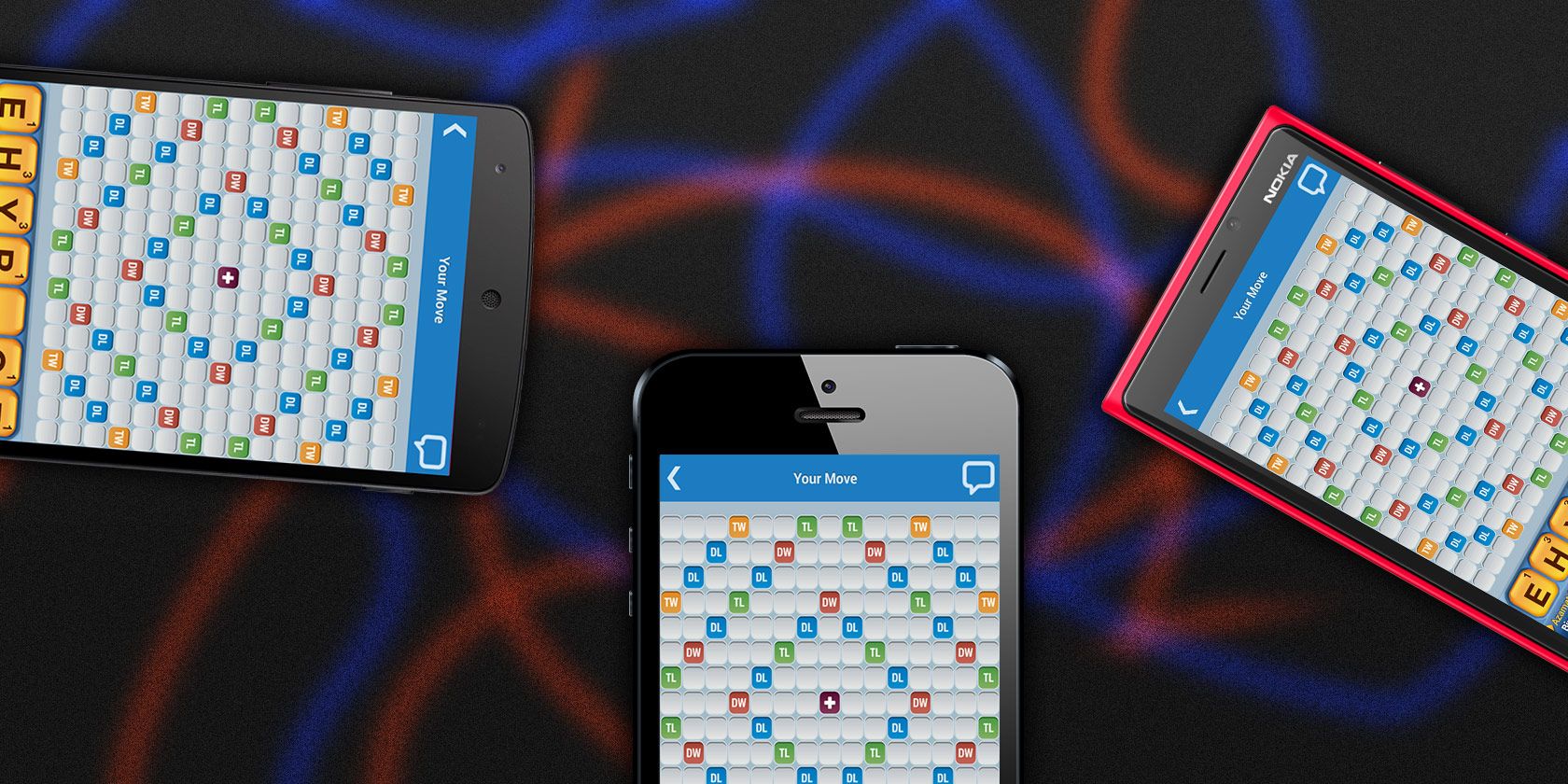
Of course, there’s the regular Words With Friends experience that you’re used to, where you and a friend or online stranger take turns trying to rack up points on a board by spelling out words Scrabble-style.
However, while Words With Friends 2 keeps everything you loved about the first version, it adds a few new modes for a different sort of challenge.
Lightning Round pits two teams of five against each other to see who can come up with a certain score in the fastest amount of time. Solo Challenge lets you play against challenging bots to win a virtual prize. Finally, Words With Friends Live drops in with HQ Trivia-style questions during your game, every day at a certain time.
Download: Words With Friends 2 for iOS | Android (Free, in-app purchases available)
3. Vainglory
A MOBA (Multiplayer Online Battle Arena) similar to League of Legends, Vainglory lets you team up in 5v5 or 3v3 modes against other players or bots.
Choose from one of over 40 heroes and go head to head against another team to destroy their Vain crystal before they destroy yours. Travel through the jungle destroying enemy turrets and minions, using your special powers and working together as a team.
Download: Vainglory for iOS | Android (Free, in-app purchases available)
4. Ticket to Ride
The award-winning board game now fits in your pocket.
Ticket to Ride makes you and your friends railroad barons, competing to be the first ones to link up the country by train. The graphics stay true to the original board game, down to the virtual train cards you draw and put in your hand.
You can play in Pass-And-Play mode, which lets you take your turn and pass it to your friends in front of you. You can also play in local, online or solo modes. Each game takes 15-20 minutes to complete, making it perfect for passing the time on a real-life train trip.
Download: Ticket to Ride for iOS | Android ($4.99, in-app purchases available)
5. Minecraft
Originally referred to as the Pocket Edition, the mobile version of the best-selling game is almost identical to the PC version. The only major differences being that you can’t connect third-party mods or use third-party servers. Also, typically, any update that comes out for Minecraft won’t come out for the mobile versions until later date.
That being said, the mobile version is a wonderful way to experience Minecraft on the go.
Playing Minecraft alone, however, is no fun. No matter the platform, Minecraft was made for socializing, and its cross-compatibility lets you play with your friends.
Download: Minecraft for iOS | Android ($6.99, in-app purchases available)
6. Hearthstone
Real-life trading card games are fun, but online trading card games let you do things like summon demons and blow up your booster packs.
Hearthstone, developed by Blizzard and set in the world of Warcraft, is a strategy game that lets you collect cards, build decks, and duel your friends. It’s free to play, but you can always buy new card parks to give yourself that extra edge.
With periodic expansions, tournaments and challenges, there’s always a reason to get back into Hearthstone. Play your friends in the Arena or battle strangers to increase your Rank.
Download: Hearthstone for iOS | Android (Free, in-app purchases available)
7. Pokémon Go
When it debuted, Pokémon Go smashed the glass ceiling for AR (Augmented Reality) gaming, bringing pocket monsters into the real world. You and your friends can take your phones, no matter the platform, and go out into the world and explore.
Download: Pokémon Go for iOS | Android (Free, in-app purchases available)
8. Fortnite
The world’s most popular battle royale game is available on pretty much any platform you can think of, including iOS and Android. While playing on your smartphone might not sound great, Fortnite on mobile is well worth playing.
First of all, unlike PlayStation 4, XBox One or Nintendo Switch, whose online platforms require a subscription, playing Fortnite on your phone is free.
Secondly, the mobile version has some features that make moving around a little easier. You can automatically pick up whatever you walk over and open doors that are in front of you.
And finally, now that you can play anywhere, you can dab on the bus.
Download: Fortnite for iOS | Android (Free, in-app purchases available)
9. Super Stickman Golf 3
Get in a quick nine holes before lunch with this simple-but-fun golfing game.
While Single Player mode is fun on its own, Stickman Golf offers two different multiplayer modes. You can either compete to see how fast you can play each hole in Race Mode, or take turns in the Turn Based mode. Also, you can play locally or online.
Download: Super Stickman Golf 3 for iOS | Android (Free, in-app purchases available)
10. Letterpress
Letterpress is similar to Words With Friends, but with a much simpler premise and a beautiful aesthetic. You play one opponent, and your goal is to cover the entire tile board in your color (which is always blue). On each turn you spell out a word, and every letter you take turns your color. Your opponent can do the same, and can even take tiles back.
You can “protect” tiles by surrounding them with tiles of your color, and you and your opponent go back and forth until one of you has conquered the entire board.
The premise is simple, but the strategy involved makes Letterpress a fun, challenging game that’s perfect for playing on mobile, whatever your platform.
Download: Letterpress for iOS | Android (Free, in-app purchases available)
Give Yourself the Best Chance of Beating Your Friends
So there we have it, a selection of the best cross-platform multiplayer games to play on your mobile devices. We can’t guarantee you’ll be any good at these games, but we can guarantee you’ll have fun playing them.
Is one of your friends always beating you? Maybe they’re playing on an iPad Pro while you’re stuck using an old Android phone. In which case you should read our guide to the best device for mobile gaming.
The phone rings. You pick it up. It’s Aunty Ethel again. “Just nip around again, young Gavin, the computer is doing that Thing.” Cursing, you look to the sky, wondering if there is an easier way to help. Other than bumping your poor Aunt off. Eureka! You can use a remote desktop connection to fix the computer from the comfort of your own chair.
Remote desktop connections don’t always work how you want. Here are several tips on fixing remote desktop issues so you can continue your role as the family system admin, no matter where you are.
1. You Can’t Connect to the Remote Computer
The inability to connect to the remote computer is a common problem.
First, check your network settings. Do both computers have a network connection? It is always the easiest connection issues that sneak under the radar! If both computers have a network connection, you can move on. The Windows Remote Desktop Connection requires either an IP address or a name for the console you are attempting to view.
Make sure you have the correct IP address for the remote computer. On the remote computer, you can browse to whatismyip and copy down the address. If you are not with the remote computer, you must ask someone at the location to do this for you, then send you the IP address.
Similarly, to find out the computer name of the remote device, head to Start Menu > Control Panel > System, and view the computer name and workgroup.
2. Remote Connections Not Allowed
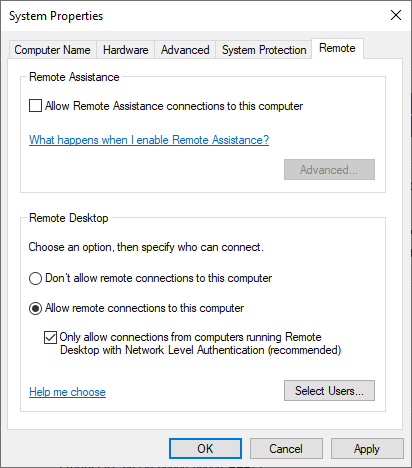
You might find that remote connections are disabled on the terminal you are trying to reach. You can alter this setting on the same System page as above. To the right of the computer name and workgroup, select Change Settings to open the System Properties menu. Select the Remote tab.
Windows 10 offers the same Remote Desktop Connection options as older Windows versions. Under Remote Desktop, there are two options:
Allow remote connections to this computer
Allow connections only from computers running Remote Desktop with Network Level Authentication (recommended)
Once you allow remote connections, you also have the option of only accepting remote connections using Network Level Authentication. Network Level Authentication is “an authentication method that completes user authentication before you establish a full Remote Desktop connection and the logon screen appears.”
It provides an additional layer of security from malicious software and users while using fewer resources in the process.
However, if you struggle to create a remote desktop connection after switching Network Level Authentication on, try turning it off.
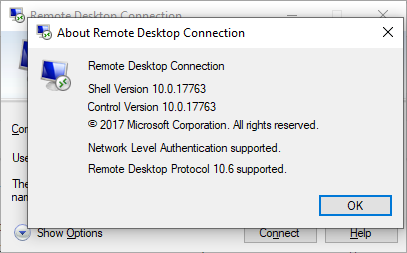
You can check if your version of Remote Desktop supports Network Level Authentication by clicking the top-left of the dialog box, as seen below, and select About.
3. Remote Desktop Connection for Windows 10 Home Using RDP Wrapper Library
Windows 10 Home users struggle with Remote Desktop. Why? Because Windows 10 Home doesn’t support incoming connections. At least, not natively. Windows 10 Home users can make an outgoing Remote Desktop connection to a different computer (not running Windows 10 Home!), but not vice versa. Thankfully, there’s a simple, software-based fix that works around the issue: the RDP Wrapper Library.
The RDP Wrapper Library uses the existing Windows Terminal Service and adds new Windows Firewall rules to allow a remote desktop connection. The RDP Wrapper Library also provides an interface to manage remote desktop connections through (as Windows 10 Home doesn’t have an integrated solution.
Here’s how you allow remote desktop connections on Windows 10 Home using RDP Wrapper Library:
Download the RDPWInst.zip file. After downloading, right-click the file and extract the archive to a new folder. For instance, using 7-Zip, I would select 7-Zip > Extract to RDPWrap-v1.6.2.
Open the new folder, then run bat.
After installation, run bat.
Now, run exe to make sure the process is working.
You can use exe to manage advanced configuration settings.
Confused? Check out the following video. It will guide you through the tricky bits of the installation, as well as how to set up your Windows 10 Home RDP Wrapper Library remote connection.
4. You Can’t Copy Text From the Remote Computer
You can use Remote Desktop Connection to copy text from one terminal to your own. If the copy text feature isn’t working, you need to enable the Clipboard redirect function so you can use it on the remote computer.
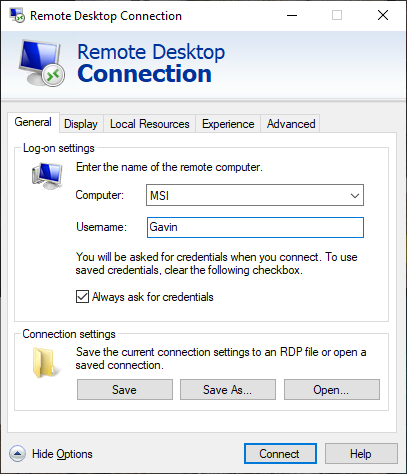
Open the Remote Desktop Connection dialog box by typing “remote” in your Start menu search bar, then selecting the best match. Select Show Options. Head to the Local Resources tab. Under Local devices and resources, put a check in the Clipboard box. The option should be turned on by default.
5. The Remote Window Isn’t the Correct Size
Incorrect window size is another common Remote Desktop Connection issue. When you create the remote desktop connection, the window is too large, too small, or doesn’t correlate to the settings you input.
You have two potential fixes here.
First, you can force the Remote Desktop connection to use a specific size via the Run function. Hit Windows key + R, then input:
mstsc.exe /h:X /w:X
Where “X” is the height and width of the Remote Desktop viewing window you desire. Remote Desktop will remember your settings for future remote viewing settings.
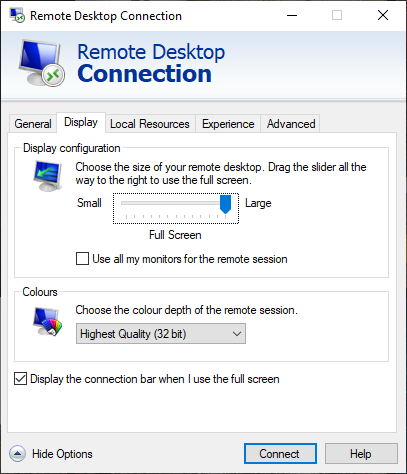
The Remote Desktop Connection client has a handy screen resolution slider that scrolls from 640×480 up to Full Screen for your screen. Make sure to set the slider to Full Screen if you want a full-screen remote connection for each connection.
6. Delete Your Credentials to Reset Remote Desktop Connection Login
At times, Windows Remote Desktop Connection finds your login details confusing. There is also the chance the login details for your system or the remote system are different from your last remote connection. You can remove and replace your existing credentials to try and fix the issue.
In the Remote Desktop Connection client, head to the Advanced tab. Select Settings, then make sure Automatically detect RD Gateway server settings is selected.
7. How to Save Your Remote Desktop Connection Custom Settings
If you regularly connect to several different servers or clients, saving a custom configuration for each Remote Desktop will save time in the future. You can set the optimum width, height, and color settings for each server or terminal.
Open the Remote Desktop Connection dialog, then select Show Options. You will now see the Connection settings options. Select Save As, specify your save location, then select Save to create a custom Remote Desktop Connection file (.RDP).
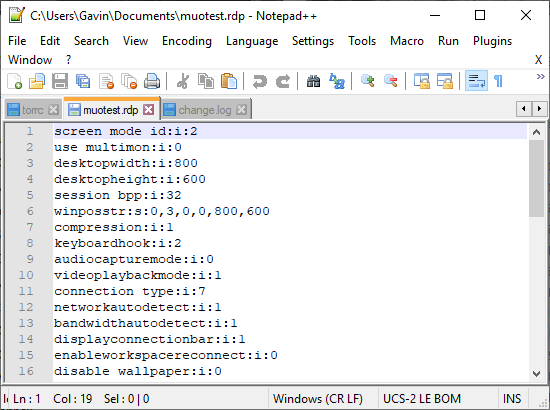
Now, browse to the Remote Desktop Connection configuration file. You can edit the configuration file using a text editor, such as Notepad or Notepad++. Right-click the configuration file and select Open with…, then select your text editor.
The first four lines show your remote connection screen size options (plus whether multi-monitor mode is available). You can edit the screen mode to set whether the remote window session appears full screen. For instance, “id:i:2” sets full screen, whereas “id:i:1” sets the remote connection to appear in a window.
If you set the screen mode to “2” for full screen, the desktopwidth and desktopheight automatically match the screen size of the host client. However, if you are using screen mode “1,” you can use the desktopwidth and desktopheight settings to set a specific window size.
After you confirm your settings, add the following string to the end of the file:
smart sizing:i:1
Smart sizing allows you to dynamically alter your screen settings without messing around with configuration files while the Remote Desktop connection is active. However, you must add the string for each custom configuration you create.
You can boost your Remote Desktop Connection productivity using a handful of keyboard shortcuts. These shortcuts are designed to work when you access Remote Desktop using the Run dialog.
Start Remote Desktop in full-screen mode: mstsc /f
Start Remote Desktop in Admin Mode: mstsc /admin
Matches your Remote Desktop session with the local virtual desktop: mstsc /span
Matches your Remote Desktop session to the Client Layout: mstsc /multimon
Open the .RDP file for editing—change “connection file” to your file name before running the command: mstsc /edit “connection file”
You can use the following Remote Desktop shortcuts once your Remote Desktop connection is live:
Switches your Remote Desktop client between full-screen and windowed mode: Ctrl + Alt + Pause
Force the Remote Desktop into full-screen mode: Ctrl + Alt + Break
Takes a screenshot of the active Remote Desktop window: Ctrl + Alt + Minus
Takes a screenshot of the entire Remote Desktop: Ctrl + Alt + Plus
Reboots the remote computer: Ctrl + Alt + End
Resolving Remote Desktop Connection Issues for Windows 10
You can now connect to dear Aunty Ethel’s computer from the comfort of your own home. You are saving yourself time and effort, while hopefully lining you up for another sensational hand-knitted jumper.