Thursday, 17 May 2018

5 Free Security Tools You Likely Haven’t Heard Of (But Should Install)
You probably know that your online security is important. But are you using the right tools? Various online attacks target computers every minute of the day, and while standard antivirus tools are good, they’re not designed to cover every base.
The following free security tools will help you to improve your system and network security. You’ve probably never heard of them, but they’re vital to your ongoing online security.
Why Haven’t I Heard of These Tools?
You’re probably thinking, “I have an online security suite installed already, why do I need these tools?”
The answer is simple: online security suites can’t look after every single element of your computer’s security. Sure, they can deal with viruses, malware, firewalls, sometimes even ransomware, but overall, these tools are jacks of all trades, and master of none.
Whether you use an all-encompassing online security suite or nothing at all, it’s worth installing these tools and seeing how they can help you:
- InSpectre: Checks your PC for the Spectre bug.
- Angry IP Scanner: Checks your network for unauthorized access and bandwidth hogs.
- Cybereason RansomFree: Scans your PC for ransomware activity.
- Disconnect: Monitors incoming connections to your browser.
- Malwarebytes Anti-Rootkit: Removes dangerous rootkits, and repairs the damage they cause.
Here’s what you need to know about each of these important tools and why you should be using them in addition to whatever security tools you’re already using.
1. InSpectre
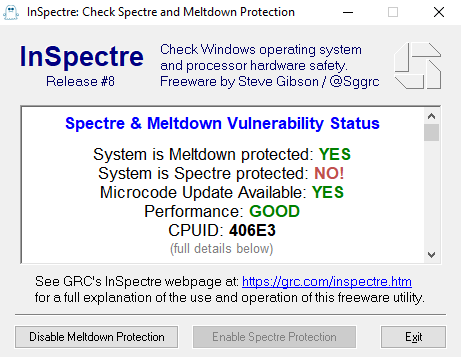
You may have already heard about the Spectre and Meltdown bugs, which are CPU-level vulnerabilities with exploits that currently remain theoretical. Not many computers are immune to these bugs, and patches and updates for your operating system can only cause things to slow down.
In short, it’s a mess. While Microsoft has released its own tool for checking Spectre/Meltdown vulnerabilities, it’s a bit of a pain to use. That’s where InSpectre comes in, which was “designed to clarify every system’s current situation so that appropriate measures can be taken to update the system’s hardware and software for maximum security and performance.”
InSpectre is simple to use, and will tell you straight away if your CPU is vulnerable to either of the CPU bugs. Additionally, InSpectre informs you if the problem has been patched, or if an update is available. You can even disable protection, although that would seem to be unwise unless your system is suffering from particular performance issues. If disabling helps, it’s probably time to upgrade your hardware.
Download: InSpectre
2. Angry IP Scanner
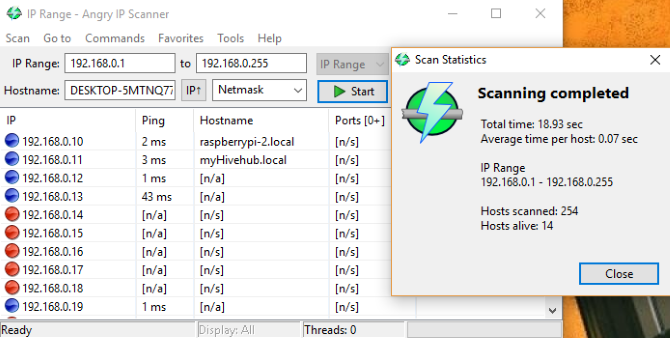
With over 23 million downloads and available for Windows, Mac, and Linux, Angry IP Scanner is a must-have tool if you have a router in your home.
Free and open source, Angry IP Scanner will scan local networks, using an IP range that you specify. IP addresses are then pinged, and data gathered about each responding device. The results of a scan can be output to a text file (as well as XML and CSV), which may prove useful later.
For instance, it will tell you what devices are on your network. If you suspect a neighbor of “wardriving“, you’ll have the evidence. After all, it isn’t too difficult for a neighbor to pop around and sneak a look at your network key…
Note that Angry IP Scanner runs on Java, so make sure your installation of Java is up-to-date if you’re going to run this tool regularly. Java has its own security issues, which only regular updates can deal with.
Download: Angry IP Scanner
3. Cybereason RansomFree
You’ve heard of ransomware, right? It’s a nasty type of malware that locks your system, encrypts your data, and forces you to pay money if you want access to it again. This puts everything on your computer (and perhaps your cloud storage data too) out of your reach. It can be potentially disastrous, particularly for anyone who has important documents or photos on their computer.
In many cases, paying the ransom will actually unlock your data as promised, but scammers don’t always play fair. While some ransomware strains have been defeated with ransomware removal tools, not all of them have—so it’s vital to stay ahead of the game.
RansomFree from Cybereason “protects against 99 percent of ransomware strains,” according to the website. These include Bad Rabbit, NotPetya, and WannaCry. Available for Windows 7 and later, RansomFree creates “canary” files which detect ransomware behavior. These are placed in areas where ransomware usually starts, and blocks ransomware from encrypting your data. Happily, it is designed to work alongside other security software.
Download: RansomFree
4. Disconnect
When you’re browsing the web, it isn’t only the sites you visit that attempt to communicate with your browser. Adverts, analytics, social networks, and more are also tracking you. With the Disconnect browser add-on, you can find out what is tracking you, and act upon it.
By visualizing and blocking sites that track you, Disconnect can make your browser 44 percent faster. More importantly, it can help you become more secure online. While we wouldn’t encourage that you block any adverts, Disconnect can block invisible trackers that aren’t affiliated with ad networks or social networks. These are the ones you need to beware of.
Disconnect features a graphical whitelisting option to ensure the content you want to see can still be downloaded. The same screen lets you block social network, and anonymous trackers.
Download: Disconnect for Chrome | Firefox | Opera | Safari (Free)
5. Malwarebytes Anti-Rootkit
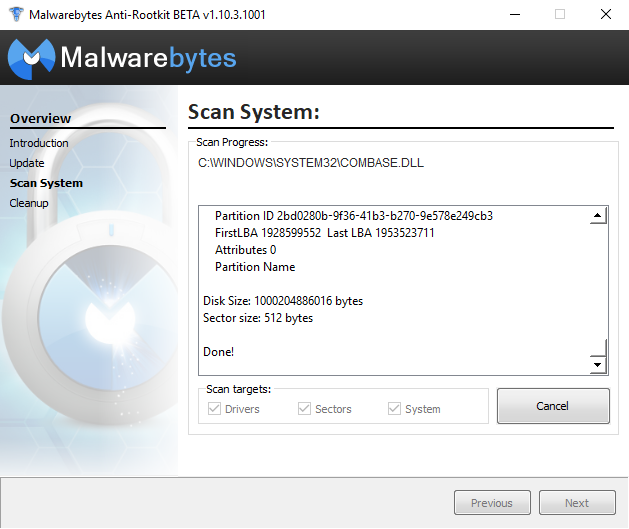
Rootkits can be extremely dangerous: powerful malware that can close antivirus software, give an attacker admin privileges and complete control of your system, rootkits work at the hardware level.
This means that they can take control of your system BIOS, as well as the operating system. Few solutions are available to deal with rootkits, but of those that can help, you should always start with Malwarebytes Anti-Rootkit (MBAR). After installation, MBAR will scan your computer and find threats. The Cleanup button will instruct the tool to deal with any threats, which will take place while the computer reboots.
Currently listed as beta software, Malwarebytes Anti-Rootkit isn’t yet fully supported by the developers. However, if you’re concerned about rootkits, this is the place to start.
Download: Malwarebytes Anti-Rootkit
Now That You Know of These Tools, Use Them!
Are you truly as secure as you think you are? Your home network has vulnerabilities you don’t know about. The Spectre bug could hit your devices unexpectedly. And online activity always comes with a risk of contracting malware. It’s overwhelming!
These tools are free, straightforward to use, and can save you a lot of trouble. Install them alongside an effective VPN (such as ExpressVPN or CyberGhost) and a high-quality security suite (such as Bitdefender Internet Security) to really maximize your online security.
Image Credit: olly18/Depositphotos
from MakeUseOf https://ift.tt/2wP9jN1
via IFTTT
A Quick Guide to the New Reddit Redesign
As regular Reddit users will know by now, there’s a new Reddit design rolling out. And to be honest, this revamp is well overdue. Reddit’s old layout looks more like a website from the late 2000s.
Along with the visual overhaul, Reddit has introduced a range of new features. And new features means learning where everything is and what it does. So, if you’re feeling a bit lost in the new Reddit, don’t worry, as we’re here to help you find your way around the new-look Reddit.
Why Did Reddit Redesign the Site?
For a site that consistently ranks in the web’s Top 10 most-popular domains on Alexa.com and which boasts more than 540 million monthly visitors, Reddit was curiously underdeveloped.
Profile pages were almost non-existent, offensive subreddits were allowed to run amok, and company-level oversight of the message boards was kept to a minimum.
In many ways, the old site had been left behind. Indeed, before this April 2018’s redesign, not much has changed over the past decade. The site was no longer fit for purpose, neither for users (as a social medium) nor the company (as a data-collecting money maker).
The situation was so bad that Reddit’s CEO, Steve Huffman, called the site a “dystopian Craigslist.” Something clearly had to change.
What’s New in the Reddit Redesign?
Before we delve into the changes which affect you personally, let’s quickly summarize what’s changed from a design standpoint.
Underpinning the entire redesign is ease-of-use. For new users, Reddit’s previous interface was a confusing minefield. The complexity prompted us to write an article recommending the best Reddit apps and sites for newbies. The new version of Reddit is much more accessible.
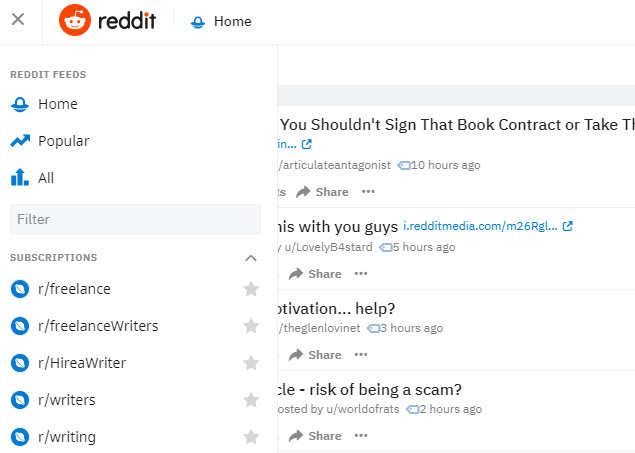
The old navigation bar is gone; the new design replaces it with a smaller menu in the upper left-hand corner. The menu provides links to your feed, subreddits, and user profiles.
You can now choose between three different ways to display posts on-screen: Classic, Cards (Facebook-esque), and Compact.
Reddit also now uses two different fonts for links. These help users to distinguish whether a link is internal or points outside Reddit. Even Snoo—the Reddit mascot—has been overhauled. It’s rendered in 3D and is shown hopping between planets.
Your New Reddit Profile Page
You will find the most significant changes in the Profile section.
In the old design, user profiles felt like an afterthought. They weren’t customizable and offered barely any information about the people behind them.
Not anymore. User profiles have been transformed into an important part of the Reddit experience. One can assume their importance will continue to grow as Reddit continues to transform into a more “typical” social network.
Navigating Your Profile Page
When you load your Reddit profile for the first time, you’ll see your bio—along with a profile picture and cover image—in the top right-hand corner.
Below the bio box is a More Options link. This is where you set up and customize your profile. More on that shortly.
Further down still you’ll find any Reddit badges you’ve earned.
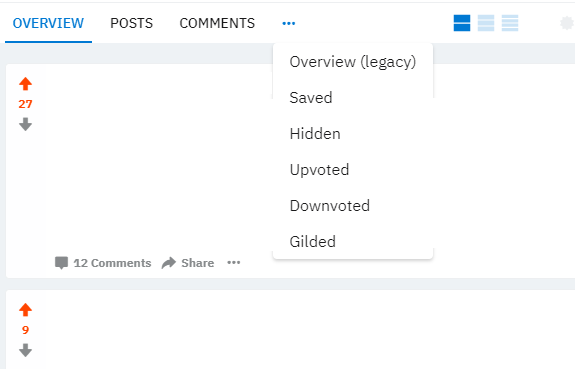
Lastly, at the top of the window are three new tabs: Overview, Posts, and Comments. The other items which used to be along the top of the old profile page (such as Hidden and Gilded) are in the drop-down menu behind the three horizontal dots.
So, given the increased importance of the new Reddit profiles, it’s worth spending a bit of time to set yours up correctly.
Customizing Your New Reddit Profile
Not all users can yet see the More Options link under their bio which allows them to access the new profile features.
If you cannot see it, don’t worry. Just follow this link (replace your username as appropriate): reddit.com/user/[USERNAME]/about/edit. You will have to agree to the terms of the new page before proceeding.
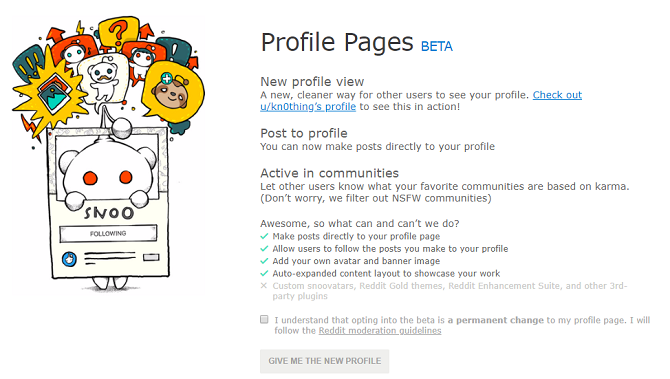
The profile editing page has three links at the top. The first link, Customize Profile, is self-explanatory. You can optionally set a display name that’s different to your username, add your bio, and upload a profile picture and cover image. To finish the setup process, confirm whether your profile is suitable for under-18s.
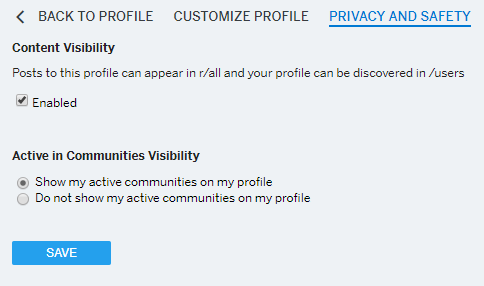
The second tab covers privacy and safety. There are two sections which require your attention. The first is Content Visibility. If you want your profile to show up in r/all and be discoverable in /users, tick the checkbox.
Secondly, you can decide if you want the communities you’re most active in to show up on your profile page.
The final tab is Profile Moderation. It’s part of a new feature which allows people to post directly onto your profile page, much like people can on Facebook. The feature became available in mid-2017, though it’s unclear whether it is yet available to all users.
The tab includes some analytics tools, as well as an auto-moderator, a moderation queue, and various display options. Work through the different options to get your page working precisely the way you want it to.
Note: To post to your own profile, choose My Profile in the Post To section when creating a new submission.
Pinning Posts to Your Reddit Profile
There is one other change which you need to know about: the option to “pin” posts to the top of your profile page.
To pin a post, head to your new profile page and click on the Posts tab. Hover your mouse over the submission you want to showcase, and a pin icon should appear in the upper right-hand corner of the card.
What Didn’t Reddit Changed?
At the time of writing, the Reddit Preferences menu still uses the old design. It’s unlikely to be the case for much longer.
When the Preferences menu does eventually receive an upgrade, will we finally be able to kiss goodbye to the Reddit Enhancement Suite? If we’re really lucky, we might even be treated to a better way to search for old posts.
Will You Keep Using the Old Version of Reddit?
Most Redditors appear to be in favor of the changes. On the post announcing the redesign, many of the top comments were positive. Reddit’s board will be hoping the positive sentiment continues; memories of Digg’s redesign and subsequent decline are still fresh in the minds of many users.
Nonetheless, if you’re one of the people who like the old version of the site, you can continue to access it using old.reddit.com. At least for now. It’s unclear for how long the previous design will remain operational.
And, as a last resort, you could always abandon Reddit completely. There are plenty of awesome Reddit alternatives.
from MakeUseOf https://ift.tt/2k40gys
via IFTTT
How to Use Windows Focus Assist (Formerly Quiet Hours)
There are plenty of new features to experiment with added to Windows 10 as part of the April 2018 update. Some are these features may be simple but have long been missing from Windows 10, like the ability to selectively turn off notifications at specific times. This is a feature that is now available with Focus Assist.
What Is Windows Focus Assist?
Focus Assist is the new name for the Windows feature called Quiet Hours, which gives you the ability to turn off notifications on your computer. Whether you’re giving a presentation or simply need to focus, turning off notifications is essential. But in Windows 10, users could not customize when to turn on Quiet Hours, with the feature defaulting from midnight to 6am.
Now with Focus Assist, Windows 10 users will have much more control over when they can turn off all notifications, and to automate the process if they prefer.
How to Enable Windows Focus Assist
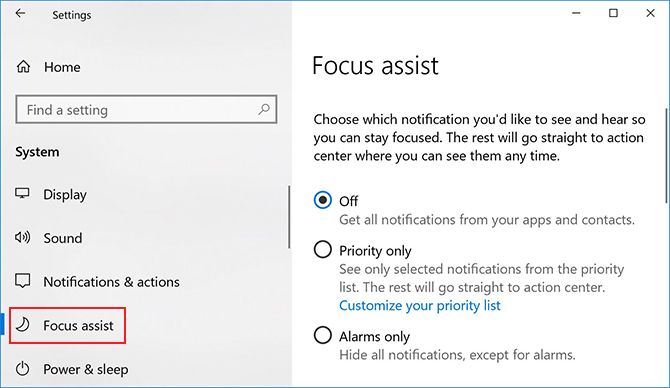
There are two ways you can turn on Focus Assist. The first method:
- Go to Settings > System > Focus Assist.
- Here you can choose from three options to choose from: Off; Priority only, where you can selectively allow certain notifications through; or Alarms Only, where you can hide all notifications except alarms.
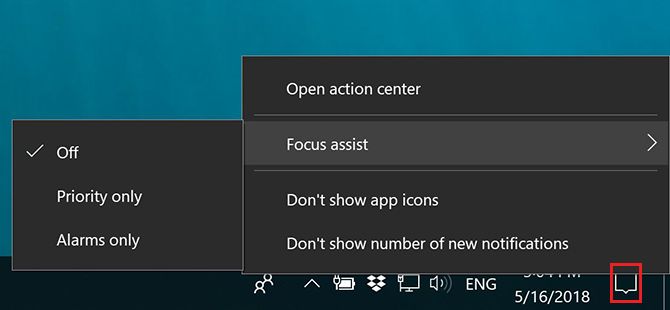
The second way is more accessible, and is a handy way to turn Focus Assist on once you have it set up the way you want:
- Right click the notifications icon in the System Tray.
- Hover over Focus Assist in the menu that pops up.
- You can select from the same three options listed above.
How to Customize Windows Focus Assist
There are two ways you can customize Focus Assist.
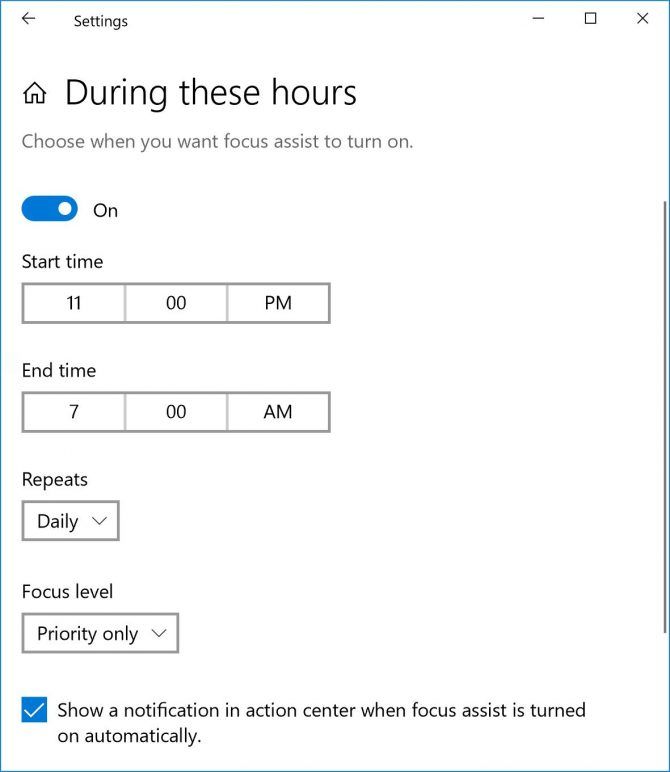
The first is with the automatic rules. You can choose to automatically turn on Focus Assist at certain times of day, to turn it on when you’re playing a DirectX game, when you’re duplicating your display which is particularly useful when giving a presentation, and if you share your home address with Cortana, when you’re at home.
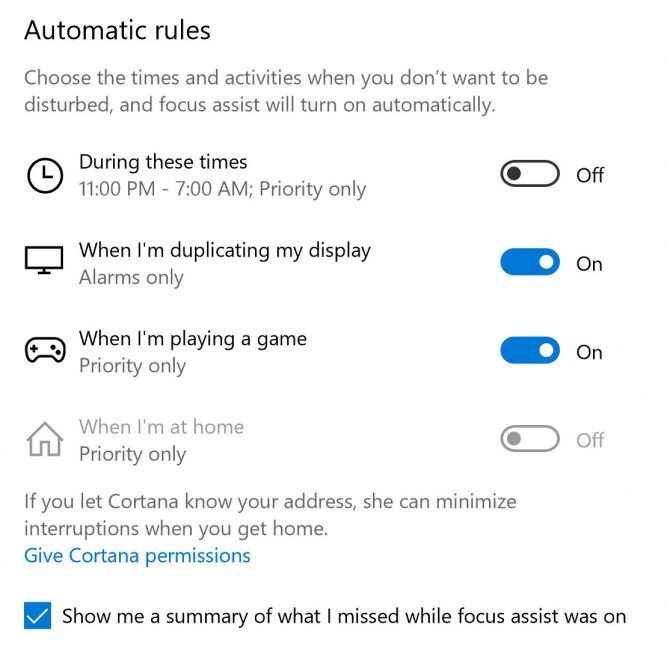
You can set the specific hours for the automatic rules, and set it to repeat daily, on weekends only, or on weekdays only.
The second way you can customize Focus Assist is with your priority list. If you choose to turn Focus Assist on using the Priority Only setting, you can selectively choose which notifications will come through anyway.
Click Customize your priority list and you can make exceptions for notifications for calls, texts, and reminders from certain apps. You’ll need the Cortana app installed on your phone, and this feature is not available for iOS users.
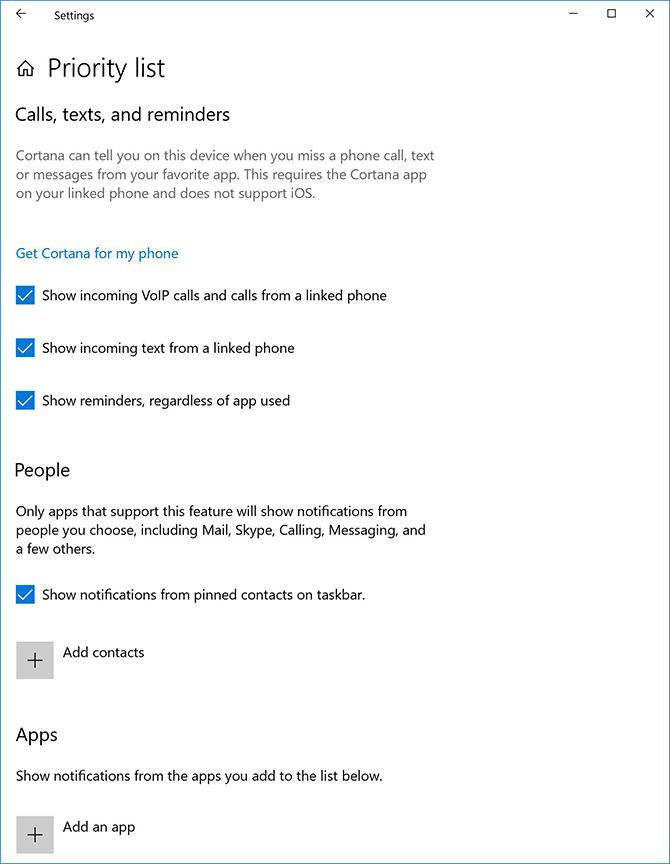
You can add specific people or apps to your exception list.
If you still find yourself getting distracted even with your notifications turned off, you may also want to consider controlling the noise around you with a white noise app, so that absolutely nothing gets through.
from MakeUseOf https://ift.tt/2wJPuqe
via IFTTT