Monday, 3 August 2020

Torrent Defined: What’s a Torrent and How Do You Use It?

whats-torrent

“Torrent” is the byword for downloading pirate content. Despite the fact you can legally download all manner of large files using a torrent, the link to illegal content is very strong.

You’ve probably downloaded something via a torrent at some point. Many internet users have. But do you know what a torrent is? Like, what is a torrent, other than a magic link to a file you want to download?

Let’s look at what torrent files are and how you use them.

What Is a Torrent?

A torrent file is a file that contains the metadata detailing where distributed files and folders are found on the internet. The torrent file usually contains information regarding the list of trackers (basically servers that list where to find files and folders online) the torrent requires to complete the download.

The torrent file does not contain the files you download. It includes the information about those files and acts somewhat like a table of contents for the files you want to download. A torrent file uses a standardized structure:

  • Announce: Includes at least one URL for a tracker.
  • Info File: Varies depending on the number of files being shared. Includes full list of files for sharing when multiple files are included in a single download, including file size in bytes, and the path to the actual file.
  • Length: The size of the file, for a single file.
  • Name: Suggests a file name and file path, for a single file.
  • Piece Length: Indicates the number of bytes per piece. Each file is split into fixed-sized pieces, and the Piece Length shows how many bytes are expected.
  • Pieces: A hash list that links the file pieces together. In the case of multiple files, the pieces list refers to the Info File for the order of files.

Note: MakeUseOf doesn’t condone the illegal use of torrents. Using the following sites for illegal purposes is done entirely at your own risk. We assume no responsibility for any legal issues you may encounter.

What Is BitTorrent?

BitTorrent is another name synonymous with downloading online content. BitTorrent is a peer-to-peer file-sharing protocol, allowing users to share files over the internet through a decentralized system.

You primarily interact with the BitTorrent protocol through a BitTorrent client, such as qBittorrent, the best alternative to uTorrent.

Why Do People Use Torrents?

A torrent file is a core part of a distributed peer-to-peer file network. The torrent files tell the BitTorrent client where to look for the files you want to download from other users connected to the peer-to-peer network.

People use torrents for many reasons, but the crux of the matter is the ease of file sharing between users. Consider a Linux distribution, such as Ubuntu or Debian. These Linux distributions offer a way to download the free operating systems using a torrent to reduce the strain on their servers, reduce hosting costs, and potentially reduce the time it takes to download a specific file.

Despite the legitimate uses for torrents, the technology will never shake the association with the distribution of pirate material.

This leads us to the next question: are torrents legal?

Are Torrents Legal?

Yes! So long as you download legal content, it is perfectly acceptable to use a torrent. However, if you begin downloading illegal content using a torrent, you cross back into the realm of illegality.

Your Internet Service Provider (ISP), copyright holders, and other entities may monitor your internet connection for evidence of torrenting. If you want to keep stop your ISP or anyone else from snooping on your data, you need a VPN.

ExpressVPN is a secure and logless VPN service, who consistently ranks amongst the best VPN services. If you want to protect your privacy, try an ExpressVPN subscription using our link, which gives you a whopping 49% discount.

How Do You Use a Torrent?

The first thing you need is a BitTorrent client. There are many clients available. qBittorent is highly rated and available to all major operating systems. Plus, it is a free and open-source tool, so it is an excellent place to start.

Download: qBittorent for Windows, macOS, and Linux (Free)

After installing qBittorrent, you need a torrent file to test your BitTorrent client. Many Linux operating systems use torrents to distribute files. Head to the Ubuntu download page, and scroll down to the BitTorrent section. Select the latest version of Ubuntu Desktop (20.04 at the time of writing) and wait for the file to download.

When the file finishes downloading, double-click to open. The torrent file will open your BitTorrent client automatically. If you installed qBittorent, it will open and ask you if you wish to make the client your default torrent option. Select Yes if you do, then continue.

BitTorrent Client Tabs

qbittorrent trackers tab

The Ubuntu Desktop torrent file will load in qBittorent and begin downloading automatically. At the bottom of the qBittorent window, you will see tabs labeled General, Trackers, Peers, HTTP Sources, and Content.

Select the Peers tab. Here you can see a list of every user your BitTorrent client is currently connecting to, be that to download the file, upload the file, or the preparation of either of those actions depending on your client settings.

qbittorrent peers tabs

Now, select the Content tab. This tab shows a list of the files you a currently downloading for the torrent file chosen. The Ubuntu Desktop torrent file contains one file, which you can see in the Content tab. If you downloaded a torrent file linking to multiple files or folders, you can manage them from this tab.

qbittorrent content tab

For example, you can uncheck specific files or folders so that they do not download, or specify individual files receive higher priority for download on the network.

Finally, underneath the tabs, you will find two small boxes. One has a green arrow, indicating download speed, and one has an orange arrow, indicating upload speed. If you wish to restrict the download or upload speed of your client, you can change the option here. Remember that these speeds apply to the entirety of your BitTorrent client, not just an individual torrent file.

qbittorrent speed download limit options

If your torrent is stuck, check out the best way to unblock a torrent when it stops working.

You Know All About Torrents

Go forth and torrent safely. Remember, pirating content remains illegal, no matter how you download it. Furthermore, there are many legal uses for torrents and BitTorrent clients.

Read the full article: Torrent Defined: What’s a Torrent and How Do You Use It?


from MakeUseOf https://ift.tt/3hSqiAG
via IFTTT

The Best Music Documentaries to Watch on Netflix

best-music-documentaries

The best music documentaries are wonderful to watch. Not only do they offer a glimpse into the ups and downs of celebrity, but they also let you see the creativity and expression that goes into making music at the highest level.

We’ve rounded up a list of the best music documentaries available to watch on Netflix. Whether it’s Taylor Swift, Oasis, or Bob Dylan, these Netflix music documentaries are all interesting and enjoyable character studies.

1. Miss Americana

Miss Americana explores the life of one of the biggest musicians on the planet: Taylor Swift. Usually cautious when discussing her private life, this documentary delves into Swift’s battles with the media, her body dysmorphia, her mother’s cancer diagnosis, and her political views.

It’s an interesting watch even if you aren’t a fan, though Swifties will especially love the moments of music-making magic in the studio.

If this documentary inspires you, here’s how to make music at home using Audacity.

2. What Happened, Miss Simone?

“Miss Simone, you are idolized, even loved, by millions now. But what happened, Miss Simone?” This quote opens this fantastic documentary about music legend Nina Simone.

The documentary tells her powerful life story; a woman not only known for her songs, but her contributions to civil rights. Combining rare archival footage and interviews, this is a must-see.

3. Gaga: Five Foot Two

At the start of Lady Gaga’s career she adopted an almost mythical status, often making headlines for her eye-catching outfits. This documentary strips that back, covering a year of her life while working on her fifth album, producing a Super Bowl halftime show, and acting on TV.

Gaga is clearly a determined and driven artist and it’s great to get this raw and unfiltered glimpse into her world.

4. Oasis: Supersonic

We all know that brothers Liam and Noel Gallagher are bitter rivals. Oasis: Supersonic touches upon that, but it also looks at the Britpop band’s formation, their wild success, and the electric power of their music. Using a wealth of archival photos and videos set against current interviews, this documentary offers a surprisingly soulful look at Oasis.

5. Homecoming: A Film By Beyoncé

If you want a balanced or candid look at Queen Bey, then Homecoming isn’t the watch for you—the subtitle “a film by BeyoncĂ©” should tell you all you need to know. What it is, however, is a wonderful insight into the production and performance of her stunning 2018 performance at Coachella festival.

Part documentary, part concert film, Homecoming highlights a performer at the very top of her game.

6. Quincy

No-one can accuse Quincy Jones of slacking. Over the course of his life, he’s shaped over 300 albums, won 28 Grammys, and worked with the likes of Michael Jackson and Frank Sinatra. As you might expect, this documentary is packed full of tales from his illustrious career, and is co-directed by his daughter, Rashida Jones.

7. Rolling Thunder Revue: A Bob Dylan Story

Rolling Thunder Revue, named after Bob Dylan’s 1975 tour of the same name, isn’t Martin Scorsese’s first film about the American singer, but it is his weirdest.

Primarily made up of outtakes from Dylan’s own 1978 film, this documentary blends fact and fiction without ever distinguishing the two; some interviews are with real musicians involved in the tour, others are with actors. It’s an interesting and amusingly meta film.

8. 20 Feet from Stardom

20 Feet from Stardom moves the light away from the lead singer and highlights those supporting singers who often receive no public acknowledgment or recognition, despite being an important part of the overall performance. Some backup singers want more; others are happy with their role. This is an enjoyable, feelgood, and heartfelt documentary.

9. Amy

Amy Winehouse was a huge talent. With her distinctive voice and appearance, the sky was her limit. Until she sadly died at the age of 27 after succumbing to her addictions.

This documentary uses home footage to show Winehouse’s whirlwind life and career. It delves into her family and fame troubles, but most importantly shows what an outstanding musician she was.

10. Fyre: The Greatest Party That Never Happened

Fyre Festival was meant to be the greatest festival of all time. Located in the Bahamas and promoted online by influencers like Kendall Jenner and Bella Hadid, tickets cost up to $1500 each. Except the entire thing turned out to be a fraud, leaving hundreds of people stranded.

This documentary captures the entire bizarre story, which is so nuts that it has to be seen to be believed.

11. Rapture

Whether you listen to hip-hop or not, the genre has had a massive influence on every corner of popular culture. This documentary series studies a different artist each episode, like 2 Chainz, Nas, and G-Eazy, as they share their life stories and talk about their upbringing, inspirations, and art.

To broaden your musical horizons, check out these websites to discover new music genres.

12. Miles Davis: Birth of the Cool

Miles Davis is known as one of the most important jazz trumpeters of all time. He played by his own rules, constantly innovating and switching his style. Davis is smooth, cool, but most of all human—which means he could be complicated and difficult. This documentary explores all sides of him through uncovered archival footage and modern interviews.

13. Rush: Beyond the Lighted Stage

Rush was a multi-award winning Canadian rock band and this 2010 documentary details its origins and changing sound. Lots of celebrities pop up to profess their love for the band, but it’s really the interviews with the members of Rush themselves that make this interesting, as they reflect on their time making music together.

14. Keith Richards: Under the Influence

After Keith Richards released his album Main Offender in 1992, it took him until 2015 to follow up with Crosseyed Heart. In this documentary we get a glorious look at Richards as he creates this album, while at the same time reflecting on his life and everything that led him to where he is now. Fans of the Rolling Stones will especially enjoy this for obvious reasons.

How to Watch More Documentaries for Free

No matter what genre of music you enjoy listening to, each of these Netflix music documentaries offers something different. And who knows, you may end up discovering a new favorite singer or band after watching a few.

If you’re in the mood for some more documentaries, here’s a list of the best places to watch free documentaries online.

Read the full article: The Best Music Documentaries to Watch on Netflix


from MakeUseOf https://ift.tt/30jCfJD
via IFTTT

The 5 Best Quiet Bedroom Fans for Sleeping

best-quite-fans

Sleeping in a hot room can be an uncomfortable experience. If you are too hot in bed, that disturbs your sleep and makes you tired and grumpy. So, what can you do to remedy a warm bedroom?

Well, you can buy a fan, of course! You really should grab yourself one that works quietly while you sleep, though. Some fans are a bit on the clunky side, so you’ll find the wrong choice frustrates you even more throughout the night.

With that in mind, we want to help you find the best quiet fan for your bedroom.

1. Honeywell HTF210B Quiet Set Personal Table Fan

Honeywell HTF210B QuietSet Personal Table Fan Honeywell HTF210B QuietSet Personal Table Fan Buy Now On Amazon $14.24

If you are short on space, the Honeywell HTF210B QuietSet Personal Table Fan is a great option. It is only small, at 13-inches high. That means it will take up very little space on your nightstand. Not only that but, if you place it next to your bed, it is in a primary location to deliver refreshingly cool air. It is part of Honeywell’s QuietSet range of fans. So, it has plenty of power behind it while staying quiet at night, perfect for drifting off to sleep.

The automatic shut-off timer ensures that the HTF210B doesn’t waste energy. That makes it a reasonably green option, too. The four speeds will also make certain that the fan is delivering enough cool air based on your needs. The fan oscillates, allowing it to cool your bedroom evenly and efficiently. The control panel at the base allows you to tailor the fan’s airflow, keeping your bedroom, and you, cool throughout the night.

2. Dyson Pure Cool

Dyson Pure Cool Dyson Pure Cool Buy Now On Amazon $528.75

We couldn’t have a buying guide for quiet bedroom fans without Dyson making an appearance. The best Dyson fan for cooling your bedroom has to be the Dyson Pure Cool. Given the price, you may be wondering why this fan justifies the investment. For a start, it isn’t just a fan—it is also a HEPA filter and air purifier.

While it is the most expensive fan on our list, the additional features make it a wortwhile addition to your home. For instance, the fan even connects to an app to deliver data on how pure the air in your home is. The Pure Cool is a bladeless design, meaning that all the air is directed from the unit’s base and out through a small slit in the loop at the top.

This distributes the air around the room, ensuring that the whole space is cool and comfortable. The fan even detects changes in air quality and will customize its performance based on the data it receives. With 350 degrees of oscillation, the fan makes keeping your bedroom cool a breeze.

3. Honeywell DreamWeaver Sleep Fan

Honeywell DreamWeaver Sleep Fan Honeywell DreamWeaver Sleep Fan Buy Now On Amazon $53.99

The Honeywell DreamWeaver Sleep Fan is another great, multi-function device. Not only is it a quiet fan for your bedroom, it is an excellent cool sleep aid, too. Aside from emitting cold air, it also emits pink noise. To briefly explain, that means it generates an audible tone similar to static on an old-style TV set. It plays at a continuous pitch and volume, canceling out any other sound that might distract you from sleeping.

The unit is cylindrical, with a pivoting fan that oscillates around the base. There are three cooling speeds to enjoy, and the fan even has dimmable lights to help you go to sleep. You control the fan using the capacitive control panel up top. This allows you to customize airflow, set the timer, and change the light intensity. You can further reduce or increase airflow with the handy sliding shutter at the front. It even has a USB socket so you can charge a device with it!

4. Rowenta VU5670 Turbo Silence Extreme

Rowenta VU5670 Turbo Silence Extreme Rowenta VU5670 Turbo Silence Extreme Buy Now On Amazon $125.99

The Rowenta VU5670 Turbo Silence Extreme fan follows a more familiar form factor. The blades are at the top of the unit in a metal cage. In turn, this sits on an extendable arm, which is attached to a base unit to keep the fan steady. According to the company, the fan operates at a quiet 35dB. For comparison, 20dB is comparable to the sound of rustling leaves.

As a result, this really is a quiet fan for the bedroom, or anywhere in the home for that matter! The extendable arm also houses a remote control. Using this, you can change the speed of the fan, access controls for the silent mode, and set the timer so the fan will turn itself off when you’re fast asleep.

You can pop the remote control back into the housing once you’ve used it, which keeps it securely located. As this is an adjustable floor-standing fan, you should have no problem directing the airflow across your entire bed, if you need to.

5. Ocean Loong AB09 Bladeless Heater Fan

Ocean Loong AB09 Bladeless Heater Fan Ocean Loong AB09 Bladeless Heater Fan Buy Now On Amazon $209.00

What do you do if you don’t just want a fan that blows cold air? A fan that heats you in the winter can also be a good option. Luckily, the Ocean Loong AB09 Bladeless Heater Fan does exactly that. It has ten speeds in Cool Mode. Consequently, it is one of the most customizable fans on our list.

If you need a blast of hot air when it is a cold day, then the three heat settings will see to that. As the name suggests, this is a bladeless fan, representing safety and modernity in equal part, as well as a nod to Dyson’s market-leading design.

The fan has a sleep mode with a timer, which makes it environmentally friendly as well. The 120-degree oscillation means it can cover a greater area, whether it is heating or cooling the room. There is even tip-over protection, so you can have peace of mind that it won’t damage anything and will stay operational if it falls.

The Best Quiet Bedroom Fans for Sleeping

These are definitely some of the best bedroom fans for sleeping. Especially so, given that several of them also have additional features. The pink noise element to the Honeywell DreamWeaver is a really cool extra to have, as is the heating feature that the Ocean Loong AB09 boasts.

Whatever your needs, there are some excellent fans on the market. If you would like to aid your sleep even further, check out the best gadgets for relaxation.

Read the full article: The 5 Best Quiet Bedroom Fans for Sleeping


from MakeUseOf https://ift.tt/3gi9QJw
via IFTTT

Saturday, 1 August 2020

Fix the “Your PC Ran Into a Problem and Needs to Restart” Error

Has your Windows computer suddenly crashed, stopped working, or is refusing to boot? If so, you might encounter the “Your PC ran into a problem and needs to restart” error.

This is a common and generic PC error, often referred to as the “blue screen of death”. We’re going to talk you through every step of this error: what it means, how to know what your specific PC problem is, and how to fix that issue.

What Is the “Your PC Ran Into a Problem and Needs to Restart” Error?

your pc ran into a problem and needs to restart error

Above is a picture of the “Your PC ran into a problem and needs to restart” error screen. It’s often called the “blue screen of death” (or BSOD) error—you can figure out why!

This example says, “We’ll restart for you”. The screen might also say “We’re just collecting some error info, and then we’ll restart for you”.

This error screen usually happens when your computer has shut down or restarted unexpectedly, or if something is stopping it booting.

At the top of the screen is a sad face, followed by the problem message. Next, a line reads:

For more information about this issue and possible fixes, visit https://www.windows.com/stopcode

Type this URL into your internet browser and it’ll take you to Microsoft’s support page. Since these errors can occur for a variety of issues, the support on this page is generic rather than specific to your problem. You can also scan the QR code (that’s the section on the bottom left) on your phone to be taken to the same page.

The most pertinent part of this screen is at the bottom where it lists a “Stop code”. In our example, the stop code is “BAD_SYSTEM_CONFIG_INFO”. Yours might be something different. That’s because a stop code is an identifier that helps understand why you received this error in the first place.

You should write down this stop code so that you can refer to it later. If you’re in an organization, take this stop code to your local administrator so they can help diagnose the problem.

If you’re a home user, contact Microsoft support, follow their automated help, then when you get through to an agent you can give them the stop code.

There are hundreds of possible stop code errors. Some other examples are:

  • CRITICAL_PROCESS_DIED
  • SYSTEM_THREAD_EXCEPTION_NOT_HANDLED
  • IRQL_NOT_LESS_OR_EQUAL
  • VIDEO_TDR_TIMEOUT_DETECTED
  • PAGE_FAULT_IN_NONPAGED_AREA
  • SYSTEM_SERVICE_EXCEPTION
  • DPC_WATCHDOG_VIOLATION

How to Fix Specific Stop Code Errors

We have written articles on how to fix specific stop code errors. If you see your error listed below, click it to visit that article. If yours isn’t listed, keep reading for some general troubleshooting advice.

How to Fix a “Your PC Ran Into a Problem and Needs to Restart” Error

As discussed, there are so many reasons why you might see a “Your PC ran into a problem and needs to restart” error, which means it’s not possible to provide the guaranteed solution. However, there are things that are more likely to cause these errors. As such, follow these troubleshooting steps and it might fix the problem.

1. Unplug External Hardware

Have you recently plugged in a new external drive, mouse, keyboard, or similar to your computer? If so, this could be causing the problem.

Unplug everything that you don’t need and see if the problem goes away. If it does, plug one device in, restart, and see if everything remains stable. Repeat this process until you identify the faulty hardware, then contact the manufacturer.

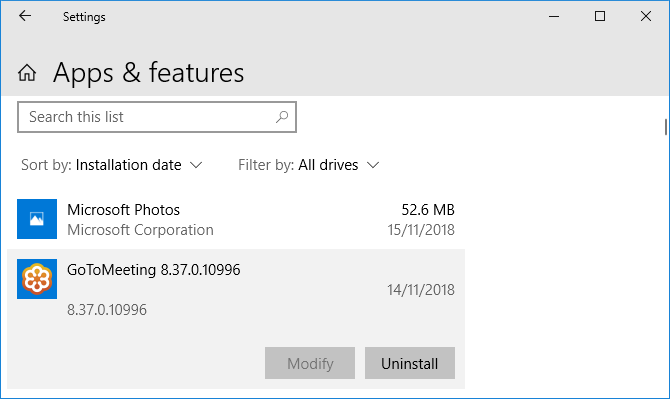
2. Uninstall Recently Added Software

uninstall a program on windows 10

Software that you download and install can cause unexpected problems. If you receive the blue screen error after you have recently installed something, you should remove it. This can often happen with antivirus software.

To uninstall a program, press Windows key + I to open Settings. Click Apps. This brings up a list of all your installed programs. On the Sort by dropdown, click this and change it to Installation date.

Now the most recently installed programs will appear at the top. To remove one, select it from the list and click Uninstall.

3. Rollback Drivers

open the device manager properties

A driver is a piece of software that helps Windows 10 control hardware. For example, your graphics card, printer, and network adapter all use drivers.

Drivers update periodically to ensure compatibility with the latest version of Windows 10. However, sometimes a driver update can break your system. As such, you may need to roll back a driver update—that is, go back to a previous version.

To do this, press Windows key + X and click Device Manager. This tool shows categories like Display adaptors and Monitors, which you can double click to expand and see the devices within.

Right click a device and click Properties > Driver. Look at the Driver Date, as this will tell you when the driver was last updated. If the date coincides with when you started having trouble, click Roll Back Driver (if available) or Uninstall Device (the device will reinstall when you restart).

4. Update Windows 10

Windows 10 May 2019 Windows Update

Windows 10 should keep itself updated automatically, but there might be an update in the download queue that hasn’t processed.

Keeping Windows 10 updated is important because it means you will benefit from the latest features and bug fixes. Your blue screen error might be happening because of software or hardware incompatibility that has been solved in a recent update.

To check, press Windows key + I to open Settings and click Update & Security > Check for updates. If there are any updates, follow any prompts to download and install them immediately.

More Help and Troubleshooting Tips

If the advice above hasn’t helped you get rid of the “Your PC ran into a problem and needs to restart” error, don’t worry. We have a whole other guide packed with more support on how to solve the blue screen of death.

Analyze Your Blue Screen Error With Advanced Tools

Hopefully, this has helped you understand the meaning of the “Your PC ran into a problem and needs to restart” error and guided you towards relevant support.

If you still need help and are an advanced user, you can solve blue screen errors using third-party programs.

Read the full article: Fix the “Your PC Ran Into a Problem and Needs to Restart” Error


from MakeUseOf https://ift.tt/33eGiZx
via IFTTT