Saturday, 1 August 2020

Fix the “Your PC Ran Into a Problem and Needs to Restart” Error

Has your Windows computer suddenly crashed, stopped working, or is refusing to boot? If so, you might encounter the “Your PC ran into a problem and needs to restart” error.

This is a common and generic PC error, often referred to as the “blue screen of death”. We’re going to talk you through every step of this error: what it means, how to know what your specific PC problem is, and how to fix that issue.

What Is the “Your PC Ran Into a Problem and Needs to Restart” Error?

your pc ran into a problem and needs to restart error

Above is a picture of the “Your PC ran into a problem and needs to restart” error screen. It’s often called the “blue screen of death” (or BSOD) error—you can figure out why!

This example says, “We’ll restart for you”. The screen might also say “We’re just collecting some error info, and then we’ll restart for you”.

This error screen usually happens when your computer has shut down or restarted unexpectedly, or if something is stopping it booting.

At the top of the screen is a sad face, followed by the problem message. Next, a line reads:

For more information about this issue and possible fixes, visit https://www.windows.com/stopcode

Type this URL into your internet browser and it’ll take you to Microsoft’s support page. Since these errors can occur for a variety of issues, the support on this page is generic rather than specific to your problem. You can also scan the QR code (that’s the section on the bottom left) on your phone to be taken to the same page.

The most pertinent part of this screen is at the bottom where it lists a “Stop code”. In our example, the stop code is “BAD_SYSTEM_CONFIG_INFO”. Yours might be something different. That’s because a stop code is an identifier that helps understand why you received this error in the first place.

You should write down this stop code so that you can refer to it later. If you’re in an organization, take this stop code to your local administrator so they can help diagnose the problem.

If you’re a home user, contact Microsoft support, follow their automated help, then when you get through to an agent you can give them the stop code.

There are hundreds of possible stop code errors. Some other examples are:

  • CRITICAL_PROCESS_DIED
  • SYSTEM_THREAD_EXCEPTION_NOT_HANDLED
  • IRQL_NOT_LESS_OR_EQUAL
  • VIDEO_TDR_TIMEOUT_DETECTED
  • PAGE_FAULT_IN_NONPAGED_AREA
  • SYSTEM_SERVICE_EXCEPTION
  • DPC_WATCHDOG_VIOLATION

How to Fix Specific Stop Code Errors

We have written articles on how to fix specific stop code errors. If you see your error listed below, click it to visit that article. If yours isn’t listed, keep reading for some general troubleshooting advice.

How to Fix a “Your PC Ran Into a Problem and Needs to Restart” Error

As discussed, there are so many reasons why you might see a “Your PC ran into a problem and needs to restart” error, which means it’s not possible to provide the guaranteed solution. However, there are things that are more likely to cause these errors. As such, follow these troubleshooting steps and it might fix the problem.

1. Unplug External Hardware

Have you recently plugged in a new external drive, mouse, keyboard, or similar to your computer? If so, this could be causing the problem.

Unplug everything that you don’t need and see if the problem goes away. If it does, plug one device in, restart, and see if everything remains stable. Repeat this process until you identify the faulty hardware, then contact the manufacturer.

2. Uninstall Recently Added Software
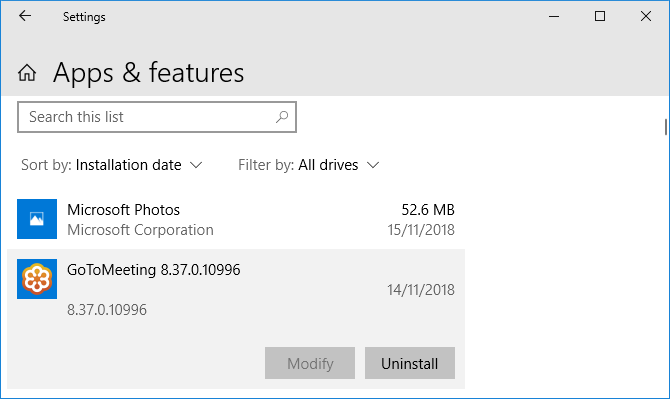
uninstall a program on windows 10

Software that you download and install can cause unexpected problems. If you receive the blue screen error after you have recently installed something, you should remove it. This can often happen with antivirus software.

To uninstall a program, press Windows key + I to open Settings. Click Apps. This brings up a list of all your installed programs. On the Sort by dropdown, click this and change it to Installation date.

Now the most recently installed programs will appear at the top. To remove one, select it from the list and click Uninstall.

3. Rollback Drivers

open the device manager properties

A driver is a piece of software that helps Windows 10 control hardware. For example, your graphics card, printer, and network adapter all use drivers.

Drivers update periodically to ensure compatibility with the latest version of Windows 10. However, sometimes a driver update can break your system. As such, you may need to roll back a driver update—that is, go back to a previous version.

To do this, press Windows key + X and click Device Manager. This tool shows categories like Display adaptors and Monitors, which you can double click to expand and see the devices within.

Right click a device and click Properties > Driver. Look at the Driver Date, as this will tell you when the driver was last updated. If the date coincides with when you started having trouble, click Roll Back Driver (if available) or Uninstall Device (the device will reinstall when you restart).

4. Update Windows 10

Windows 10 May 2019 Windows Update

Windows 10 should keep itself updated automatically, but there might be an update in the download queue that hasn’t processed.

Keeping Windows 10 updated is important because it means you will benefit from the latest features and bug fixes. Your blue screen error might be happening because of software or hardware incompatibility that has been solved in a recent update.

To check, press Windows key + I to open Settings and click Update & Security > Check for updates. If there are any updates, follow any prompts to download and install them immediately.

More Help and Troubleshooting Tips

If the advice above hasn’t helped you get rid of the “Your PC ran into a problem and needs to restart” error, don’t worry. We have a whole other guide packed with more support on how to solve the blue screen of death.

Analyze Your Blue Screen Error With Advanced Tools

Hopefully, this has helped you understand the meaning of the “Your PC ran into a problem and needs to restart” error and guided you towards relevant support.

If you still need help and are an advanced user, you can solve blue screen errors using third-party programs.

Read the full article: Fix the “Your PC Ran Into a Problem and Needs to Restart” Error


from MakeUseOf https://ift.tt/33eGiZx
via IFTTT

The 5 Best Mini PCs for Gaming

You don’t need a massive gaming rig to play the latest video games on ultra-settings. You can purchase a mini gaming PC instead, packed with the same high-spec hardware as a regular gaming desktop.

So, if size is a concern or you demand portability from your gaming PC, you should check out the best mini PCs for gaming.

1. Zotac Magnus Mini Creator

Zotac Magnus Mini Creator Zotac Magnus Mini Creator Buy Now On Amazon $1,899.99

Let’s kick things off with a mini gaming PC powerhouse: the Zotac Magnus Mini Creator. Under the hood, the Zotac Magnus Mini Creator packs a mighty six-core 2.6GHz Intel Core i7-9750H, along with the 8GB GDDR6 Nvidia GeForce RTX 2080. Out of the box, the Mini Creator comes with 8GB RAM, although this is upgradeable up to 32GB DDR4 RAM.

The Intel Core i7-9750H is a power-efficient CPU with a thermal design power rating of 45W. The 9750H also features integrated UHD Graphics 630, which you can use to take the load off of the discreet GPU for further power savings. The Zotac Magnus Mini Creator includes two HDMI ports, one DisplayPort, four USB 3.0 ports, one USB Type-C port, and a handy SD card slot.

This mini PC is ideal for gaming, but it is also well-suited to other creative tasks as well. The high-performance processor allows you to perform intensive functions like photo and video editing, 3D animation, and you can even use it to stream your gaming sessions. That’s not to mention that it’s capable of handling home theater media centers, too.

2. Corsair ONE i164

From one mini PC behemoth to another, the Corsair ONE i164 is another impressive tiny gaming system. The Corsair One i164’s Intel Core i9-9900K is an eight-core 3.6GHz CPU, one of the best consumer CPUs on the market at the time of writing.

Working with the 9900K is an 11GB GDDR6 Nvidia GeForce RTX 2080 Ti, backed up with a whopping 32GB DDR4 RAM. One of the things that sets the Corsair ONE i164 aside from other mini PCs is the integrated liquid cooling system.

Corsair builds the ONE series of mini PCs with high and ultra-level quality gaming leading the design, and it shows. The ONE i164 packs in the external connections too. It features three DisplayPort, one VR-ready HDMI, two USB 2.0, four USB 3.1 Gen 1, and two USB 3.1 Gen 2 (Type-A and Type-C).

While the physical size of this computer is inline with other mini PCs, it uses the more familiar desktop PC format. So, rather than a compact box on your table, you can put the smaller desktop tower instead.

3. MSI Trident X

MSI Trident X MSI Trident X Buy Now On Amazon $2,299.00

As far as aesthetics go, the MSI Trident X is up there with the best looking mini gaming PCs. The Trident X looks similar to a modern gaming console, standing tall on your desktop or next to your TV. Throw in some RGB lighting effects and a nicely crafted case, and you have a visual winner.

But gaming is about what’s on the inside of the case. And in the MSI Trident X setup, you’ll find a top of the line Intel Core i7-10700KF, an eight-core 3.6GHz beast. Working alongside the CPU is an Nvidia GeForce RTX 2070 Super, which comes with 8GB GDDR6 RAM.

Finally, the Trident X has a whopping 32GB DDR4 RAM, future-proofing your mini gaming PC for the medium-to-long term. In terms of connectivity, you’ll find a Thunderbolt 3 port, three DisplayPorts, one HDMI, one USB 3.2 Gen 1 Type-C, three USB 3.2 Gen 1 Type-A, one USB 3.2 Gen 2 Type-A, and three USB 2.0 Type-A ports.

4. HP ProDesk 405

HP ProDesk 405 HP ProDesk 405 Buy Now On Amazon $512.88

The HP ProDesk 405 is an AMD-powered mini gaming PC with a similar style to a set-top cable box. Okay, it is slightly more appealing than your old cable box, but it certainly won’t win any awards, with the black and silver design fitting in with HP’s wider off-the-shelf PC designs.

Powering the ProDesk 405 is an AMD Ryzen 5 2400GE, a quad-core 3.2GHz CPU, which is decent enough. The AMD Ryzen 5 2400GE comes bundled with the AMD Radeon Vega 11 onboard graphics.

Again, the Vega 11 is decent enough but not world-beating, allowing some 1080p gaming at reasonable specs for games that are a few years old. Still, this is one of the more affordable options out there if you’re looking for a space-saving mini PC, but still want to jump into more than a few PC gaming sessions.

5. Intel NUC 8 Hades Canyon

The Intel NUC 8 Hades Canyon is a powerful mini PC for gaming—although you should note that it is not the latest generation of Intel NUC. However, the CPU and GPU combination make the NUC 8 Hades Canyon worth your consideration.

The Intel NUC 8 Hades Canyon uses an Intel Core i7-8809G, a quad-core 3.1GHz CPU, with onboard Intel HD Graphics 630. However, you don’t have to use the onboard graphics for gaming, as the NUC 8 Hades Canyon also packs in an AMD Radeon RX Vega M GH discreet graphics card.

The RX Vega M GH offers similar performance to the Nvidia GeForce 1060, allowing for some decent gaming at 1080p. The NUC 8 Hades Canyon also features one USB 3.1 Gen 2 Type-C, one USB 3.1 Gen 2 Type-A, four USB 3.1 Gen 1 Type-A, two Mini DisplayPort, and two HDMI ports.

Which Are the Best Mini PCs for Gaming?

If you scan through the listings on Amazon, you’ll find a vast number of mini gaming PCs. The prices look brilliant—until you actually consider the specs. Many of these entry-level or barebones systems come with a low to medium tier CPU and do not have a discreet GPU.

You will manage some gaming on a machine like this, but you certainly won’t roam the streets of GTA V’s San Andreas on ultra-settings. The simple fact of the matter is that a powerful mini gaming PC, like those we’ve listed here, will set you back a bit more than the alternatives.

You don’t have to buy an off-the-shelf mini gaming PC. If you want to keep costs down, check out our guide on how to build a small PC with the Mini-ITX form factor.

Read the full article: The 5 Best Mini PCs for Gaming


from MakeUseOf https://ift.tt/33gnVne
via IFTTT

How to Use Apple Find My to Retrieve Your Mac

It’s always scary when an electronic device goes missing. And you might think of this happening most frequently with a mobile device, it can certainly happen with a computer too.

With how compact modern laptops are, a MacBook can easily slide under a couch, bed, pile of laundry, or even into someone else’s bag. Whether hidden in your home or traveling without you, we’ll show you various ways to locate your missing Mac with Find My.

Find My vs. Find My iPhone

Before we begin, you may wonder what the difference is between the Find My app and Find My iPhone.

With the releases of iOS 13, iPadOS, and macOS Catalina, Apple combined the Find My iPhone and Find My Friends apps into a single app called Find My.

The all-encompassing Find My app helps you locate missing devices, along with friends who’ve shared their location with you, and provides you with directions to both. You can also play a sound on the missing device which is helpful if it’s hidden nearby.

Because the official name of the app is Find My, we’ll use that name for this tutorial.

Find My Mac Requirements

In order to find your Mac with the Find My app, the most obvious requirement is that you enabled this feature before your Mac went missing. Assuming you did enable it, you hopefully also turned on the Offline Finding feature, which allows you to locate an Apple device that’s not connected to a network. (We’ll discuss this more later.)

You will also need to sign into the Find My app with the same Apple ID that you use on your missing device. If you use iCloud.com‘s Find My feature, you’ll need to use the same Apple ID there as well.

Use Find My on Another Apple Device

If you own more than one Apple device, have the Find My app installed on another device, and are signed into it with the same Apple ID, this is the simplest way to find your Mac.

On iPhone and iPad

To locate your Mac with iPhone or iPad, follow these steps:

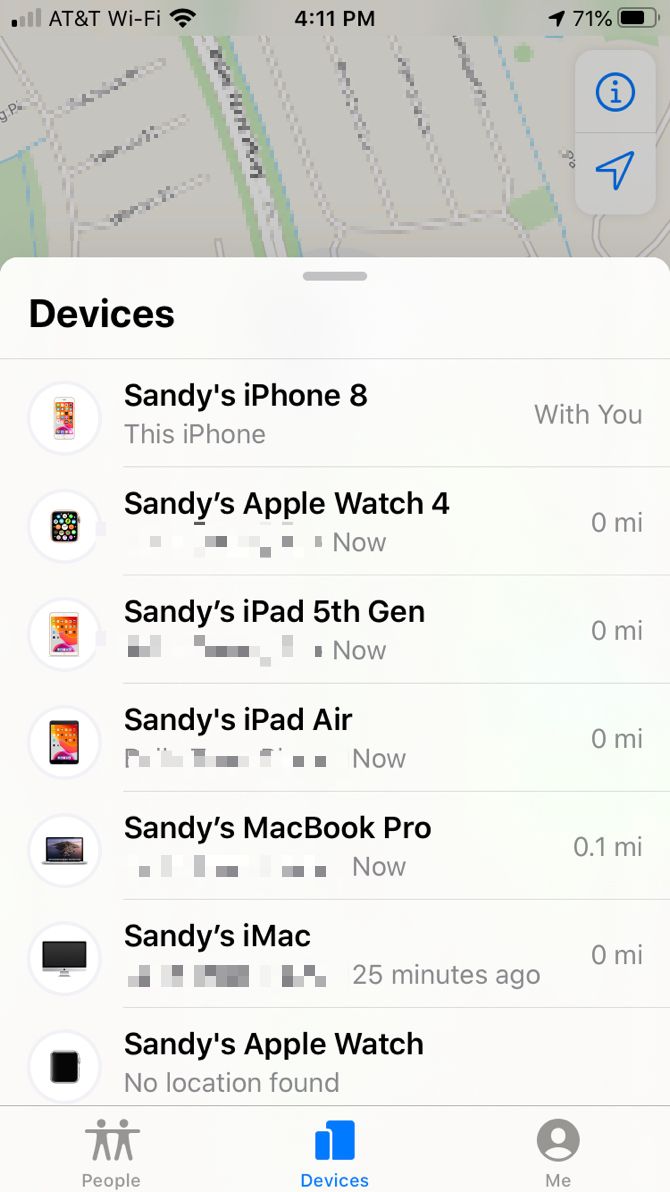
  1. Open Find My on the other device.
  2. Tap Devices at the bottom.
  3. Select your Mac in the list of devices.
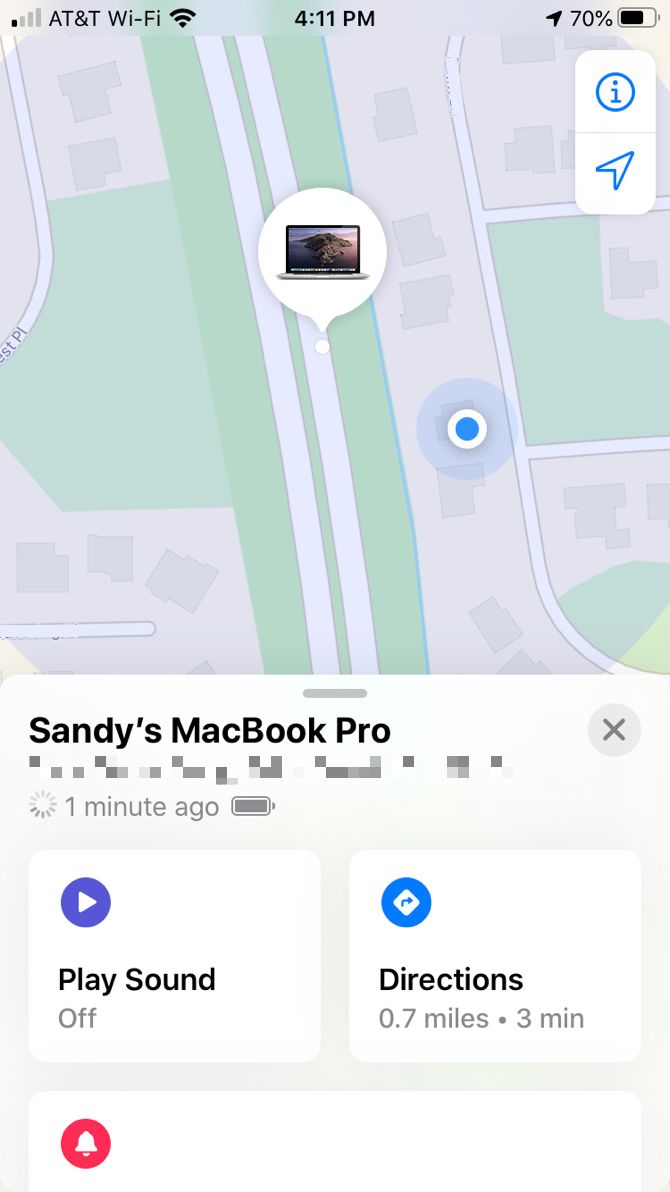
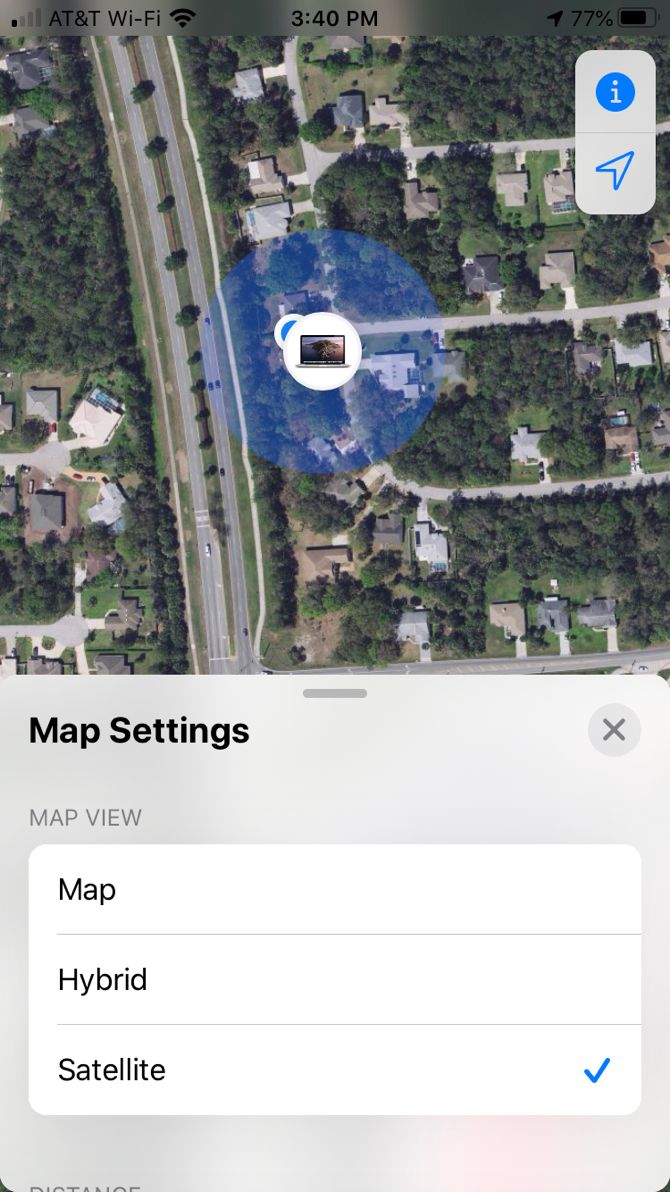
  4. When the Mac icon appears on the map, you can double-tap it or use the pinch gesture to zoom in. You can also switch from Map to Hybrid or Satellite view with the Information icon at the top right.

On iPhone, swipe up from the bottom to view the full list of additional actions. On iPad, you’ll see these actions display automatically when you select a device. You can play a sound, get directions, enable notifications, mark your Mac as lost, or erase the device.

Find My On iPad-Device Actions

You can use the same steps above if a family member is helping you locate your Mac using your Family Sharing group.

On Mac

You can also locate your Mac with another Mac—perhaps someone in your Family Sharing group has a Mac, or you happen to own both a MacBook and an iMac. Just follow these steps:

  1. Open Find My on the Mac you’re using.
  2. At the top of the sidebar, click Devices.
  3. Select your Mac in the list of devices.
  4. When the Mac icon appears on the map, you can double-click it to zoom in or use the plus sign at the bottom-right. You can also switch from Map to Hybrid or Satellite view with the buttons at the bottom.

Find My On Mac-My MacBook

For additional actions, click the Information icon next to your Mac’s name on the map. You can then play a sound on the device, get directions to it, enable a notification for when it’s found, report it as lost, or erase it.

Find My On Mac-Device Actions

Use Find My on iCloud.com

If you don’t own another Apple device or belong to a Family Sharing group, you can use the iCloud website to find your Mac.

Head to iCloud.com using any browser, sign in with the same Apple ID you use on your Mac, and then follow these steps:

  1. On the main iCloud page, select Find iPhone.
  2. Click All Devices at the top and you’ll see your devices in list form.
  3. Select your missing Mac.
  4. When the dot appears on the screen showing your Mac’s location, you can double-click the dot or use the plus sign at the top-left to zoom in.

Find My On iCloudDotCom-MacBook

You will also see options for your Mac to the top-right. You can move your cursor over the battery icon to see its battery level, or click to play a sound, lock, or erase your Mac.

About Offline Finding

If you found your Mac using one of the above methods, but it displays as Offline, No location available, or Location services off, this can happen for a few different reasons.

Find My On iCloudDotCom-Device Offline

  • Your Mac is turned off, it ran out of battery, or it’s been more than 24 hours since you sent its last location to Apple (which you can do in the Find My app).
  • The device you’re using to find your Mac is not currently connected to the internet. In this case, you can simply try again when you’re connected.
  • You’re currently in a country, region, or area where the Find My feature is unavailable.

Regarding your Mac’s last location in the first bullet point, Apple states:

Your device’s last known location is available for one day. If your device is offline or can’t connect to Find My [device] for more than 24 hours, you won’t be able to see the last known location.

If You Cannot Find Your Mac

You might try to use Find My to locate your Mac, but realize it won’t work at all. For instance, it might not even show up in your list of devices.

If so, it’s best to contact Apple Support to report your missing device and get further assistance reporting the incident to the authorities, if necessary.

Find Your Mac

Hopefully, one of the methods above for using the Find My app or tool on iCloud.com will get your Mac back in your hands. And remember to enable the location feature if you purchase additional Apple products for yourself or someone in your Family Sharing group.

For more, have a look at how to turn off the Find My feature if you decide to sell one of your Apple devices.

Read the full article: How to Use Apple Find My to Retrieve Your Mac


from MakeUseOf https://ift.tt/2XhzQx3
via IFTTT

Back Up All Your Devices With Degoo Premium’s 10TB Lifetime Plan

You probably don’t think twice about storing your data on your computer and smartphone. And while it’s convenient to keep personal photos, business invoices, and other files on our devices, there’s always a real risk of losing your data.

If you or someone else accidentally selects a delete option, your device will erase that data from its storage. Many times, this is a permanent action with no option to recover your deleted files.

This is where a cloud backup service like Degoo Premium comes into the picture.

What Is Degoo Premium?

Degoo Premium is a service that helps you back up all your data from your devices to the cloud. This way, a copy of your data is always available outside of the device it’s stored on. In case you ever mess up your device and delete certain files, you can tap one option in this service and it will restore all the data for you.

overview of degoo premium

There are many cloud backup providers which offer various plans. However, none comes close to Degoo’s 10TB plan. This is much more storage than what you get with Dropbox, OneDrive, and Google Drive combined. You can store pretty much everything from all of your devices on this plan, and you’ll still have a lot of free backup space left over.

At MakeUseOf Deals, you can grab the Degoo Premium 10TB lifetime plan for just $99.99. It’s a steal considering the number of features—and most importantly, the amount of backup space you get. And since this plan usually costs $9.99 per month, you’re getting a huge discount.

What Can You Do With Degoo Premium?

Degoo Premium isn’t just a boring backup service where you click and forget. It offers several features that make using this service enjoyable.

With Degoo, you can send your files to your friends and family easily with a link. Simply generate a link from the app, then share it with the people that want to access your files.

degoo premium features

The data that you back up is secured with a 256-bit AES encryption. This means is that even if someone manages to hack into the backup server containing your files, they can’t see the actual data. All that they’ll see is some gibberish text with no meaning.

When you create a backup with this service, it replicates that backup for more safety. Thus, you still have a working version of your file if it gets corrupted while you’re backing it up.

Degoo Premium keeps an eye on your files for any changes. If and when it detects a file change, it makes sure the updated file backs up to your account.

Where Can I Use Degoo Premium?

A great aspect of this service is that it’s available for nearly all your devices. You can use it to back up data on iPhone and iPad, Android phones and tablets, and your computer.

It’s easy to access Degoo on your iPhone, iPad, and Android devices with a dedicated app. When on a computer, you can access the backup service using the web app. Don’t miss the Degoo Premium 1TB deal; start protecting your files today!

Read the full article: Back Up All Your Devices With Degoo Premium’s 10TB Lifetime Plan


from MakeUseOf https://ift.tt/2XhzKpb
via IFTTT

5 Ways to Build Good Habits and Break Bad Habits With Technology 

Change Habits

Self-improvement is a difficult path and you can use all the help you get. These free tools are here to help you break a bad habit or build a good habit, as easily as possible.

Productivity experts have several theories on how we form a habit. Some people believe it takes 21 days doing a task repeatedly, others think it takes 66 days. And there’s the science of willpower, emotions, feedback loops, and other factors involved.

But the bottom line is to stick with it, and that’s what these websites, apps, and online courses will help you do.

1. Habbit (Android, iOS): The Last Habit Tracking App You’ll Need

Habbit is a gorgeous free habit tracking app to build streaks and check on your progress. Unlike many other such apps, this has no hidden costs or in-app purchases, and no ads either. It’s free, it’s fantastic, and it has all the features you want from a tracker.

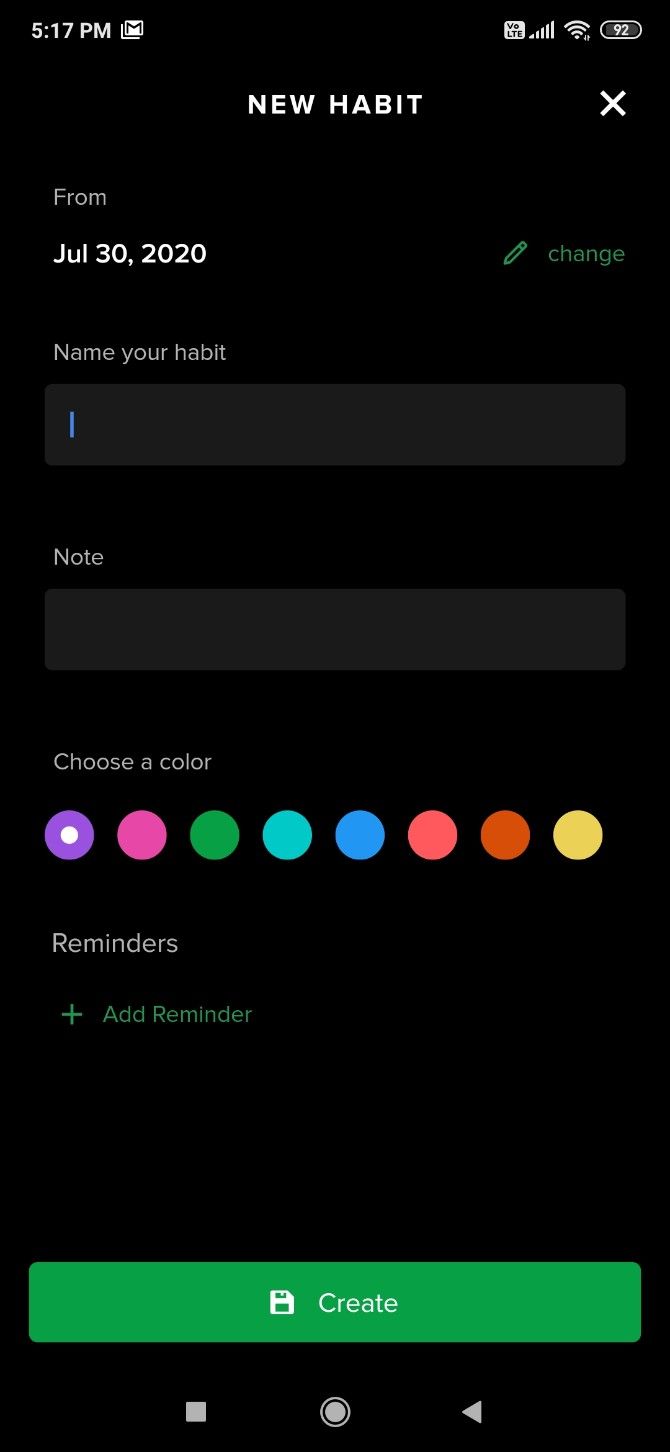
Set up a new habit or task by typing its name, and writing a note with it. Give that habit or habit category its own unique color, and set an optional daily reminder notification. When you complete the task, mark it in the app to continue your streak.

Habbit encourages you to keep the streak alive by giving badges. You can earn eight badges in a 21 day streak, but progress will reset if you miss a single day. You can also share a custom image with friends, updating them about your habit change.

You don’t need to sign up to use Habbit, and it works offline. It’s a simple, minimalist app that does the basics perfectly, without bothering you with unnecessary bells and whistles.

Download: Habbit for Android | iOS (Free)

2. Flock (Email): No App, Track Your Habit by Email

If you don’t want to use an app to track habits, try Flock. This is an email-based app that sends a daily message to check in whether you have done your daily habit task. Tap a button to register your response.

Flock also has a built-in social aspect, letting you share that task with friends. Simple copy-paste the habit challenge link and they too will get a daily email at the end of the day. You can customize the time zone too, to use with friends across the globe. In a simple dashboard, you’ll see how everyone is doing on their weekly progress, and thus know when you need to motivate someone.

Flock has no web interface or app, it’s all on email, which makes it unique in a crowded field of habit-changing or habit-tracking apps. It feels less intrusive and is the perfect nifty tool for someone who wants a simple daily check-in.

3. Cracking the Habit Code (E-course): 3 Week Free Course to Build or Break Habits

Sociologist Christine Carter conducts a free three week course to build or break habits at Cracking the Habit Code

Sociologist Christine Carter is an expert in getting things done and often provides insights into productivity matters. On her website, she is offering a free three-week online course called Cracking the Habit Code.

Over 21 sessions, Carter breaks down how to form a habit, touching upon every topic about it. You’ll learn how to manage willpower and exercise your willpower muscles, how to measure your progress and add rewards, dealing with difficult emotions, and responding to setbacks. Carter also teaches you how to set up your support group or “cabinet” to ensure you stay on track.

The course is completely free if you register for her website. You can download every video and audio file for offline usage, in case you want to listen to it like a podcast series. Carter also provides presentation slides and other materials for free download.

4. Join a Reddit Community (Web): 3 Habit Forming Subreddits for Self Improvement

Find someone to build a new habit with you at r/GetMotivatedBuddies or other subreddits

Forming a new habit requires a combination of motivation, discipline, and support. A few communities on Reddit provide all of these to anyone who wants to make a positive change.

r/GetMotivated and r/GetDisciplined are two subreddits dedicated to self-improvement and helping others achieve their goals. As the names suggest, Get Motivated is a place to share inspiration and motivation to push someone into their betterment habits. At Get Disciplined, Redditors share their tips and tricks to attain self-discipline, which you can then adopt.

Meanwhile, r/GetMotivatedBuddies is a place to find someone who is making the same habit change as you are. Pair up or form a group to tackle those difficult phases of forming a new habit. You’ll find some much-needed support on days when the going gets tough.

Finally, there is r/Habits, a community for building, breaking, or changing habits. It has a wide range of topics to motivate you into stringing together a new habit. And in case you’re struggling with anything, reach out on r/HabitHelp for sound advice.

5. Make It a Habit or Pay the Price (Web): Lose Actual Money If You Break the Streak

Put money on the line if you break your new habit at Make It a Habit or Pay The Price by Andy Dao

Put your money where your mouth is. If you want to change a habit, lay some money on the line to ensure you keep going at it. That’s the premise behind this daily email from Andy Dao, who wants you to build a chain for 66 days, which some researchers say is how long it takes to form a new habit.

When you sign up, you have to talk about your new habit and give your credit card details through Stripe. You can choose how much money you want to put on the line, from $25 to thousands. You aren’t charged at this point, and will only lose the money if you fail to keep the streak alive.

Once you’re done with the setup, Dao will send a new email every day, in which you have to mark that you completed your task. For 66 days, each email contains motivational messages, funny memes, and quotes to drive you to keep the streak going.

Forget Apps, Use a Pen and Paper

Charles Duhigg literally wrote the book on how habits form and how to change them. His book The Power of Habit goes deep into the several factors that go into habitual behavior. But you can get the gist of his lessons in a few free resources he shares on his website. Of particular note are two wonderful flowcharts explaining how to break or create a habit.

They’re part of our piece on free printables and ebooks to track or change habits. Remember, habit is about consistency, so if technology and apps are a stumbling block for you, forget about them. Go old-school with pen and paper.

Read the full article: 5 Ways to Build Good Habits and Break Bad Habits With Technology 


from MakeUseOf https://ift.tt/315yJC0
via IFTTT