Friday, 31 August 2018

Twitter Tests Telling People Who to Unfollow

Twitter is only as good as the people you follow. Which is why so many people struggle to get the most out of Twitter, as they join the site, follow a handful of people, and then get bored. On the other hand, it’s possible to follow too many people.

Following too many people means a timeline filled with uninteresting nonsense. And the need to scroll through tweets you have no interest in to get to the good stuff. Which is why Twitter recently started recommending who you should stop following.

Who to Unfollow on Twitter

This was spotted by several Twitter users, some of whom took screenshots of the recommendations. Twitter has long recommended “Who to Follow” based on who you’re already following, so this would seem to be the natural balancing force.

Matt Navarra was invited to “improve your timeline by reviewing some accounts you may not need to follow”. Clicking “Take a look” then opened up a list of accounts Twitter thought he could live without. Probably due to a lack of engagement.

The wording was different for different people. Tim Fernholz’s was much more to the point, saying, “You don’t need to follow everyone to know what’s happening. Make sure you’re only following the people that make Twitter great for you.”

Twitter issued a statement to Slate saying:

“We know that people want a relevant Twitter timeline. One way to do this is by unfollowing people they don’t engage with regularly. We ran an incredibly limited test to surface accounts that people were not engaging with to check if they’d like to unfollow them.”

So, it was a test, and one limited to a small percentage of Twitter users. Still, Twitter hasn’t yet indicated whether it deemed the test to be a success and whether it’s likely to be rolled out to more users in the future. So this could be the last we see of it.

Twitter Knows Your Tastes

Suggesting people you should unfollow makes a lot of sense. After all, Twitter knows which tweets you’ve read, which links you’ve clicked on, and which profiles you’ve explored. So why not let them help you decide who is surplus to requirement?

Whether you’re new to the site or have been tweeting for years you should probably read our guide to using Twitter. And then take the opportunity to go through the list of people you follow and cull any you no longer have any interest in engaging with.

Image Credit: Bram Koster/Flickr

Read the full article: Twitter Tests Telling People Who to Unfollow


from MakeUseOf https://ift.tt/2BXQx8J
via IFTTT

Tumblr Finally Cracks Down on Hate Speech

tumblr-followers

Tumblr is updating its community guidelines to tackle certain behaviors. The changes mean Tumblr is cracking down on hate speech, violent threats, and non-consensual sexual content. The new guidelines are set to come into effect on September 10.

While many other social networks have been cracking down on hate speech (with the exception of Twitter), Tumblr has remained silent. However, the staff has clearly decided that now is the right time to change its community guidelines to protect its users.

Tumblr Changes its Community Guidelines

In a blog post, Tumblr states it’s changing its community guidelines in order to “keep Tumblr the constructive, empowering place it should be”. Tumblr loves its “diverse, kinetic, passionate communities” but they’re not always easy to police.

Tumblr is acting now as it believe its community guidelines need to “reflect the reality of the internet and social media today and acknowledge that the things people post and share online influence the way others think and behave.”

The Kind of Content Tumblr Is Targeting

First, Tumblr is cracking down on hate speech. This is to ensure against the internet “being exploited by hate groups to organize, recruit, and radicalize with horrifying efficiency.” Specifically, Tumblr is asking users to report hate speech whenever they encounter it.

Next on the agenda is an attempt to ban “the glorification of violence and its perpetrators”. While violent threats against individuals and groups have always been against the rules, Tumblr has added the ban on posts glorifying acts of violence.

Finally, Tumblr is expanding its ban on sexual imagery and sexual harassment. This is specifically targeting deepfakes and creepshots, which Tumblr describes as “new technologies that can be used to humiliate and threaten other people”.

The Hate Speech Versus Free Speech Debate

Tumblr’s new community guidelines will go into effect on September 10, 2018. After which any post breaking the rules will be taken down. Not that we should expect things to be that simple, as there is an ongoing debate about hate speech versus free speech.

Read the full article: Tumblr Finally Cracks Down on Hate Speech


from MakeUseOf https://ift.tt/2om16J0
via IFTTT

What to Watch on Amazon Prime Video in September 2018

prime-video-feb

Every month, Amazon makes a bunch of new TV shows and movies available on its Prime Video subscription streaming service. Join us as we look ahead to some of the best new video content to watch in September 2018.

Note: Prime Video is only one of the many awesome benefits of an Amazon Prime membership!

1. Ghostbusters I and II

It might be a little early for Halloween, but it’s never a bad time to reminisce about 1980s movies.

The 1984 original won more plaudits than the 1989 sequel, but both Ghostbusters films are staple viewing for any cinema fan.

2. Jerry Maguire

Jerry Maguire manages to please both sports fans and romcom lovers with the tale of an NFL agent who has an epiphany about his journey in life.

Tom Cruise plays the lead role.

3. King Lear

King Lear is a 2018 co-production between Amazon and the BBC. It is a modern adaptation of the famous Shakespeare play.

The story takes place in 21st century London and tells the story of the king’s descent into madness.

4. Sleepless in Seattle

Sleepless in Seattle, a romcom which was released in 1993, sees Tom Hanks and Meg Ryan play the lead roles.

The movie was nominated for two Oscars and two BAFTAs.

5. Forever

The latest Amazon Original series is Forever. It joins a long list of highly watchable Amazon Original content.

The series follows the lives of Oscar and June. They lead a typical married life until an innocent ski trip develops into an unexpected situation.

Forever goes live on September 14.

6. There Will Be Blood

2007 drama movie There Will Be Blood won two Oscars—Best Actor and Best Picture—and was nominated for a further six.

Daniel Day-Lewis plays the role of Daniel Plainview, an oilman who is ruthlessly trying to exploit the California oil boom around the turn of the last century.

7. Wishenpoof Season 2

Wishenpoof is an Amazon Original kids’ show about Bianca, a young girl who can make wishes come true.

The first season was a critical success; the much-awaited second season goes live on September 7.

More Movies and TV Shows on Amazon Prime Video

These seven new shows and films are the ones that caught our eye, but there are more than 50 new releases scheduled to become available. The highlights include The Usual Suspects, Darkest Hour, and Watchmen.

And don’t forget all the great content that’s already on the service, including the best movies on Amazon Prime and the best TV shows on Amazon Prime Video.

Read the full article: What to Watch on Amazon Prime Video in September 2018


from MakeUseOf https://ift.tt/2LQBmi6
via IFTTT

What Is the Best Smart TV Operating System?

best-smart-tv-os

There are lots of things you need to know before buying a smart TV. What size do you want? How many HDMI ports do you need? Any extra features that are important to you?

But there’s one question that people often overlook: which operating system should you buy? This article will help you answer that question.

Picking the Right Operating System Is Important

It isn’t 2016 anymore. Back then, we were telling readers why you should avoid buying a smart TV. But in the intervening years, a lot has changed.

It’s now almost impossible to find a new TV that isn’t “smart.” Take a trip to your local electronics store, and you’ll be overwhelmed with promises of streaming, casting, sharing, and all the smart TV buzzwords.

But, not all smart TVs are created equal. Much like the world of desktop operating systems, the various smart TV operating systems have their own strengths and weaknesses. Some have a more extensive choice of apps, some have a better user interface, some are more compatible with third-party devices, and so on.

So, which is the best? In this article we pit Roku TV, Android TV, Fire TV, WebOS, and TizenOS against each other to see which smart TV operating system is best.

1. Roku TV

In 2017, Roku launched a lot of new hardware, but the Roku TV operating system survived the cull.

The OS includes the best parts of the Roku set-top boxes but also throws in some extra features that are unique to the platform.

For example, unlike the other products in the Roku range, you can connect an HDTV antenna to a Roku TV and enjoy a full electronic program guide (EPG) from within the Roku ecosystem.

Roku TV has also benefited from staying well clear of the seemingly never-ending bickering between Amazon, Google, and Apple. As such, you’ll find all the most popular apps from all the providers (unlike Amazon Fire TV, which does not have a YouTube app).

Other features include a universal search function, a customized feed of upcoming shows you’ll be interested in, and a private listening mode.

Many manufacturers offer Roku TV televisions, including TCL, Element, Insignia, Philips, Sharp, RCA, Hitachi, and Hisense.

Of course, like all Roku products, you can also install private channels. They provide access to TV content which isn’t available in the main store. We’ve previously looked at the best private Roku TV channels if you would like to learn more.

2. WebOS

webos screenshot

WebOS is LG’s smart TV operating system. After a curious history, the OS finally emerged as the leading smart TV operating system in 2014 thanks to its slick and easy-to-use interface.

Since 2014, LG has been steadily refining the OS, and it’s now found in everything from fridges to projectors.

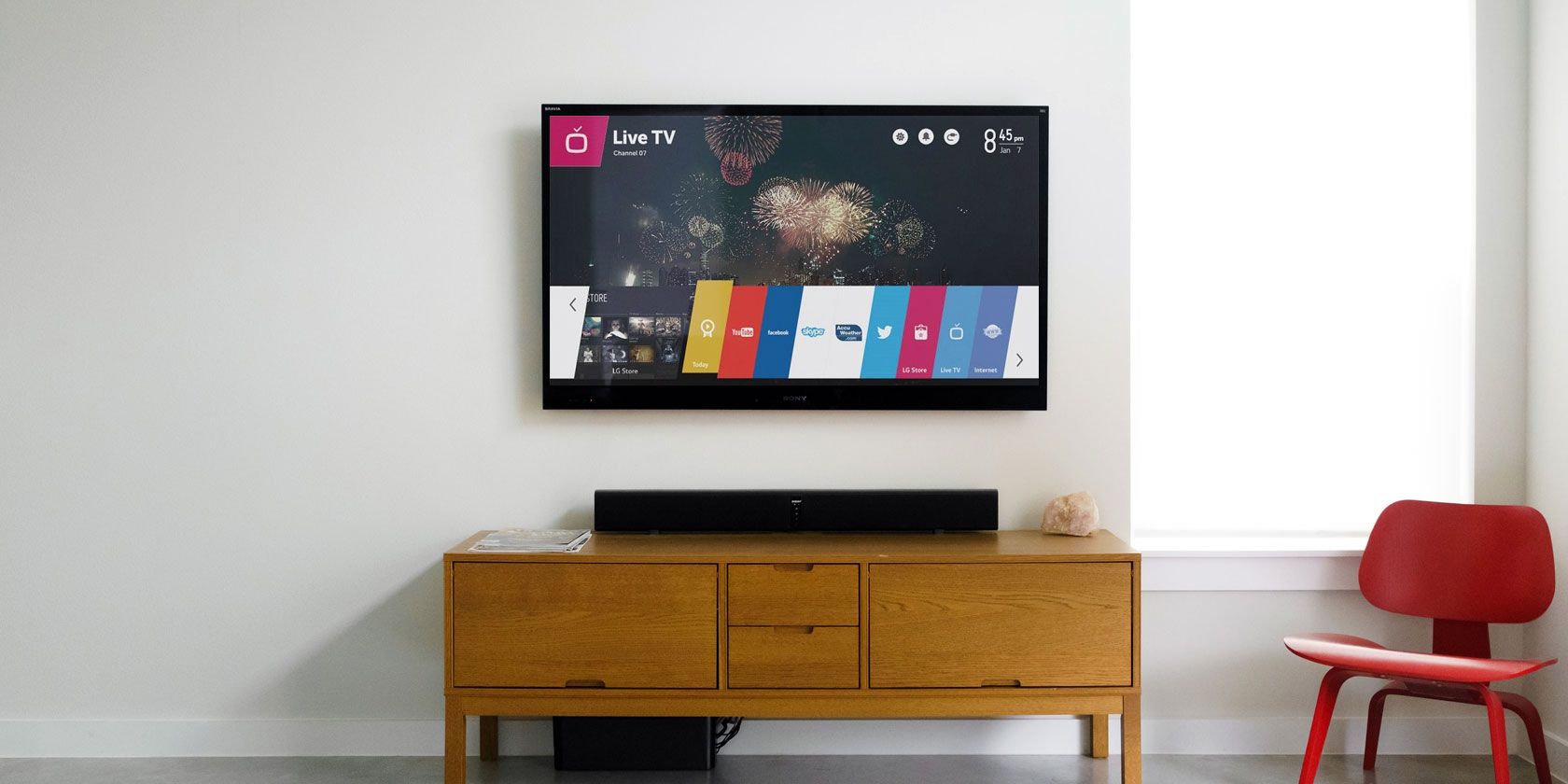
The operating system revolves around the launch bar at the bottom of the screen. On the bar, you will find all your apps and settings. You can customize the order of the bar so the apps you use most frequently show up first.

WebOS is Bluetooth compatible, meaning it’s easy to hook up keyboards, mice, and other useful peripherals. It is also Miracast compatible. (Miracast is a cordless version of HDMI!)

Other noteworthy features include live apps (so you can pause content in one app, start using another app, then return to the first app and pick up where you left off later in the day), 360-degree video playback, and an OLED image gallery.

If you’re looking for crisp and clean, WebOS is the clear winner.

3. Android TV

android tv screenshot

Android TV is probably the most common smart TV operating system. And, if you’ve ever used an Nvidia Shield (one of the best devices for cord cutters), you’ll know that the stock version of Android TV takes some beating in terms of the feature list.

However, with Android being Android, you will not get a consistent user experience across different TV manufacturers. They all feel the need to put their own “twist” on it, usually for the worse. Error messages saying that a part of the OS system has stopped working are not uncommon on non-stock implementations.

On a more positive note, any television running Android TV will also have Chromecast built in. It makes streaming or casting content from your Android phone or tablet a breeze.

You can also cast directly to your TV from your computer as long as you have Chrome installed. Just go to Menu > Cast to begin.

You also be able to use Google Assistant. That means you can use your voice—via your TV—to control all your smart home devices such as lights, speakers, thermostats, electrical sockets, and more.

4. Tizen OS

tizen screenshot

TizenOS is a Linux-based operating system that has been developed by The Linux Foundation.

You will only find TizenOS on Samsung devices. It’s in all of the company’s products, including TVs, cameras, ovens, and air conditioning units.

Of course, TizenOS has a bad reputation following the Samsung TV “spy-gate” in 2015. To be fair, those issues are long in the past. Samsung TVs don’t spy on your any more (at least to our knowledge). However, Tizen still leaves a lot to be desired as a smart TV OS.

Visually, the operating system is fine. It’s clearly taken a lot of design cues from WebOS; there’s a horizontal bar at the bottom of the screen with all your apps and content.

Criticism comes in two forms. Firstly, it’s not as intelligent as some of the other operating systems on this list. For example, while Roku learns what you like and suggests new content from all the apps you have installed on the OS, TizenOS merely suggests apps that you haven’t opened for a while. It’s not inspiring.

Secondly, it faces accusations of being too simplified. Whereas WebOS strikes a perfect balance, tech-savvy users will find the fun settings hidden being endless buttons and submenus.

U.K. users will also bemoan the lack of Freeview Play. It’s a repo of programs from all of Britain’s major OTA TV networks and is available on most of Samsung’s competitors’ TV sets.

5. Fire TV Edition

Fire TV Edition is the new kid on the block. As the name suggests, it’s the smart TV operating system version of the popular Amazon Fire TV devices. At the time of writing, you will only find Fire TV Edition on Toshiba and Element televisions.

Fire TV Edition also gives you access to Amazon Alexa. Like Google Assistant, it can control your smart home, update you on the news and weather, and engage with other apps that form part of your daily workflow.

Content-wise, you’re limited to apps that are available in the Amazon Appstore. Even though Fire TV is based on Android, you cannot access the Google Play Store. Nonetheless, most mainstream apps are available, with the notable exception of YouTube.

However, you can sideload apps onto Fire TV devices, and Fire TV Edition is no different. You just need to get your hands on the APK file for the app you want.

Check out our article looking at the different versions of Fire TV if you’re not sure whether Fire TV Edition is right for you. And if you’ve already bought a new Fire TV Edition, make sure you check out our list of essential Fire TV apps.

And the Winner Is…

We’re going to call it a three-way tie between Android TV, WebOS, and Roku. In truth, each of the smart TV operating systems excels in a different area, but Amazon Fire falls flat due to the lack of YouTube and the Google Play Store, while TizenOS is by far the weakest of the bunch.

If you want slick and minimal, go for WebOS. If you want the largest selection of apps, choose Roku. And if you want smart assistant capabilities, pick Android TV.

If you’d like to learn more about smart televisions, check out our list of smart TV lies you have probably fallen for.

Read the full article: What Is the Best Smart TV Operating System?


from MakeUseOf https://ift.tt/2Ce3awH
via IFTTT

7 Ways to Customize Cortana in Windows 10

new-cortana-commands

Cortana is Microsoft’s virtual assistant that helps you improve your productivity. You can use it for many purposes like searching the internet or your computer, finding answers to questions, setting reminders for yourself, and managing your tasks.

Cortana can organize your life and you can ask it all kinds of things. You can also customize the look and behavior of Cortana. Today, we’ll show you seven ways to do just that.

Edit and Back Up the Windows Registry

For several of these customizations, you must make changes to the registry by adding and changing keys and values in the registry.

You should also back up the registry before making changes to it.

To revert changes you made to the Windows registry, you can reset the registry to the default values.

Restart the Explorer.exe Process

After making the changes to the registry that we talk about here, you must restart Windows Explorer. To do so, press Ctrl + Shift + Esc to open the Task Manager.

If a File Explorer window is currently open, select Windows Explorer under Apps on the Processes tab. If not, scroll to the bottom of the Windows processes list on the Processes tab and select Windows Explorer there.

Then, click Restart.

1. Add or Remove the Submit Button in the Cortana Search Box
Cortana submit button

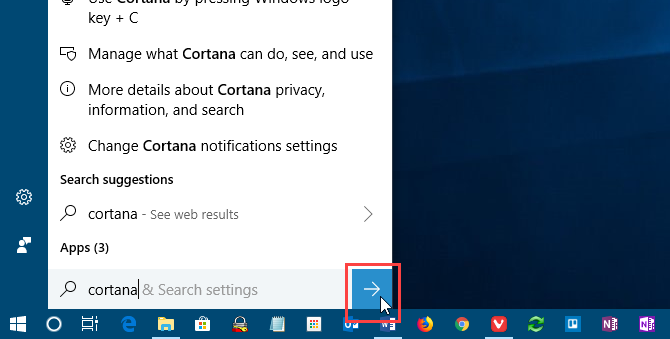
When using Cortana, you can enter your question or search term and press Enter to get results. But if you prefer using the mouse, you can display a Submit button on the right side of the Cortana search box and click that to get results.

Open the Registry Editor, navigate to the following key, and select Flighting.

HKEY_CURRENT_USER\Software\Microsoft\Windows\CurrentVersion\Search\Flighting

On the right, you’ll see two values, Current and RotateFlight. Make sure they are both set to 0 in the Data column.

Next, look for a key named ShowSubmitButtonRightOfSearchBox under the following key in the left pane. If it’s not there, create it.

HKCU\Software\Microsoft\Windows\CurrentVersion\Search\Flighting\0

Then, create a new DWORD (32-bit) Value named Value. Set Value to 1 to add the Submit button to the Cortana search box.

Close the Registry Editor and restart Windows Explorer.

To remove the button, change the Value for the ShowSubmitButtonRightOfSearchBox key to 0.

2. Change or Remove the Cortana Search Box Text
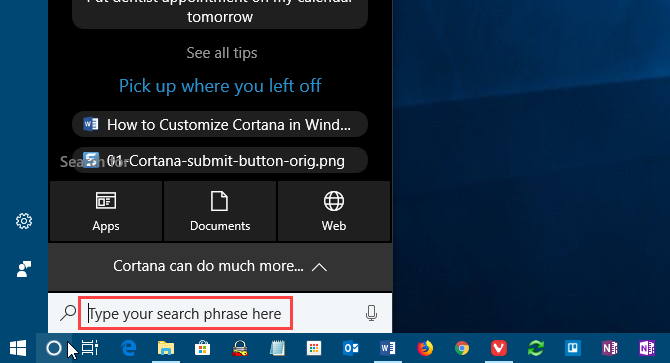
Change the text in the Cortana search box

Cortana shows some default text in the search box. It was “Ask me anything” at one point. Now it’s “Type here to search”. You can change this text or remove it if you’d rather see a blank search box.

Open the Registry Editor, navigate to the following key, and select SearchBoxText.

HKEY_CURRENT_USER\Software\Microsoft\Windows\CurrentVersion\Search\Flighting\0\SearchBoxText

Change the value of the Value key in the right pane to the text you want to see in the search box. To remove the text from the search box, change Value to just a space.

Close the Registry Editor and restart Windows Explorer.

3. Change the Cortana Search Box Background Transparency
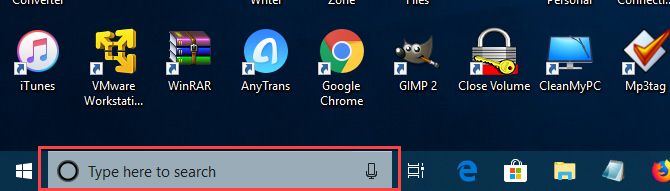
Cortana search box background transparency

By default, the background of the Cortana search box is semi-transparent. You can change this to opaque (white) or fully transparent. When the search box is fully transparent, the color of the Taskbar shows through it.

Open the Registry Editor, navigate to the following keys. If they don’t exist, create the SearchBoxTransparencyBackground key under both the 0 key and the 1 key under the Flighting key.

HKEY_CURRENT_USER\Software\Microsoft\Windows\CurrentVersion\Search\Flighting\0\SearchBoxTransparencyBackground

HKEY_CURRENT_USER\Software\Microsoft\Windows\CurrentVersion\Search\Flighting\1\SearchBoxTransparencyBackground

Then, create a new DWORD (32-bit) Value named Value. Set Value to one of the following values. Make sure you select Decimal as the Base on the Edit DWORD (32-bit) Value dialog box before entering the value.

  • 0 = Transparent
  • 60 = Semi-transparent (default)
  • 100 = Opaque (solid white)

Or enter any other value between 0 and 100 or a custom transparency level.

Close the Registry Editor and restart Windows Explorer.

To return to the default of semi-transparent, change the Value for the SearchBoxTransparencyBackground key to 60 or delete the SearchBoxTransparencyBackground key you added under both the 0 key and the 1 key under the Flighting key.

4. Change the Cortana Search Box Highlight Transparency
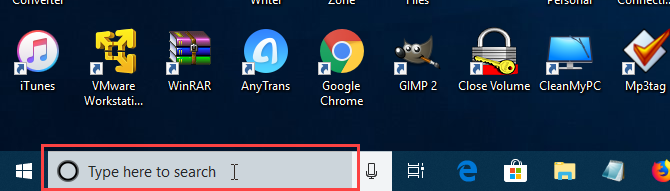
Cortana search box highlight transparency

When you move your mouse over the Cortana search box, a semi-transparent highlight displays on the box. You can change this highlight to be opaque (white) or fully transparent so the color of the Taskbar shows through.

Open the Registry Editor, navigate to the following keys. If they don’t exist, the SearchBoxTransparencyHighlight key under both the 0 key and the 1 key under the Flighting key.

HKEY_CURRENT_USER\Software\Microsoft\Windows\CurrentVersion\Search\Flighting\0\SearchBoxTransparencyHighlight

HKEY_CURRENT_USER\Software\Microsoft\Windows\CurrentVersion\Search\Flighting\1\SearchBoxTransparencyHighlight

Then, create a new DWORD (32-bit) Value named Value. Set Value to one of the following values. Make sure you select Decimal as the Base on the Edit DWORD (32-bit) Value dialog box before entering the value.

  • 0 = Transparent
  • 80 = Semi-transparent (default)
  • 100 = Opaque (solid white)

Or enter any other value between 0 and 100 or a custom transparency level.

Close the Registry Editor and restart Windows Explorer.

To return to the default highlight color of semi-transparent, change the Value for the SearchBoxTransparencyHighlight key to 80 or delete the SearchBoxTransparencyHighlight key you added under both the 0 key and the 1 key under the Flighting key.

5. Change the Cortana Search Box Text Transparency
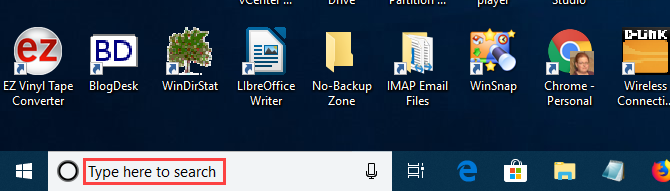
Cortana search box text transparency

The default text in the Cortana search box is semi-transparent. You can change this to opaque (white) or fully transparent. If you make the text fully transparent, it appears hidden.

Open the Registry Editor, navigate to the following keys. If they don’t exist, create the SearchBoxTransparencyForeground key under both the 0 key and the 1 key under the Flighting key.

HKEY_CURRENT_USER\Software\Microsoft\Windows\CurrentVersion\Search\Flighting\0\SearchBoxTransparencyForeground

HKEY_CURRENT_USER\Software\Microsoft\Windows\CurrentVersion\Search\Flighting\1\SearchBoxTransparencyForeground

Then, create a new DWORD (32-bit) Value named Value. Set Value to one of the following values. Make sure you select Decimal as the Base on the Edit DWORD (32-bit) Value dialog box before entering the value.

  • 0 = Transparent
  • 30 = Semi-transparent (default)
  • 100 = Opaque (solid white)

Or enter any other value between 0 and 100 or a custom transparency level.

Close the Registry Editor and restart Windows Explorer.

To return to the default highlight color of semi-transparent, change the Value for the SearchBoxTransparencyForeground key to 30 or delete the SearchBoxTransparencyHighlight key you added under both the 0 key and the 1 key under the Flighting key.

6. Change the Cortana SafeSearch Setting
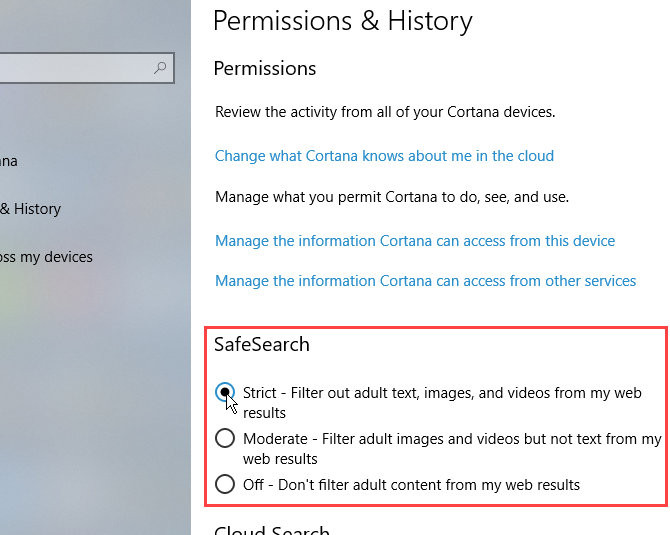
Cortana SafeSearch settings

Search engines like Google, Bing, and Yahoo have settings you can adjust to help keep your kids safe online. Cortana also has a SafeSearch feature.

By default, SafeSearch is set to the Moderate level. To change this setting, open the Start menu and click PC Settings.

Then, click Cortana, or Cortana & Search if you’re running the Windows 10 Insider Preview Build 17623 or later.

In the left pane, click Permissions & History. On the right, select Strict, Moderate, or Off under SafeSearch.

7. Show Cortana Web Search Results in Microsoft Edge or Internet Explorer
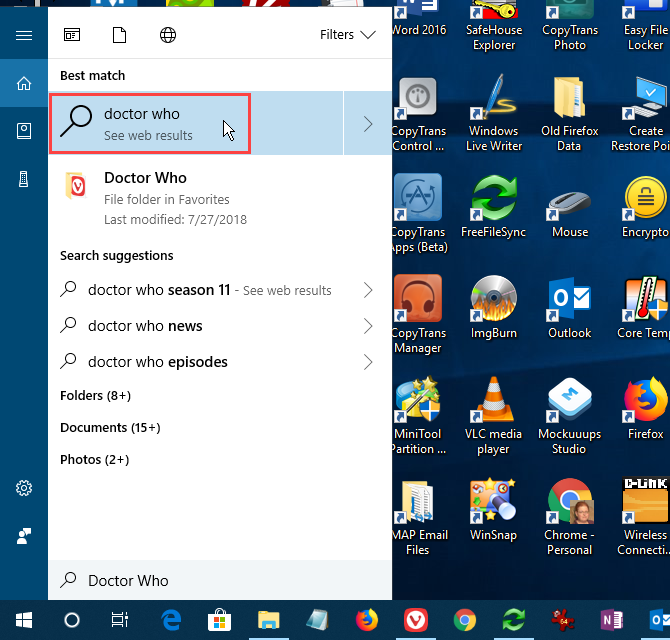
Open Cortana search results in Internet Explorer or Edge

When you do a search in Cortana and click on a web results option, those Bing search results are displayed in Edge by default. If you use a screen reader, you may want to open web search results from Cortana in Internet Explorer instead, where the results are optimized for screen readers.

To have Cortana web search results open in Internet Explorer, open Microsoft Edge.

Then, click the menu button (three horizontal dots) in the upper-right corner of the window and click Settings.

Scroll down to the bottom of the Settings pane and click View advanced settings under Advanced settings.

Click the Optimize taskbar web search results for screen readers slider button to turn it On.

Close Microsoft Edge. The next time you click on web search results in Cortana, they will open using Bing in Internet Explorer.

You can also force Cortana to use Google and Chrome, if you don’t like Bing and Edge or Internet Explorer.

Customize Cortana Further With Settings

Continue to work with Cortana and it will become a part of your workflow. Now that you’ve customized Cortana the way you want, try out some cool Cortana commands, or you can even create your own custom Cortana skills.

Read the full article: 7 Ways to Customize Cortana in Windows 10


from MakeUseOf https://ift.tt/2NxH35p
via IFTTT