Tuesday, 3 July 2018

7 Facebook Search Tips to Find What You’re Looking For

Facebook is about so much more than a news feed full of rubbish memes. And we’re not talking about the dumb features you’re unlikely to use.

The social network is arguably the biggest repository of personal information in existence. But—in typical Facebook fashion—it’s not always easy to sift through and find the information you need at any given moment.

If you’re nodding along, you probably need some help searching Facebook. So, keep reading as we introduce you to the best tips to help you find what you’re looking for.

1. The Basics of Facebook Search

At its most basic level, searching on Facebook works as you’d expect it to. Enter the keyword you’re looking for, and you’ll see a list of results.

The results are automatically categorized by type. The exact order in which they appear will depend on the query you entered.

For example, if I search for Liverpool, I see the local department store near my house at the top of the page. If I search for Cynthia, it will list people called Cynthia, starting with my friends.
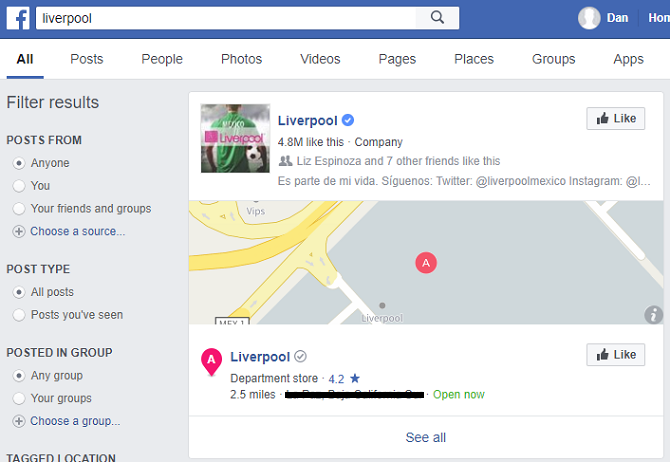
facebook liverpool

Scroll further down, and you’ll see results from public posts, groups, pages, photos, videos, and more.

2. Use the Facebook Search Filters

On the left-hand side of the screen are the filters. You can use these to narrow down your list of results into something more manageable.

You have five filters to choose from:

  1. Posts from: You can see results from yourself, a specific person, or a particular group. You can also click on Choose a source to add a custom field (for example, BBC).
  2. Post type: Two options are available, All posts and Posts you’ve seen.
  3. Posted in group: You can see results from all groups, your own groups, or a specific group of your choosing.
  4. Tagged location: You will see Anywhere, places you’ve listed on your profile, or a custom location.
  5. Date posted: Set the year or a custom date.

OK, that’s the basics out of the way, so let’s look at some other tricks.

3. Find What Your Friends Have Liked

Have you ever been curious about which political parties your friends vote for? Or which sports teams they support?

If they’ve liked the respective page, it’s easy to use Facebook search to find out. And it’s a lot faster than trawling through each person’s profile page individually.

Just type Friends who have liked [subject] and hit Enter. In the picture below, I wanted to find out which of my friends like soccer.

facebook soccer

Facebook is smart enough to lump results from similar categories together. In my soccer example, the results listed hits for both “soccer” and “association football.”

Remember, you’ll only see the top handful of results. Click on See all to view everyone who fits your query.

4. Find Photos and Videos Other People Have Liked

You can easily find photos that have been liked by any person on your friends list or any person who has made their information public (such as celebrities).

Clearly, this feature has massive potential to be used for dubious purposes. For example, your untrusting partner might be checking to see if you’ve been liking other people’s beach snaps, or your employer might want to make sure you’ve not been doing anything disreputable over the weekend.

Which is all the more reason to make sure you understand Facebook’s privacy settings.

On a more positive note, it’s a great way to find pictures from events, parties, and family gatherings that you may have overlooked.

facebook photos messi

To use the query, type Photos liked by [name] and press Enter. You don’t even need to use the person’s name. Queries such as Photos liked by my girlfriend or Photos liked by my brother will work too, as long as you’ve told Facebook about your connection.

This search query also works with Videos liked by [name].

5. Find Photos and Videos of a Place or Event Within a Specific Time Frame

You can also search for photos of events and locations, then narrow your search down to a specific time frame.

A search for Photos of Coldplay in Amsterdam last week might reveal shots from the band’s recent concert in the city. Likewise, Photos of Naples in December would bring up cityscapes from the Italian town in that particular month.

facebook coldplay

6. Find Nearby Places Serving Your Favorite Food

If you ever find yourself feeling a bit hungry in an unfamiliar town, Facebook search can help.

Just search for [Type of food] nearby, and you’ll see a list of all the restaurants and takeaways that match your criteria. If you wish, you can even replace the “nearby” with the name of a city to help you plan your trip in advance.

facebook chinese food

And remember, lots of restaurants have enabled reviews on their Facebook page. As such, you will see a rating (out of five stars) on the results page, and you can click on the page to see what other people have been saying about their experiences there.

6. Find a New Job on Facebook

The internet isn’t exactly short of ways to help you look for a new job. There are LinkedIn groups dedicated to job hunting, lots of professional networking apps, and a near-endless number of third-party tools.

However, Facebook’s job hunting tools are a powerful option that lots of people overlook. You can use Facebook search to find a new job in any location on earth.
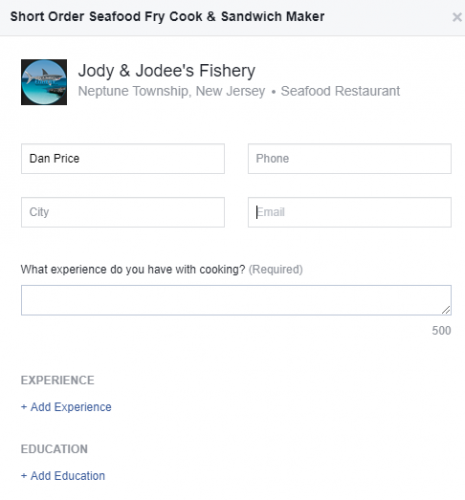
facebook job application

To begin, type Jobs hiring nearby or Jobs hiring in [location] into the search box. For each result, you can click on them to see more details about the role.

You can even apply for the role directly from Facebook. Click on Apply Now and fill in the details requested by your would-be employer.

7. Find Stuff to Buy on Facebook

Facebook might never be able to rival Amazon, but its Marketplace has rapidly become a way for people to buy and sell things. In many ways, it’s easier to locate stuff on Facebook than on eBay. Indeed, it’s possible to find everything from a brand-new iPhone to a second-hand car.

Searching the Marketplace works slightly differently to the process for finding content on the rest of the network. You first need to enter the Marketplace by clicking on the link in the left-hand panel.

When the page has loaded, enter your basic search term and press Enter. You’ll then need to use the filters to narrow down the results. There are category, location, and price filters for you to tweak.

facebook car query

Forget Google, Use Facebook!

Facebook’s search feature is unlikely to ever rival Google’s as the number one way of finding stuff on the web.

However, Google’s search engine cannot access much of the content on Facebook. Lots of users have deindexed their profiles, making it impossible to use Google to find photos and videos that other users have liked on the network. Instead, you need a specialist social media search engine.

So, add Facebook’s search tool to your armory. It’s just one of many search alternatives that can find information that’s beyond Google’s reach.

Image Credit: TarasMalyarevich/Depositphotos

Read the full article: 7 Facebook Search Tips to Find What You’re Looking For


from MakeUseOf https://ift.tt/2lQQwbO
via IFTTT

Monday, 2 July 2018

Don’t Text and Drive! 4 Ways Google Assistant Can Keep You Safe in Cars

Try Newton Mail and Love Email Again

You’d think that as common as email is, it would already be perfected by now. But for most users, email has a lot of pain points.

If you’re searching for a better way to use email on all your devices, Newton Mail may be for you. Let’s see how the team behind it has built a better email client.

Meet Newton Mail

Newton Mail is a modern email client. You can download the app for your devices from Newton’s website, and get started with a free 14-day trial.

Let’s look at some of Newton’s top features to introduce you.

Full Sync and Device Support

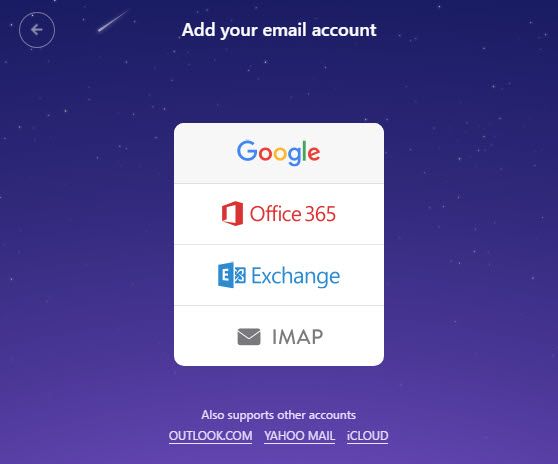
Newton-Email-Account

An email client isn’t much good if it doesn’t work on all your devices. Thankfully, Newton delivers in this. It’s available on all the platforms you use: iPhone, iPad, Android, Mac, and Windows.

Newton supports many popular mail clients, including Gmail, Outlook, Yahoo, Office 365, and iCloud. If you use another email service, you can connect it via IMAP.

No matter your device or email provider, you can expect a reliable email experience with fast push notifications.

Built-In Read Receipts

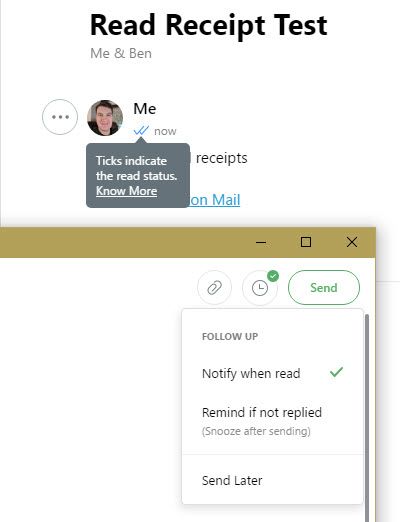
Newton-Read-Receipts

Read receipts help you keep track of whether recipients actually read what you sent. With Newton, read receipts are built into every message. You’ll see two gray ticks turn blue once your message was read.

Even better, you can turn on notifications for important emails and get a ping when the recipient reads your message. This helps you make sure no important message goes unread.

Sender Profiles

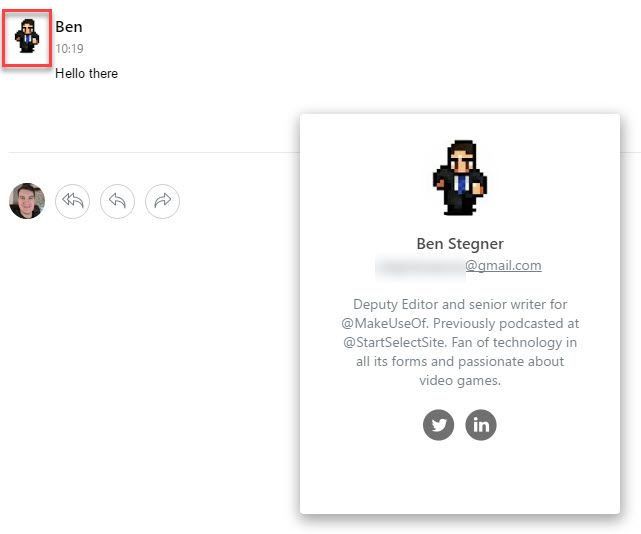
Newton-User-Profile

Have you ever received an email and knew nothing about the person who sent it? You can always Google their name, but that requires opening a separate window and takes time. Newton streamlines this by adding a profile to everyone who sends you a message.

Just click on the user’s contact photo, and you’ll see their job title, social profiles, and some basic information about them. Flip the card to see information about their organization. This lets you know whom you’re talking to without hunting anything down.

True Inbox and Tidy Inbox

Ever since conversation style became standard in email, there hasn’t been much of a reason to open your Sent folder. The only exception to this was finding an email you sent to someone that hadn’t received a response yet.

Newton Mail kills off the Sent folder with True Inbox. This creates a new conversation in your inbox as soon as you send a message. It’s front and center until the person replies, helping you to remember it.

Tidy Inbox is a smart feature that weeds out unimportant emails like newsletters. Once enabled, such emails go into a new Low Priority folder, keeping your inbox open for important messages only. You can always move messages between these folders to show Newton what’s important to you.

Even More Newton Mail Features

Newton Mail has additional features that make it worth trying out. It connects with your favorite productivity apps, like Evernote, Trello, and more, for exporting email tasks. Snoozing lets you deal with an email later, or the next time you’re on your desktop.

Meanwhile, scheduled messages help your messages arrive at the right time, and undo send prevents embarrassing mistakes. If your current email app is lackluster, Newton could be just what you’re looking for—more than 40,000 subscribers think so.

Try Newton free for 14 days on all devices. It’s just $49.99 per year after that, or $4.99/month if you don’t want to commit to a year. That gets you a smooth email service with a slick interface, plenty of smart features, and no nonsense.

Read the full article: Try Newton Mail and Love Email Again


from MakeUseOf https://ift.tt/2KDS32L
via IFTTT

iPhone USB Drives for External Storage: Think Twice Before Buying

7 WhatsApp Web Tips and Tricks All Users Should Know

whatsapp-web-tricks

WhatsApp Web is the easy way to use WhatsApp on any computer in the world, as long as you have your phone to sign in. Once you set WhatsApp Web up on your PC, these tips and tricks will make it better.

We have already covered the basics of using WhatsApp Web, what it can and can’t do, and everything you need to know about WhatsApp Web. Now it’s time to enhance WhatsApp Web with some simple tips and tricks.

1. Learn WhatsApp’s Keyboard Shortcuts

whatsapp web keyboard

To take full advantage of using WhatsApp on your computer, you need to learn some keyboard shortcuts. These can make you a typing ninja, and able to do everything a bit faster. Here’s a list of keyboard shortcuts that work in WhatsApp Web:

  • Ctrl + N: Start new chat
  • Ctrl + Shift + ]: Next chat
  • Ctrl + Shift + [: Previous chat
  • Ctrl + E: Archive chat
  • Ctrl + Shift + M: Mute chat
  • Ctrl + Backspace: Delete chat
  • Ctrl + Shift + U: Mark as unread
  • Ctrl + Shift + N: Create new group
  • Ctrl + P: Open profile status

Apart from these, you can also employ all of the universal Windows keyboard shortcuts, such as Ctrl + Shift + Equals to zoom and enlarge text. That goes for Mac keyboard shortcuts too, of course.

2. Type and Search Emojis With a Keyboard

Instant messaging feels incomplete without emojis. But it takes forever to change from the keyboard to the mouse, click the emoji icon next to the text box, and then find the right emoji. There’s a quicker way for keyboard warriors.

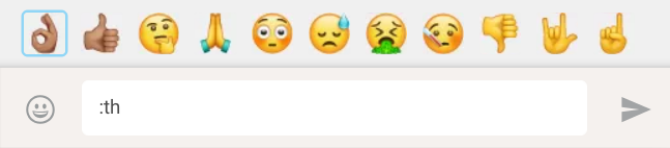
While in the regular text box, type colon (Shift + ;/: Key) followed by the first two letters of the emotion you want to express. You will get a prompt of matching emojis that change with each letter you type.

:th will show this:

emoji search th

:thu will show this:

emoki search thu

Use the keyboard’s arrow keys to switch back and forth between the emojis displayed. Press Enter to accept. It’s a much faster way to type, and it will help if you familiarize yourself with the emoji to english dictionary.

3. Auto-Change Emoticons to Emojis (or Not)

Some emojis don’t need the colon-and-type trick above. WhatsApp will auto-convert them from the classic text emoticons. A helpful redditor extracted the full list of auto-converted emoticon from WhatsApp’s javascript:

whatsapp web emoticons

That said, this auto-conversion can be annoying for some people, so there’s an easy fix to keep them as emoticons. All you need is a userscript called WhatsApp Emoticon Preserver.

  1. Install Tampermonkey, a cross-platform userscript manager, on your browser of choice.
  2. Go to WhatsApp Emoticon Preserver.
  3. Click the blue Install button.
  4. Refresh the WhatsApp Web tab in your browser.

4. Use Multiple WhatsApp Accounts on the Same PC

whatsapp web multiple accounts

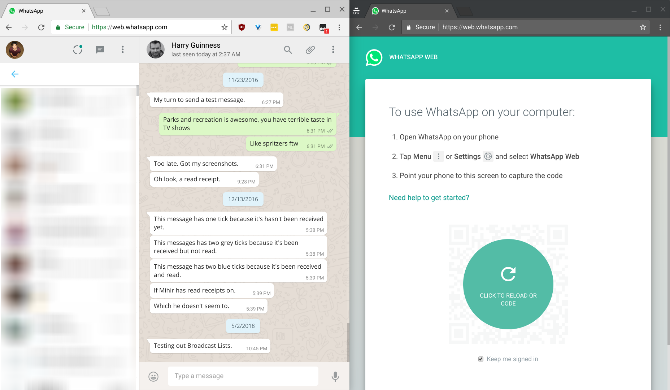
Some people have two phones with separate WhatsApp accounts, or maybe you use a dual-SIM phone with multiple WhatsApp apps. Whatever the reason, if you want to run two WhatsApp Web accounts on your computer, it’s a bit tricky. You can’t just open two tabs in Chrome and sign in separately.

Solution 1: The best way is to open an incognito window or different browser. So if you have one account signed into Chrome, start a new window in Incognito Mode, or fire up Opera (Opera is better than Chrome anyway) and go to WhatsApp Web through that. Log in as you normally would, using your other account to read the QR code.

Solution 2: If you want to stick with one browser and no incognito windows, there’s an alternative method. Open a new tab and visit dyn.web.whatsapp.com. It’s a proxy of the main WhatsApp Web app, is perfectly safe, and is verified by Scam Adviser. The only issue is that it malfunctions at times. Also, you can only use two accounts with this trick, not three or more.

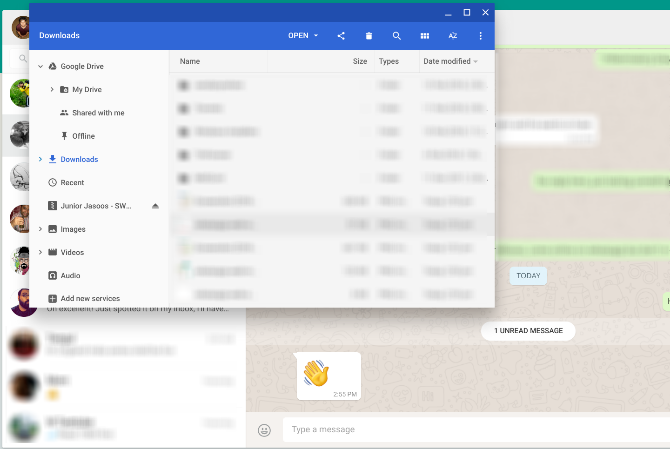
5. Read Messages Without Blue Tick Notifications

whatsapp web unread messages

As long as you have those blue tick marks enabled, people can see the exact time you read their text. You can switch off the Read Receipt on your phone if you want to disable this, but WhatsApp Web has something better.

If you are talking with someone and want to read their messages without them getting a read receipt, here’s what you do:

  1. Open the chat in your WhatsApp Web window.
  2. Open a Notepad file (or any other window), and change its size so that you can see the full WhatsApp Web chat in the background.
  3. Click in the Notepad file and keep your cursor there. This is the critical step, as the computer thinks you are working in a different window.
  4. Messages will load in the background chat window, which you can read, without being marked as read with the blue ticks. Right now, they will be double grey ticks, meaning the messages are received by you, but not read.
  5. When you’re okay with marking them as read, click the WhatsApp Web chat window and those ticks will instantly turn blue.

The limitation of this method is that you can only read the content of one chat at a time. But how often do you really need to use this trick anyway?

6. Get WAToolkit Extension for Message Previews

whatsapp web watoolkit

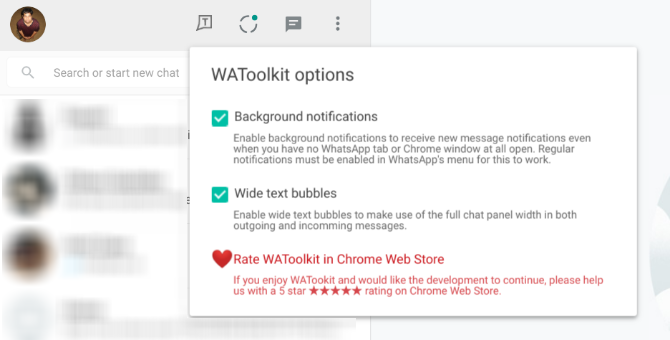
In WAToolkit, Chrome users have an excellent extension to add extra features to WhatsApp Web. It adds two cool tricks, including one that lets you again read WhatsApp Web conversations without the Read Receipt.

  1. Background Notifications: When you get a new message in WhatsApp, you no longer need to switch to the WhatsApp Web tab to read it. The WAToolkit icon’s badge shows how many unread messages you have. Hover over the icon and you’ll be able to preview the messages, without registering as read in your main chat.
  2. Full-Width Chat Bubbles: By default, WhatsApp doesn’t stretch a person’s chat bubble across the full width of the chat window. That’s why you get multi-line texts when it would easily fit in a single line of your wide desktop window. WAToolkit fixes this by turning the text bubbles full-width.

Remember, you can also use Chrome extensions in Opera and other browsers.

Download: WAToolkit for Chrome (Free)

7. Increase Volume or Change Audio Playback Speed

whatsapp web zapp

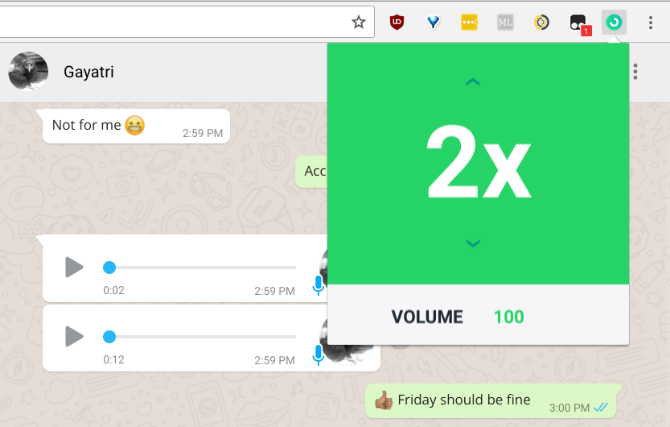
Unlike the regular WhatsApp, WhatsApp Web doesn’t let you make voice calls. However, you can send voice messages. But what do you do if that voice message is a little too soft, or perhaps a little too long?

Zapp is a WhatsApp Web extension for Chrome that lets you adjust both factors. You can increase the volume of the audio message you just got, or change the playback speed. You can go up to 2X for playback speed, and boost the volume by almost 100 percent.

Download: Zapp for Chrome (Free)

How to Use WhatsApp Web on Your iPad

All of these tips and tricks require you to use WhatsApp Web on a desktop computer, ideally with the Google Chrome browser.

However, you can also trick your Apple devices into working with WhatsApp Web, so here’s how to use WhatsApp Web on your iPad or iPod.

Read the full article: 7 WhatsApp Web Tips and Tricks All Users Should Know


from MakeUseOf https://ift.tt/2tTBOnO
via IFTTT