Saturday, 30 June 2018

YouTube’s Picture-in-Picture Mode Is Now Free on Android

YouTube has, suddenly, and with little fanfare, made its picture-in-picture mode available on Android for free. YouTube’s PiP mode was previously only available to YouTube Red subscribers, but with the switch to YouTube Premium times have changed.

Picture-in-picture allows you to view content in a small window while continuing to use the device in question. PiP has been common on TV sets and the like for years, and with the release of Android 8.0 (Oreo) it has been an option on your smartphone too.

How to Use YouTube’s PiP Mode

YouTube’s picture-in-picture mode has, until now, only been available for people willing to pay for the privilege of watching YouTube. However, YouTube has now removed that barrier, making its PiP mode available for free on Android. Sorry, iOS users.

Unfortunately, YouTube isn’t making its PiP mode available to everyone. You’ll need to be resident in the U.S., and using the YouTube app on an Android device running Android 8.0 (Oreo) or above. So international users or anyone with an older phone is out of luck.

Even if you do qualify to use picture-in-picture for free, not all videos are available to watch. Any videos that contain music content will not work with PiP, at least for free. Instead, you’ll need to subscribe to YouTube Premium or YouTube Music to unlock them.

As detailed on YouTube’s support pages, using PiP mode is simple. When you’re watching a video, tap the Home button on your device. Instead of closing YouTube, as it would have done previously, the video will continue playing in a small window.

PiP Is Perfect for the Under-30s

This is, admittedly, a small upgrade to the way YouTube operates. However, for those people (anyone under the age of 30) who have short attention spans, picture-in-picture lets you watch YouTube videos without actually watching YouTube videos.

Image Credit: Rego Korosi/Flickr

Read the full article: YouTube’s Picture-in-Picture Mode Is Now Free on Android


from MakeUseOf https://ift.tt/2z3bOfU
via IFTTT

5 Google News Alternatives That’ll Change How You Read News

google-news-alternatives

The news is more broken than ever before. It’s difficult to believe what you read from news sites, and you know you can’t trust social media. The onus is now on the reader to find the right places to read the most factual articles.

For most of us, Google News remains one of the main ways we find out what is happening. But even with the new changes in Google News, it raises many of the old issues. Over the years, publications have gotten only better at gaming Google’s algorithms, and it’s only a matter of time before they trick the new Google News.

What you need are new ways to find out what is happening in the world around you.

Reddit News (iOS, Android): Reddit Launches a News Tab

Reddit News GIF - Find & Share on GIPHY

The internet’s largest community has a new trick up its sleeve. On the official Reddit iOS app, you will now find a new tab at the top next to Home and Popular. Reddit now serves you the News.

The cool part about the News tab is that it breaks you out of your filter bubble. It won’t only show you the news from subreddits you are interested in, it will showcase the most important article links, shared across different subreddits. Sure, you can still add topics you are interested in, like sports or science, but the basic “All Stories” tab will help much more.

Due to how Reddit’s upvoting system works, Reddit News also benefits by showing you the most upvoted article about any event. And instead of that article’s comments thread, you can come back to engage with the Reddit audience after you’re done reading.

Download: Reddit for iOS | Android (Free)

Inside (Web): Newsletters on Various Topics, Curated By Real People

Just because an event takes place, that doesn’t necessarily mean it is news. If what you want is impactful news, then an app like Inside is much better for you than reading Google News.

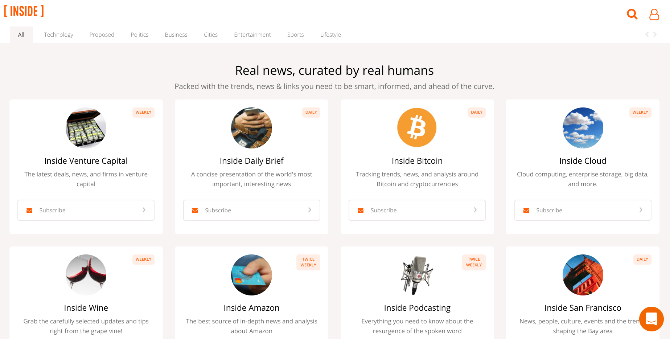
Instead of relying on algorithms like Google, Inside has a team of human experts that curate the news from a wide variety of sources. Each topic (like the Daily Brief, bitcoin, Donald Trump, streaming media, wine, etc.) has a different expert. That expert’s curation turns into an email newsletter, which is sent daily, weekly, or twice weekly, depending on how regularly there is impactful news on that topic. If you want to see how they look before subscribing, you can sample the recent issues.

I’d recommend Inside for the Daily Brief and the ReadThisThing newsletters wholeheartedly. It’s also great for a lot of other topics, depending on your interests. But if you’re mainly interested in following technology news, you might want to check out some of the other excellent curated tech news digests.

YetiGoGo (Web): Universal Search for 100 Top News Media

A while back, Elon Musk asked for a new system that ranks news organizations by their trustworthiness. While that will take some time, for now, we have YetiGoGo to fill the void.

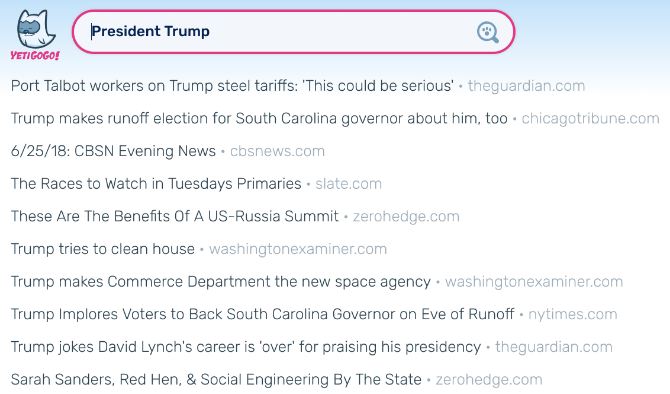
YetiGoGo indexes the 100 most popular News sites in the USA. Enter a search term and it will show you a chronological list of all the top news around that keyword. So if you want to see what President Trump is doing today, just search for him.

The site stands out for its simplicity since all you get is a big list of headlines. You already know that it’s from a popular and respected news outlet. YetiGoGo also doesn’t mess with the headlines or club them together for a single topic, like Google News does.

When you want to read about any issue, forget about searching for it on Google News. Use YetiGoGo instead.

News For Mom (Web): A Son’s Weekly News Blast for His Mom

News For Mom is everything that is charming and amazing about the Internet. Chris Barr and his mom don’t entirely agree on everything, but they share a common pursuit of intelligence and respectful sharing of ideas. So Chris decided to make a weekly newsletter for his mom to share the different news topics he comes across. And now you can subscribe to that newsletter.

Here’s Chris on what News For Mom is all about: “I created this newsletter to open up new paths of conversations with my mom about issues that have an impact on our lives. In each letter, I try to share articles that fall below the fold on issues that are relevant to her: health, education, arts and local/rural/Appalachian issues. I try to avoid argument-inducing national politics and season the email with a bit of humor, a few personal updates and things that capture my imagination.” Here is a sample of one of the recent issues.

If you’re in the US, News For Mom is one of the coolest ways to read hand-curated news about things that don’t get widely shared on social media or talked about at prime time news shows.

Microsoft News (Android, iOS): AI + Human Curation

Microsoft has long sought to provide alternatives to Google, and Microsoft News is the latest salvo. It’s a repackaged version of MSN News, which has been around for decades now. But what Microsoft does differently from Google is that apart from AI and algorithms, it also uses a team of human editors who curate the news.

You could argue that Google’s AI-only approach is the better way to go since it reduces human bias. However, such AI-only approaches to news are seen as some of the problems with getting news from Facebook. If you prefer to balance AI and human interaction, Microsoft News might be the way to go.

The app itself is simple to use. Add topics you’re interested in, and it will serve the news about any major happenings around it. You can play videos in the app, read articles, choose a light or dark theme, and even get alerts. It’s not the features that set it apart from Google News, it’s the technology behind how it curates news.

Download: Microsoft News for Android | iOS (Free)

News Overload? Smartly Read Important Things

With the news overload that we face in the world today, you can miss some of the important things you should know about. You obviously don’t want that to happen, which is why we have the above list of apps to stay up-to-date, and this other list of smart apps to simplify the news.

Read the full article: 5 Google News Alternatives That’ll Change How You Read News


from MakeUseOf https://ift.tt/2KzHHxC
via IFTTT

How to Repair or Recover Data From a Corrupted PDF File

recover-pdf

If you can’t open a PDF, it might be because it’s corrupted. If you haven’t backed up your data, discovering a broken file can be a nightmare. We’re going to help you fix your PDF through tools and Windows techniques.

It may be possible to fully repair the entire PDF, restoring it to its original state, or you might only be able to extract elements and rebuild the rest. Anything you can get, right?

After checking out these tips, pop into the comment section at the end to let us know if you’ve ever suffered PDF corruption and how you managed to resolve it.

Check Your PDF Reader for Errors

Are you sure that the problem is with the PDF file? Instead, it might just be that the program you’re using to view the PDF is playing up.

Repair Adobe Acrobat Reader

The most common PDF viewer is Adobe Acrobat Reader. That’s not necessarily because Adobe offer the best program, but simply because it’s what most people associate with the format. The PDF file type was created by Adobe in the 1990s and became an open standard in 2008. If you’re using Adobe Acrobat Reader, let’s run some quick troubleshooting.

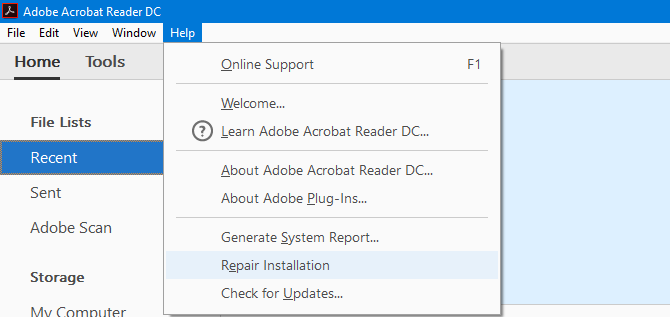
First, check the program is running the latest version by launching it and going to Help > Check for Updates. You’ll either be told the program is up to date or that there are updates to install. If there are, go ahead and install them. Try opening your PDF now.

If that doesn’t work, keep Adobe Acrobat Reader open and navigate to Help > Repair Installation. It might be that the files the program relies on to run have become corrupted and this method will try to patch them up.

Still no luck? Press Windows key + I and click Apps. Search adobe acrobat reader, click it on the list and click Uninstall. Then head to the Adobe website to download and install the latest version. If your PDF still doesn’t open after this, we can safely dismiss Adobe’s program as being the problem.

Try Using an Alternative Reader

Adobe Acrobat Reader is by no means your only option for viewing PDFs. It’s worth trying out a different program to see if that’s able to open the PDF.

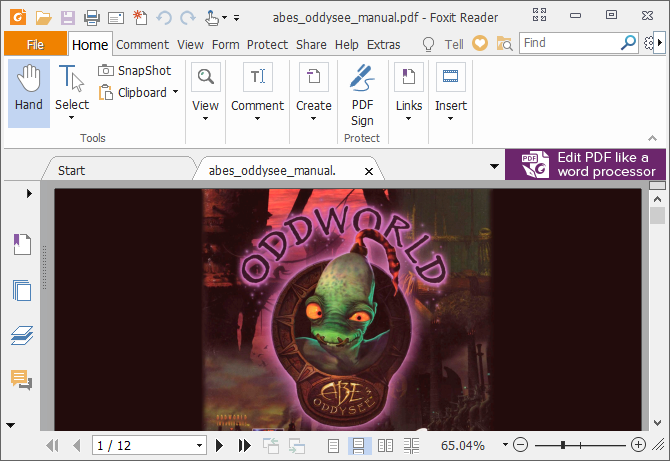
In the past we’ve rounded up alternative lightweight PDF readers that are focused on the reading of a PDF rather than anything extraneous. Two of the best choices, and both free, are Foxit Reader and Sumatra PDF. Download these and give them a shot with your PDF.

You might also find that Okular and Evince are able to read your PDF file when other software cannot. This is because they use a different rendering method to display PDFs.

If you’re still having problems then it’s time to start focussing on repairing the PDF file itself or at least scraping it for what you can save.

Repair or Recover the PDF File

We’ve previously written about corruption with Office files, but some of those techniques can also apply to PDFs, namely looking for previous versions of the file and using third-party applications.

Restore a Previous File Version

If your PDF used to work and has become corrupted, you could try restoring an old version. Windows 10 has a built in back up facility that could help. You can access it by pressing Windows key + I and navigating to Update & Security > Backup.

If you haven’t been using the Backup feature then you can’t retroactively use it to restore your PDF. Nevertheless, it might be wise to enable it now. You can find out about this and more in our ultimate Windows 10 backup guide.

If you have enabled it, you can try using the File History feature to roll back your PDF to a previous version. To do this, open File Explorer and navigate to your PDF. Right click it and click Restore previous versions.

This will bring up a list of all the old versions of the file contained within your backup. You can Open the copies to check them out and then use the Restore button to bring them back to life.

A similar technique would be to use a data recovery program, like Recuva, that will scan your drive and look for old files that have been deleted from your system. If you had an old copy of the PDF file that you’ve removed, this technique might be fruitful.

Try Using PDF Repair Apps and Utilities

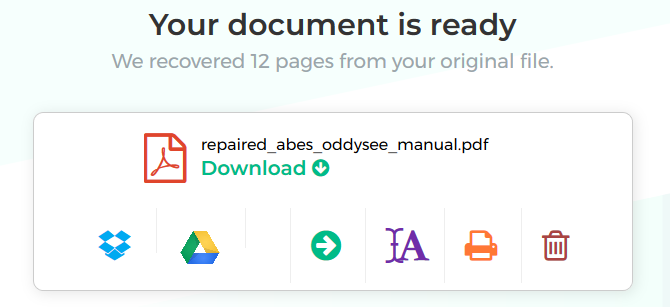
There are applications out there that will try to repair your PDF. Some of these don’t require you to download any software and can be run in the browser, like PDFaid, Repair PDF, and PDF Tools Online. Give these all a shot, but if the corruption is severe then they may not be able to help.

You can also try specialist file repair programs like FileRepair1. This will scan the PDF, identify the failure, and fix what it can. It’s not always successful in every case, but you may find it helpful.

Extract the Data From the PDF File

If you’re not able to repair the entire PDF, then you may still be able to extract elements like the text and images.

For the text, you can use programs that will convert your PDF to a Word file and allow you to get the text that way. However, I find one of the best tools is actually the online application PDF to Word Converter offered by Nitro; although some characters may look a bit funky depending on the type of corruption.

If your PDF contains images, try following our guide on how to extract images from a PDF. Again, this may have varying results depending on the level of corruption, but it’s definitely worth seeing what can be pulled out.

Save Your Corrupted PDF Document!

Hopefully these methods have been useful in saving your PDF. You might not have been able to recover everything (such is the bane of corruption), but at least you may have saved elements of the file.

Remember, you should always have a stable Windows backup plan in place to ensure that corrupted data doesn’t cause your world to come crashing down. Always have a secondary copy to restore from.

Read the full article: How to Repair or Recover Data From a Corrupted PDF File


from MakeUseOf https://ift.tt/2tRqpov
via IFTTT

How to Start Winning eBay Auctions by Sniping With Automatic Bidding

eBay

When it comes to winning auctions on eBay, there are few practices as controversial—or effective—as sniping.

Sniping is simple: You wait until the end of the auction, then swoop in with a low bid that’s just high enough to win before anyone else can raise their maximum bid. Sniping apps usually take care of the bidding, so you don’t even need to be around to win the auction. It’s a viable but irritating strategy.

Why does eBay sniper software work so well? To understand, we have to talk about how eBay bidding works first.

How eBay Bidding Works

When you enter a bid in an eBay auction, you aren’t entering a bid like you would in a regular auction. You’re entering your maximum bid. If you enter your maximum bid as $20, and the current highest maximum bid from any other bidder is $12, eBay might enter a bid for you at $12.50. And you very well may win at $12.50.

Let’s say your maximum bid isn’t the highest bid, though. If someone else bid $21, your bid of $20 would drive their current bid down to $20.50 or so. Then you’d have a chance to outbid them again. This system is known as proxy bidding because the eBay bidder is acting as a proxy for you.

The problem with the eBay autobidder is that you don’t have much control over the timing of your bid. If someone outbids you, your bid goes up. The proxy system ensures that the winner pays the minimum amount required to win. It also helps eBay sellers make money.

That’s where eBay sniping (a different kind of automatic bidding) comes in.

Instead of letting the eBay automatic bidding system bid for you, your eBay auction sniper will place the bid right at the end of the auction, not giving anyone a chance to adjust their maximum bids.

Does Sniping Really Work?

Most of the evidence points to yes. Bidnapper has collected a number of quotes from researchers that support this idea. The research is getting dated, but in general, experts believe that sniping is effective. According to a 2001 Harvard Study:

“Moreover, the data indicates that incremental bidding significantly diminishes with experience (as measured by the bidders’ feedback numbers), while last-minute bidding increases with experience.”

In short, more experienced bidders are sniping. Sniping allows you to conceal information (always a good idea in auctions) and bid without giving anyone else time to react. It’s a win all around.

However, there are some important caveats, especially for eBay beginners.

The Balance notes that eBay’s proxy bidding system and the increasing popularity of fixed-price listings mean you could actually win fewer auctions with sniping. It depends on a lot of factors. Remember that the maximum bid you enter for your snipe can still be beaten, no matter how late your bid is entered. If someone else has a higher maximum bid, your snipe is defeated immediately.

In short, sniping generally works very well, but it won’t always win, and it won’t always result in you paying less. If you really want something that doesn’t show up on eBay very often, sniping probably isn’t the best way to go. But in general, it’s a good strategy.

Why Is eBay Sniping Controversial?

Some people think that sniping goes against the spirit of auction sites. Without sniping, if you want to make sure that you win the auction, you need to either enter a very high bid or rearrange your schedule so you can be there at the end of the auction to make sure you win. Sniping software means you can put in a single bid and then totally forget about the auction.

When a snipe bid wins an auction, whoever was previously in the lead to win can feel like they’ve been cheated. Even if they were willing to enter a higher bid, they didn’t get a chance. It feels like someone has stolen the item out from under you.

Interestingly, eBay doesn’t have a problem with sniping. It’s an allowed and effective practice. In eBay’s own words:

“Bid sniping—including the use of software that places bids for you—is allowed on eBay, but it doesn’t guarantee you’ll win an auction.”

It’s completely legal and allowed. And after you start doing it, you’ll see that it’s a great strategy—eBay’s standard automatic bidding just raises the price of items (which is exactly what eBay wants) and makes people get emotional. When emotion gets in the way of reason, prices go up.

How to Start Sniping Auctions on eBay

eBay sniping couldn’t be easier. There are many websites that help you do it. We’ll take a look at Gixen because it’s totally free.

But there are a lot of other options, including:

Some are paid, and some require software downloads, but Gixen is free and browser-based. Many sniping tools also offer browser extensions that save you a couple of clicks.

Keep in mind that to use any of these services, you’ll need to hand over your eBay login information. It might be a good idea to use an extra email address or an entirely different eBay account if you’re going to be sniping.

Let’s walk through a bidding process using Gixen.

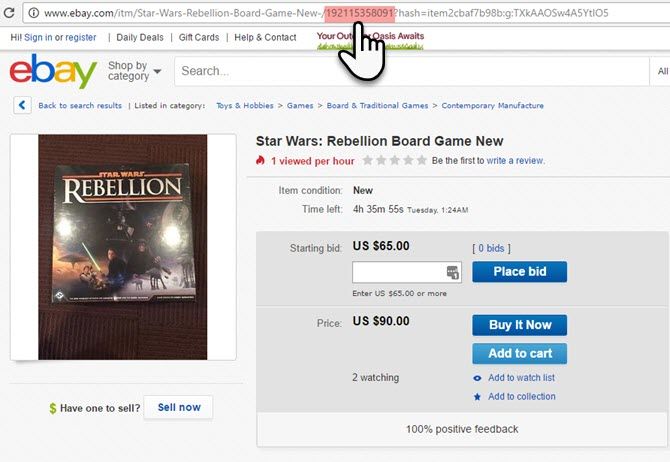
Sign in with your eBay username and password to get started. Then go to eBay and find the item you want and make a note of the item number. You can find the item number in the URL or in the top-right corner of the Description box.
Enter the item number and your maximum bid in Gixen and hit Add. You can also group items so you can place snipe bids on multiple copies of the same item without winning them all. If you win one, the other bids won’t be raised in response to someone else bidding.
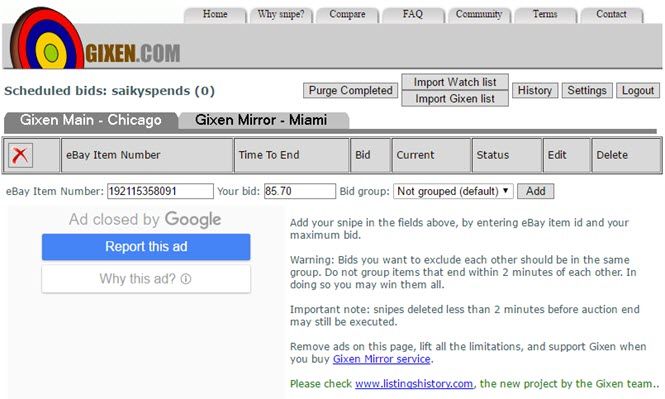
That’s all there is to it. The sniper’s automatic bidding software will take care of the rest.

Of course, using paid services gives you more options. But Gixen is a great way to snipe a few times and see if it’s worth investing in.

And it’s worth mentioning that you can always snipe using eBay’s proxy bidding system. Just hang out on an item page until the auction is almost over, and register your bid right before it ends. If you feel like sniping software is cheating, this strategy might appeal to you.

This method can work, but you need to be around when the item is ending.

A Few Things to Remember

Sniping is generally pretty straightforward, but there are a few important things to keep in mind.

Don’t retract your eBay bids. You might be tempted to if you won an item and have placed bids on other copies of it, or if someone drove up the price too quickly. But retracting bids violates eBay’s terms of service except under specific circumstances. So don’t do it.

Be careful about over-bidding. When you get started with sniping, it can be easy to put a ton of items on your list. And if they end close together, you might end up winning more of them than you expect.

Remember that sniping isn’t always going to work. If an item has a huge number of bidders or a single very committed bidder, you’re likely to get outbid by eBay’s automatic bidding system. Sniping is best used on smaller items that aren’t seeing a huge amount of competition. Remember that sniping isn’t a guarantee of anything—it might save you a few bucks here and there, but it’s not likely to get you a $1,000 item for $10.

As long as your expectations are reasonable, sniping can be a great strategy for winning eBay auctions. Just know the limitations, don’t go crazy, and you’ll be fine.

How to Bid on eBay and Win

eBay isn’t always the cheapest shopping site, but using an eBay sniper can help you save some cash. It’s not going to win every auction, and it could actually end up losing you a few, but it remains a viable strategy in many circumstances.

With all of the eBay snipers available online, both as web apps and software downloads, you have plenty of options. Try out a few of the options and start sniping eBay auctions. You’ll get a feel for how effective it is and how to best place your bids to win.

Read the full article: How to Start Winning eBay Auctions by Sniping With Automatic Bidding


from MakeUseOf https://ift.tt/2z1Uc42
via IFTTT

How to Send Completely Anonymous Emails: 5 Effective Methods

Have you ever had the need to send anonymous emails to someone? Maybe you’re discreetly declaring your love to someone. Or maybe you’re a journalist and need to secretly communicate with an informant.

There are plenty of legitimate reasons someone may want to send anonymous email. There are free online services on the web that allow you to do this. Or you can use a VPN and an anonymous burner email account (i.e. throwaway).

These days it’s very easy to send emails without having to reveal your true identity. In this article, you’ll learn how to send an anonymous email using the five most effective methods we’ve found.

1. Burner Email Account + VPN

Using a web-based email account like Gmail is a great option. You can sign up for a Gmail account without providing any actual identifying information, and then use that address as a kind of burner email account.

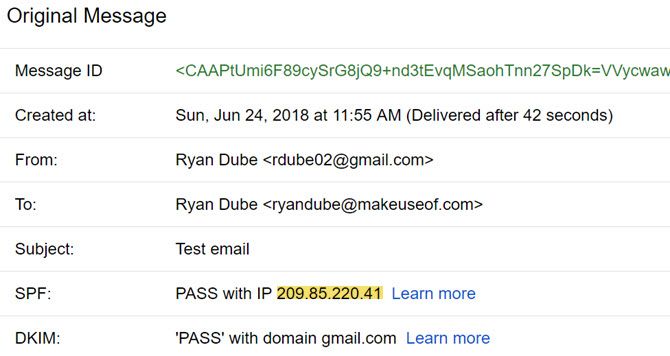
When you send anonymous emails from Gmail’s web-based email client, the originating IP in the SMTP envelope is Google’s server, not your own computer’s IP. This is a nifty way to hide your IP address from the receiver.

how to send completely anonymous emails

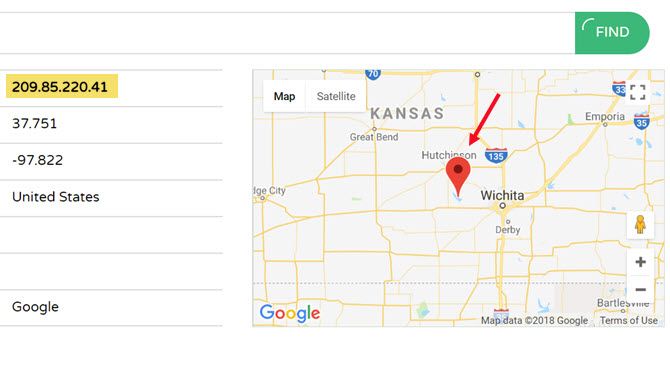
If someone were to trace the IP that show up when you send an email from the online Gmail account, it would only trace to the nearest Google server to you. Which, in my case, is the Wichita, Kansas area.

how to send completely anonymous emails

With that said, your actual IP address is stored on Google’s systems. So, if the government or any other authority ever came knocking and asked for your location, Google could provide it.

If that’s not enough privacy for you, you can add another layer of anonymity by encrypting your connection with a VPN service. We recommend avoiding free VPN services and instead pay for a reputable one like ExpressVPN or CyberGhost.

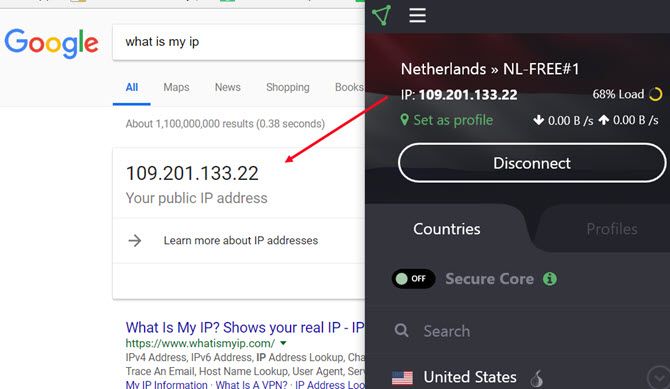
Once connected, you can then use Gmail through the encrypted VPN.

how to send completely anonymous emails

Now, when you go to your Gmail account and send an email, the originating IP will still show up as one of Google’s servers, but there will be two differences.

First, the Google server won’t likely be located anywhere near your actual location. Second, if Google is ever asked to provide your actual IP, they’ll only be able to provide the erroneous IP address hosted by the VPN service.

Note: An anonymous burner email account isn’t quite the same as a disposable email account!

2. Email Client + VPN

Another solution that avoids the need for any anonymous email service is using an email client like Thunderbird on your own PC.

There are three steps you’ll need to follow to make this approach work:

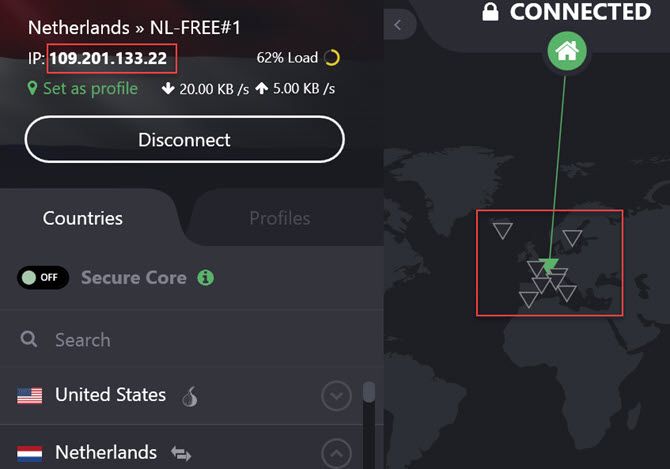
All you have to do is fire up your preferred VPN service and make sure your computer has a remote IP address.

how to send completely anonymous emails

Then, just send an email via your throwaway email account using your desktop email client, just like you normally would.

The difference is that now, instead of the header providing your actual originating IP address, it’ll show your VPN’s IP address located some place far away. It’s a quick and easy way to send anonymous emails with very little effort.

3. AnonEmail

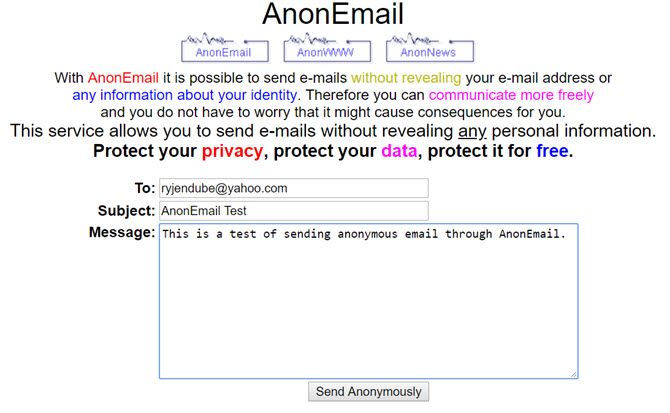
how to send completely anonymous emails

AnonEmail is a service by AnonyMouse. It allows you to send anonymous emails by resending your email several times through random nodes, thus making it impossible to trace back.

In AnonEmail, you can fill in your recipient, the subject, and a short plain-text message. Contrary to many other services AnonEmail does not (seem to) log your IP. However, we urge you not to use it for anything illegal!

As an extra security measure, AnonEmail will wait for an unknown period of time before sending your email along. Why? So no one will be able to prove your “guilt” based on time/location, or make geographic presumptions based on timezones.

4. Send Anonymous Mail

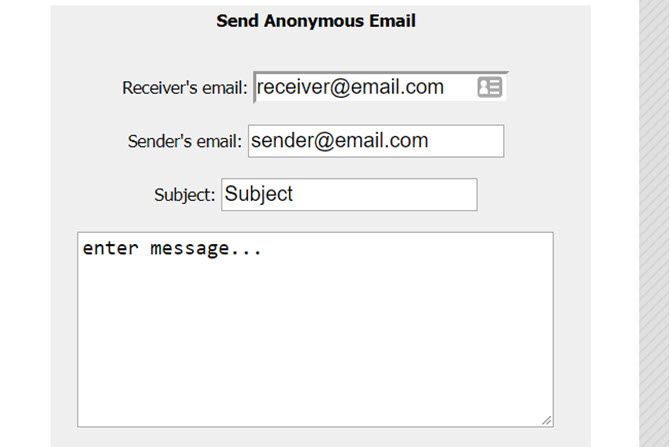
how to send completely anonymous emails

Like the name implies, this is another web-based, anonymous email tool. Although it lacks the complete anonymity of AnonEmail, it’s the simplest option to use.

You’ll be able to specify a sender’s address and a fake origin email address for your secret message. This one logs your IP address, so you’ll need to use a free VPN service if you want to fully cover your tracks.

Also, neither Send Anonymous Mail nor AnonEmail allow the recipient to reply to your email, so these solutions are only best if you want to send a one-way anonymous email message.

5. ProtonMail

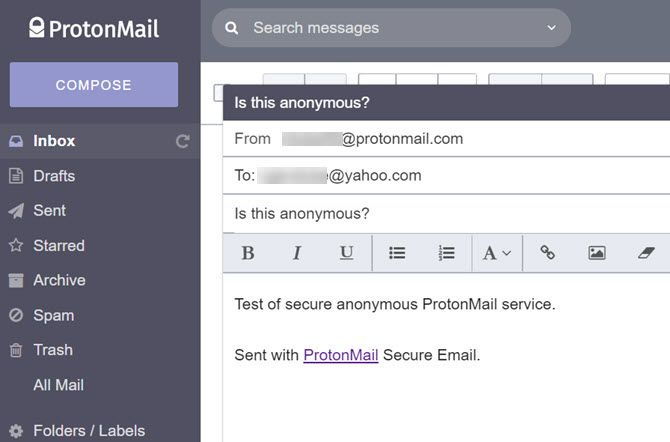
how to send completely anonymous emails

If you absolutely need secure, anonymous, two-way email conversation, ProtonMail is a popular solution. Many say that ProtonMail is better than Gmail.

I’ve personally used ProtonMail when communicating with a journalist living in China. The journalist was using a VPN to access his ProtonMail account, providing several levels of security from prying government eyes. Not only was his originating IP address located outside of China, but all communications using ProtonMail are encrypted.

Some features of ProtonMail include:

  • End-to-End Encryption: Messages are not only encrypted when they’re sent from ProtonMail servers, but all stored messages are encrypted as well. Without access to the appropriate ProtonMail account, no one can access your messages.
  • Private User Data: ProtonMail’s encryption process, which uses an encryption key on your own client computer, mean even the system administrators at ProtonMail can’t access your messages. On the downside, this means they can’t recover your account for you. On the upside, it means they can’t provide messages to any governing authority either.
  • Open Source Cryptography: Since ProtonMail uses open-source cryptographic libraries, you can be sure there are no “back doors” available for anyone to access your emails. That includes both system administrators or hackers.

If you have a need for regular two-way encrypted emails, you may want to consider signing up for a ProtonMail account and just using it as your regular email service.

Start Sending Anonymous Emails Your Way

As you can see, there are a lot of ways to send anonymous email. You can use a local solution with a VPN and either an email client or through a throwaway online email account. You could use a secure, encrypted email service like ProtonMail. Or you could just use one of the free websites that let you send one-way, fully-anonymous messages.

The choice really depends on why you’re sending the message and what level of security and anonymity you need.

Not sure which VPN service is right for you? See our comparison of the best VPN services. If you’re looking for other ways to bolster your personal security, you may also want to take a look at boosting your PC’s security.

Read the full article: How to Send Completely Anonymous Emails: 5 Effective Methods


from MakeUseOf https://ift.tt/2IDhvjW
via IFTTT