Friday, 29 June 2018

Apple Watch Fitness: The 10 Best Workout Apps to Get You Healthy

apple-watch-fitness

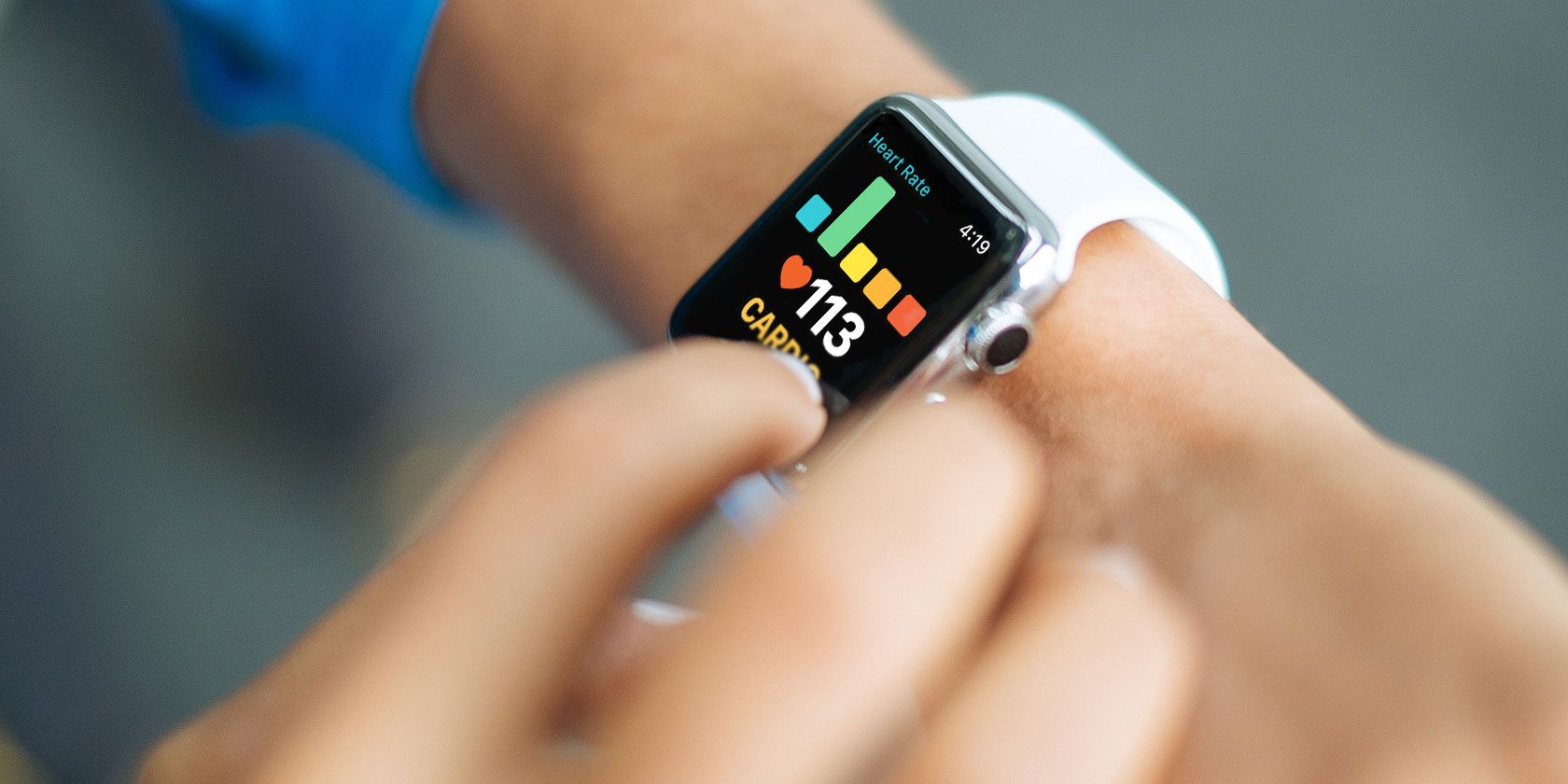
There are two features the Apple Watch is great at: fitness tracking and notifications. And if you’ve got an iPhone, an Apple Watch can be your best fitness pal. Thanks to the built-in GPS, two-day battery life, you can have your personal fitness trainer right on your wrist.

The Apple Watch can help you lose weight, work out, or just stay healthy. Every day, you’ll be able to see how many calories you burned and how much exercise you got. The more data Apple Watch collects, the more insight you’ll have on your behavior. And you’ll be better off on your journey towards better health.

Here are some must-have apps for any Apple Watch owner interested in fitness, health, and working out.

1. Activity
Apple Watch Fitness Apps Activity Notifications

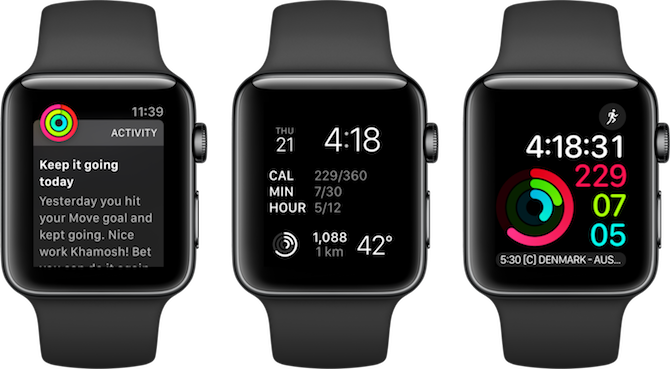
The Activity app on Apple Watch is the central part of your fitness journey. It’s responsible for your three activity rings, which help you reach your Move, Exercise, and Stand goals. And those rings from Activity will show up everywhere, from helpful notifications during the day to your watch face.

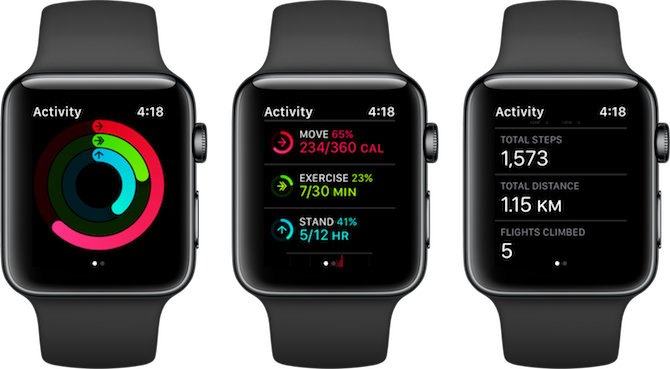
When you open the Activity app, you’ll first see the three rings. Scroll down and you’ll find stats like your steps for the day, how much you’ve walked, your workouts, and calories burned.
Apple Watch Fitness Apps Activity App

The Activity app on the Watch is limited to the day’s activity. Open the Activity app on your iPhone and you can see stats for any day you want. Plus, you’ll get a detailed breakdown of every workout that you’ve done so far.

2. Workouts
Apple Watch Fitness Apps Workouts

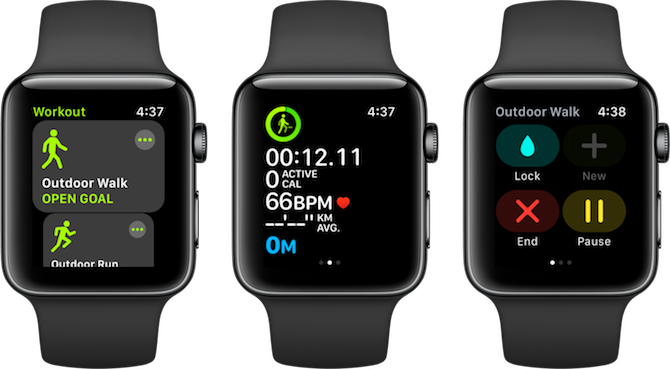
There are a plethora of awesome workout apps for the Apple Watch, and we’ll talk about some of them below. But none of them can beat Apple’s default Workouts app when it comes to sheer functionality and ease of use.

Launch the Workouts app and swipe through to see the types of workouts supported. Depending on your Apple Watch and watchOS version, you’ll see activities like walking, running, swimming, high-intensity workouts, cycling, and a lot more.

The Workouts app supports indoor activities too, which makes the Apple Watch the perfect gym companion. You can track your elliptical workouts or rower workouts. Or if you’re sweating it out doing a lot of different activities, just select the Other workout type. Your Apple Watch will then track the calories burned based on your movement and heart rate.

When you’re tracking a workout, you can swipe right for more options and swipe left to control music.

3. Nike+ Run Club
Apple Watch Fitness Apps Nike+ Run Club

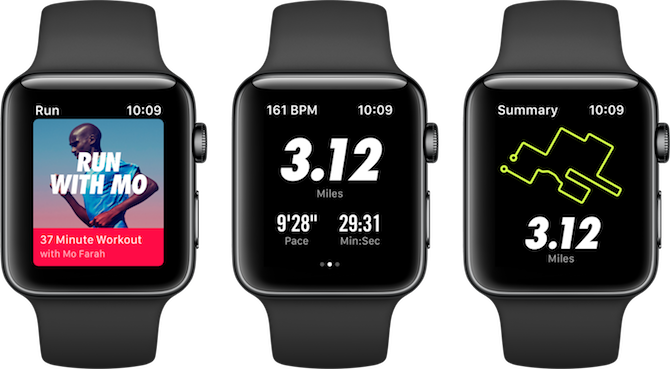
Nike+ Run Club calls itself the perfect running partner, and this is one of the few times where a tagline is actually true. The Nike+ Run Club app has everything you need when you’re out on your run. You can start by setting a goal, or try a guided audio workout. The app will track your pace, distance, time, and heartbeat in real time.

The best aspect about NRC is the helpful community. You can take part in weekly and monthly challenges, unlock achievements, compete with leaderboards, and cheer your friends as they’re on the run.

Download: Nike+ Run Club (Free)

4. Workouts++
Apple Watch Fitness Apps Workouts++

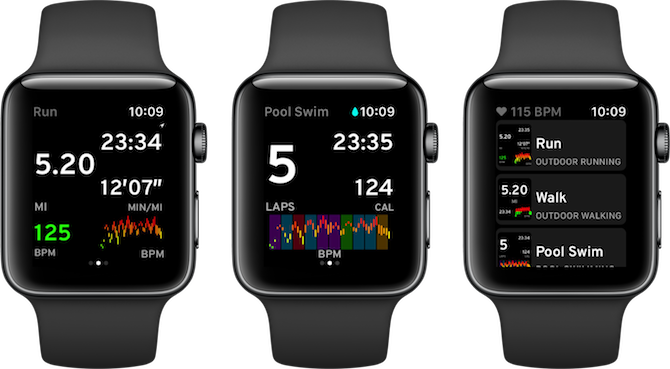
After you’ve used the Workouts app a few times, you’ll start seeing its limitations. There’s no way to customize the stats screen and no way to look at performance graphs. Workouts++ is your answer.

The app has an efficiently designed workouts screen, which provides six stats. You can choose to add the metrics that you care about and leave out the rest.

My favorite part of using Workouts++ is the BPM graph. And since it supports Siri, you can say “start indoor cycling workout in Workouts++” to jump directly to the workout screen.

Download: Workouts++ (Free)

5. Strava
Apple Watch Fitness Apps Strava

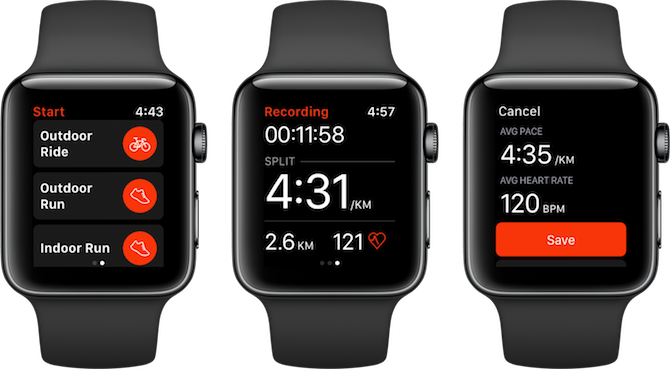
Strava is the best app for runners and cyclists. The app’s interface is minimal and to the point, while the community helps you achieve your goals and keeps you motivated. Starva has brought the same design philosophy to its Apple Watch app.

The Apple Watch app runs natively and has GPS support. Its real-time display shows you the important stats: split, time, distance, and your heart rate. If you’re using the Apple Watch Series 2 and above, you can record workouts without your iPhone as well. Once you’re back in range, they’ll sync with your Strava profile automatically.

Download: Strava (Free, subscription available)

6. Runkeeper
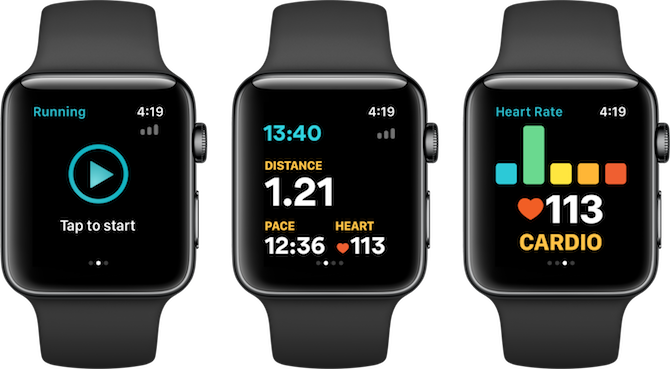
Apple Watch Fitness Apps Runkeeper

Strava’s stark minimalism might not be for everyone. And perhaps you’re not looking for a community of runners and cyclists. Maybe you just want a feature-rich, dependable app for tracking your runs. That’s what Runkeeper does best.

Download: Runkeeper (Free, subscription available)

7. Streaks Workout
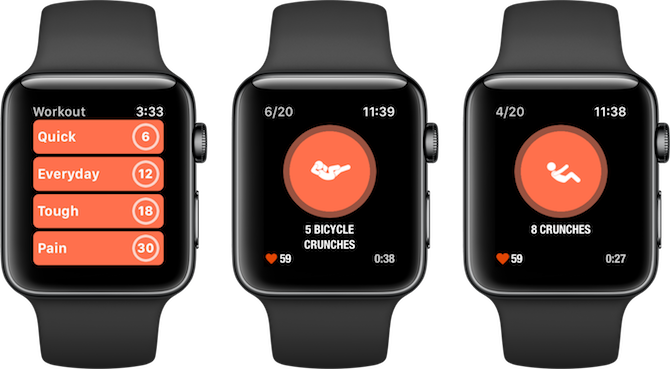
Apple Watch Fitness Apps Streaks Workouts

Streaks Workout is a minimal workout app that lets you work out anywhere. All you need is your Apple Watch on your wrist and you’re ready to go.

You get to choose from 30 equipment-free workouts. Start with Quick, graduate to the Everyday workout, and hopefully make your way towards the Pain workout.

The app will show animations of the exercises, along with a countdown and your heart rate. You’ll also get tips on how to improve your technique and posture. Once you’re done, your stats save to the Health app so you get the sweet exercise points towards your day’s ring.

Download: Streaks Workout ($4)

8. Gymaholic
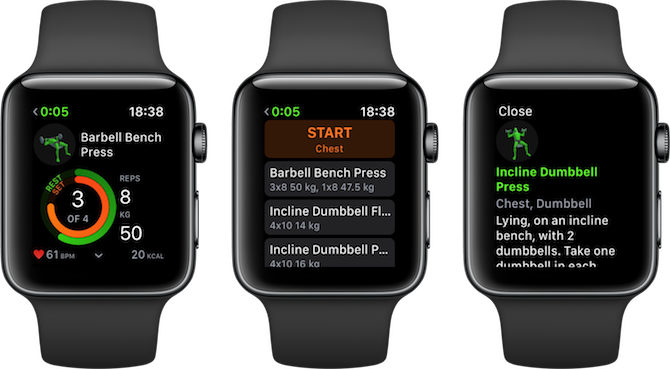
Apple Watch Fitness Apps Gymaholic

Instead of paying for a personal trainer, let Gymaholic help you out in the gym. Its iPhone app uses AR to show you exercises in real time. Meanwhile, the Apple Watch app will tell you the exercises to do, how to do them, and for how long. It holds a catalog of more than 360 exercises.

From the Apple Watch, you can select a part of the body you want to work on, (say, your chest). The app will then list out the exercises to do, the recommended repetitions, and weight.

Download: Gymaholic (Free, subscription available)

9. Pedometer++
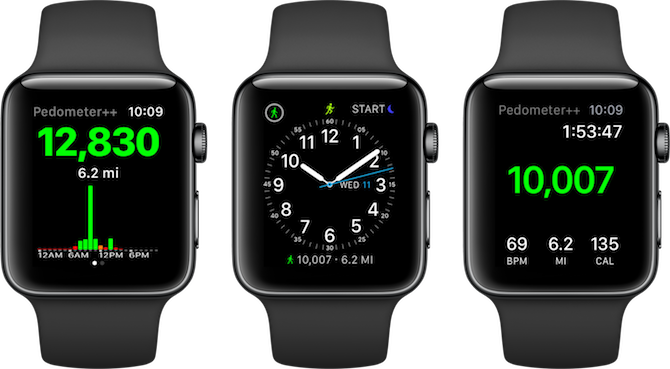
Apple Watch Fitness Apps Pedometer++

Apple’s Activity app focuses on calories burned, not steps. But the Apple Watch does record your steps. If you go all the way down in the Activity app, you’ll find your step count.

What if you want to know your step count all the time? If you’re trying to hit your daily 10,000 steps, Pedometer++ can help.

It’s a simple utility which records your steps and presents it as a watch face complication. Add it to your favorite watch face and then along with your Activity progress, you’ll be able to see your steps as well.

Download: Pedometer++ (Free)

10. MyFitnessPal
Apple Watch Fitness Apps MyFitnessPal

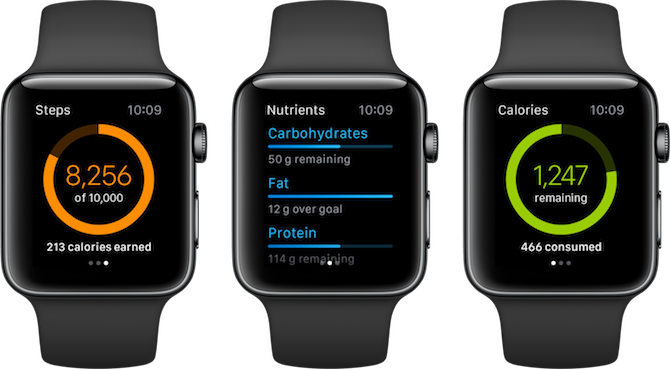
MyFitnessPal is the best food tracking app for iPhone. If you’re trying to lose weight by calorie counting or just want to know how much nutrition you’re getting in a day, MyFitnessPal’s Apple Watch companion app will make it slightly easier for you.

The app will quickly show your nutrition facts for the day. This includes how many calories you’ve consumed, your carbohydrate and protein intake, and similar.

Download: MyFitnessPal (Free, subscription available)

There’s a Lot More to the Apple Watch

Once you’ve started using the Apple Watch, you’ll realize just how much this little computer on your wrist can do. With Siri alone you can control your smart home devices, send messages, or add reminders.

But you can also use your Apple Watch to unlock your Mac, pay with Apple Pay, manage your email inbox, stay updated with your calendar, and a lot more.

Read the full article: Apple Watch Fitness: The 10 Best Workout Apps to Get You Healthy


from MakeUseOf https://ift.tt/2yV5MOh
via IFTTT

What Is Object Oriented Programming? The Basics Explained in Layman’s Terms

intro-object-oriented-programming

If you’ve done some beginner programming, or even started to look at different languages, you’ve probably come across the phrase “object-oriented programming” (or “OOP”).

There are all sorts of technical explanations as to what it is, but today we’re going to take a look at defining object-oriented programming in a simple way.

Before We Start: Procedural Languages

To understand what an object-oriented programming language is, you need to understand what it replaced. Early programming languages were procedural—so-called because the programmer would define a very specific set of procedures that the computer would undertake.

What Is Object Oriented Programming and How to Get Started Learning It

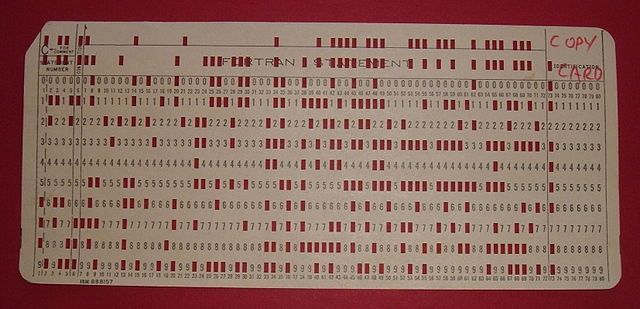
In the earliest days, procedures were written on punch cards. Those steps took in data, performed a sequence of actions on that data, then output new data.

Procedural languages worked well for a time (and some are still in use). But when you want to program something beyond a basic sequence of steps, procedural languages can become difficult to manage. That’s where object-oriented programming comes in.

The Object of Object-Oriented Programming

So then, what is object-oriented programming?

The first object-oriented language (generally agreed to be Simula) introduced the idea of objects. Objects are collections of information that are treated as a singular entity.

We’ll dive deeper into what that actually means in a second with an example, but first we have to talk about classes. Classes are sort of like pre-objects. They contain a list of attributes that, when defined, become an object.

What Is Object Oriented Programming and How to Get Started Learning It

Let’s take the example of programming a chess game. We might have a class called Piece. Within Piece, we have a list of attributes:

  • Color
  • Height
  • Shape
  • Movement allowed

An object simply defines one particular instance of a thing belonging to that class.

So we could have an object called WhiteQueen. That object would have definitions for all four attributes (white, tall, cylindrical with crenellations, any number of spaces in any direction). It might also have methods or functions.

What makes this so much better than the procedural approach?

In short, object-oriented programming languages (like Java) makes it easier to organize data and code in a way that’s more versatile for larger project.

To discuss it in a bit more detail, we’ll talk about the four basics of object-oriented programming.

Object-Oriented Programming: Abstraction

Just because you want to use something doesn’t mean you need to know how it works. An espresso machine, for example, is complex. But you don’t need to know how it works. You just need to know that when you hit “On,” you’re going to get espresso.

What Is Object Oriented Programming and How to Get Started Learning It

The same is true of objects in object-oriented programming. In our chess example, we may have a move() method. That method could require a lot of data and other methods. It might need the initial position and final position variables. It could use another method for determining whether it’s captured a piece.

But you don’t need to know that. All you need to know is that when you tell the piece to move, it moves. That’s abstraction.

Object-Oriented Programming: Encapsulation

Encapsulation is one of the ways that object-oriented programming creates abstraction. Each object is a collection of data that’s treated as a single entity. And within those objects are data—both variables and methods.

The variables within an object are generally kept private, which means other objects and methods can’t access them. Objects can only be affected by using their methods.

A Bishop object might contain several pieces of information. For example, it could have a variable called “position.” That variable is necessary to use the move() method. And, of course, it has a color.

By making the position variable private and the move() method public, a programmer protects the move variable from being affected by anything else. And if the color is a private variable, there’s no way for another object to change it unless there’s a method that allows the change. (Which you probably wouldn’t have, as the color of the piece should remain constant.)

These variables and methods are kept within the Bishop object. Because they’re encapsulated, a programmer could make a change to the structure or contents of the object without worrying about the public interface.

Object-Oriented Programming: Inheritance

In addition to classes, object-oriented programming languages also have sub-classes. These contain all of the attributes from the parent class, but they can also contain other attributes.

In our chess game, the pawn pieces need a method that can turn them into other pieces if they make it to the end of the board. We’ll call it the transformPiece() method.

Not every piece needs the transformPiece() method. So we wouldn’t want to put it in the Piece class. Instead, we can create a sub-class called Pawn. Because it’s a sub-class, it inherits all of the attributes from Piece. So an instance of the sub-class Pawn includes a color, height, shape, and movement allowed.

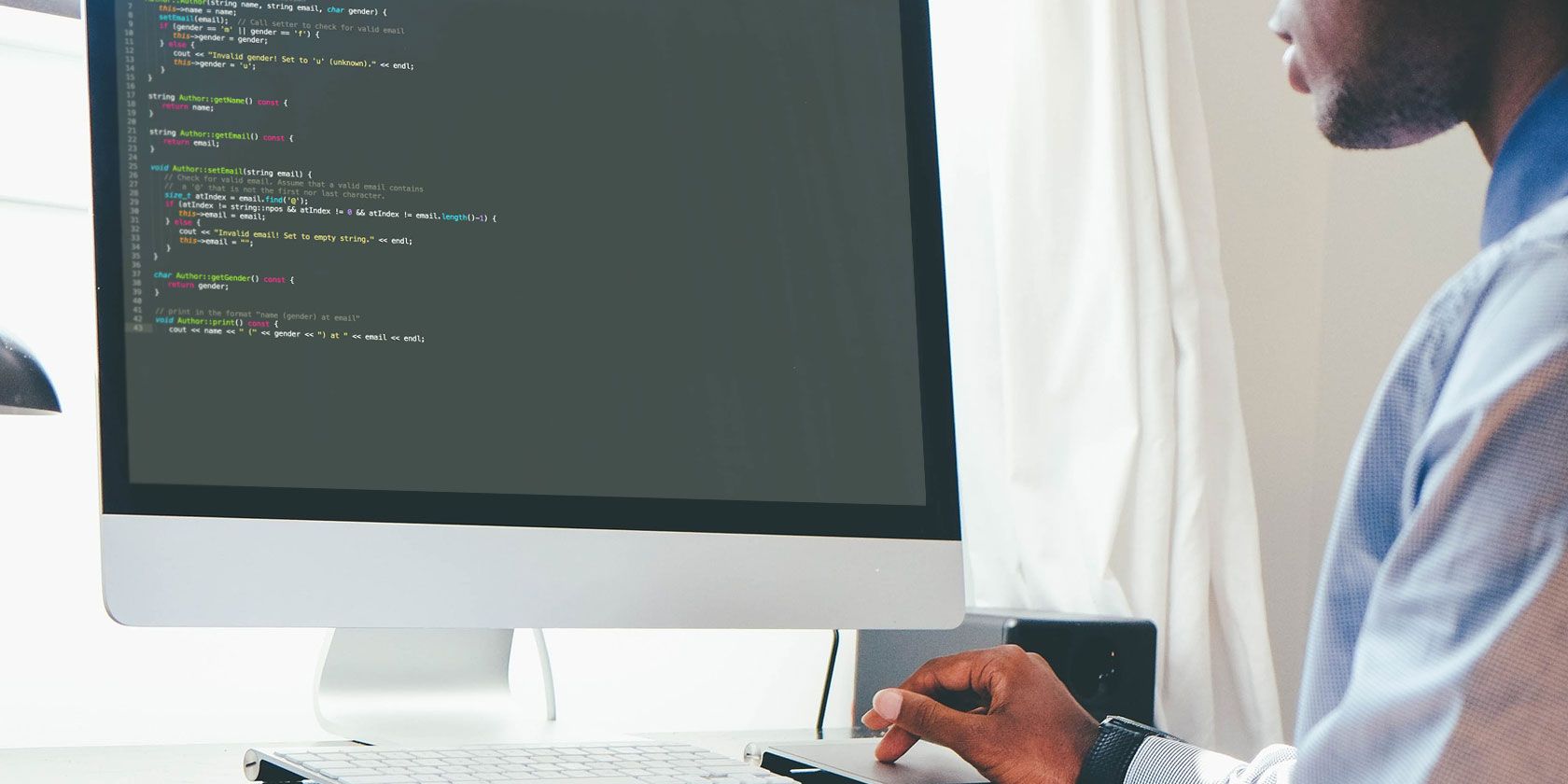
But it also includes the transformPiece() method. Now we never have to worry about accidentally using that function on a rook. Here’s a technical explanation:

Creating sub-classes also saves a lot of time. Instead of creating new classes for everything, programmers can create a base class and then extend it to new sub-classes when they need to. (However, it’s worth noting that over-reliance on inheritance is bad.)

Object-Oriented Programming: Polymorphism

Polymorphism is a result of inheritance. Fully understanding polymorphism takes some programming knowledge, so we’re just going to stick with the basics here. In short, polymorphism allows programmers to use methods of the same name, but with different objects.

For example, our Piece class might have a move() method that moves a piece one space in any direction. That works for the king piece, but not for anything else. To fix this problem, we can define new move() method in the Rook sub-class that defines movement as an unlimited number of spaces forward, backward, left, or right.

Now, when a programmer invokes the move() method and uses a piece as the argument, the program will know exactly how the piece should move. This saves a ton of time over trying to figure out which of many different methods you should use.

Object-Oriented Programming in a Nutshell

If your head is spinning a bit after those last four definitions, don’t worry too much. Here are the main things you need to remember:

  • Object-oriented programming collects information into single entities called objects.
  • Each object is a single instance of a class.
  • Abstraction hides the inner workings of an object when it’s not necessary to see them.
  • Encapsulation stores related variables and methods within objects and protects them.
  • Inheritance allows sub-classes to use attributes from parent classes.
  • Polymorphism allows objects and methods to deal with multiple different situations with a single interface.

If you can remember those points, you’ll have a good handle on what object-oriented programming is. The four basics of object-oriented programming, as I mentioned, can be a little difficult to get a handle on. But once you start programming, they’ll become more clear.

Remember that we’ve only discussed generalities in this article. Different object-oriented languages will have their own quirks and ways to make things happen. Once you choose the right language for you, you’ll start to learn how it puts OOP principles into practice.

Read the full article: What Is Object Oriented Programming? The Basics Explained in Layman’s Terms


from MakeUseOf https://ift.tt/2Kzc5Zg
via IFTTT

Learn to Fix Your Own Gadgets With Help From These 5 Sites

repair-your-gadgets

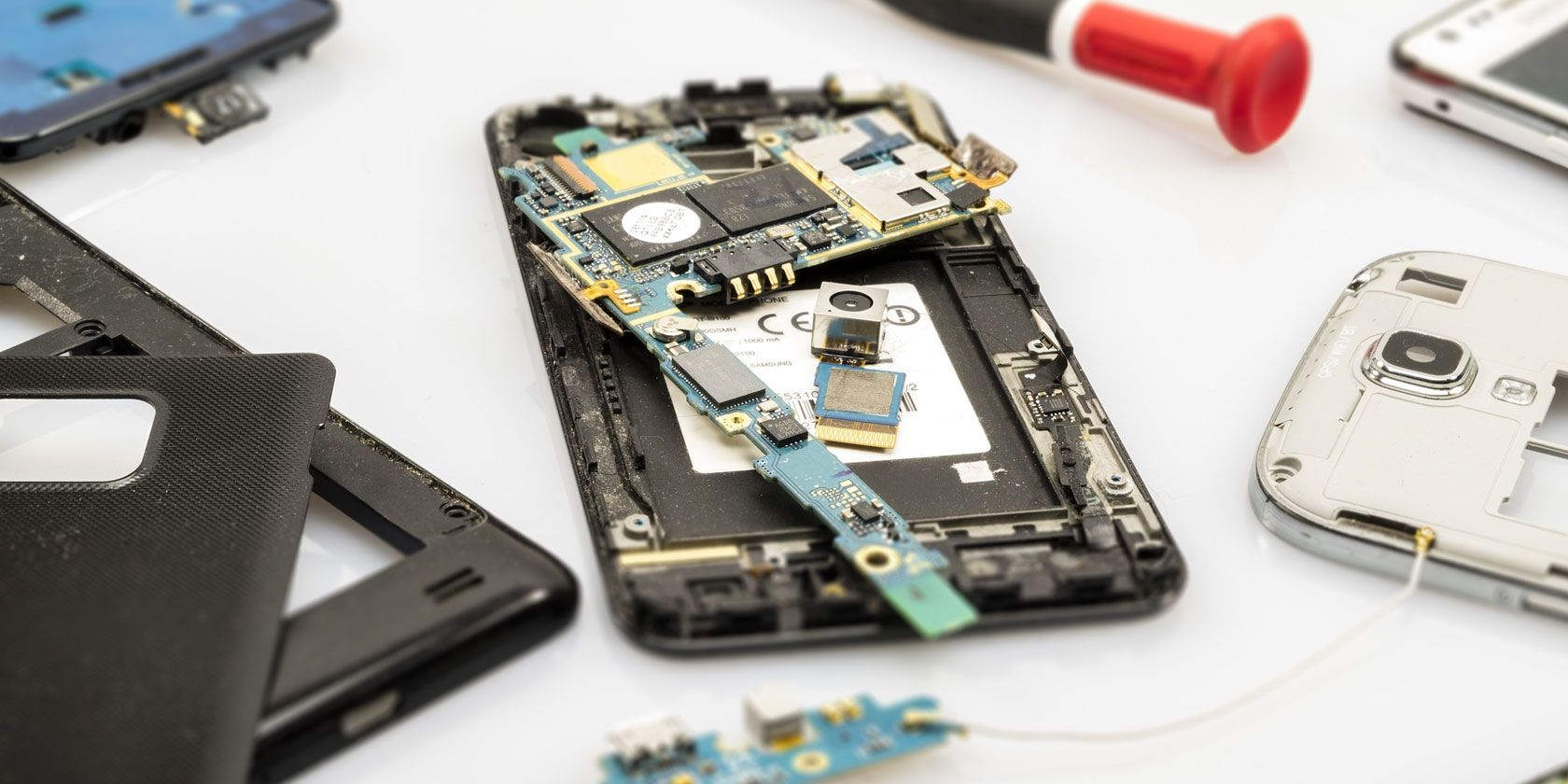
Over time, it’s easy to accumulate a lot of devices. But keeping all of them up-to-date and in working order can get expensive.

If you’re not fond of replacing your hardware, or you don’t want to pay the high cost of having an item repaired or replaced, then you may want to take matters into your own hands.

In general, hardware manufacturers don’t make this easy, but there are a handful of sites that can—and they’ll prove invaluable at some point as long as you keep them bookmarked.

1. iFixit

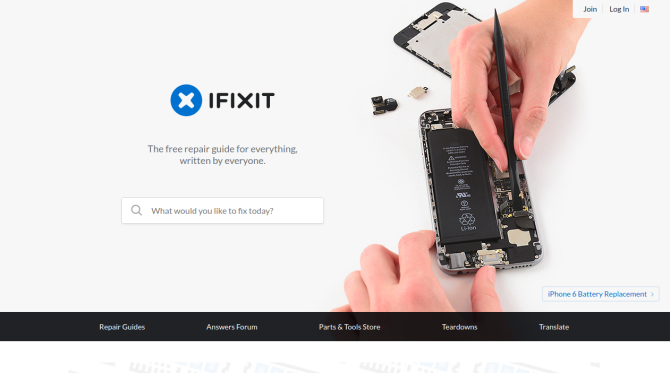
IFixIt Gadget Repair Website

iFixit is the most well-known site of its type. The US-based company started in 2003 after co-founder Kyle Wiens couldn’t find a repair manual for his Apple iBook. iFixit has since grown into a global community.

The site offers video teardowns, so you can see what goes into a product and how to put it back together. Users from all over submit their own guides to fix consumer electronics of all types. You can also buy the parts you need to finish the job.

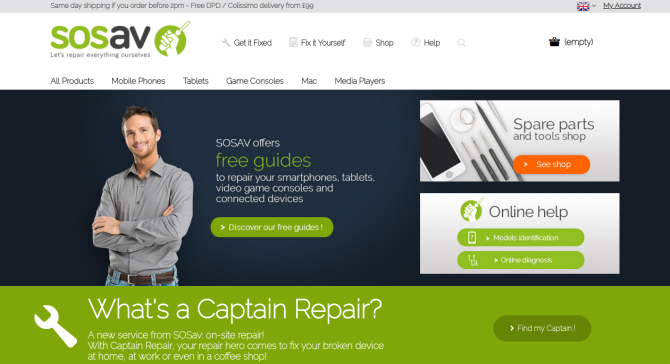
2. SOSav

SOSav Gadget Repair Website

SOSav is a similar site based out of the UK. The sheer number of guides isn’t comparable to what you find on iFixit, but what’s here is of a similar quality. The site provides an abundance of photos, and again, you can buy needed parts directly from the site.

Guides are currently available for Apple computers, mobile phones, tablets, digital music players, game consoles, cameras, smartwatches, and virtual reality headsets. If you’re looking to repair a Chromebook or a PC that came with Windows, head back to iFixit.

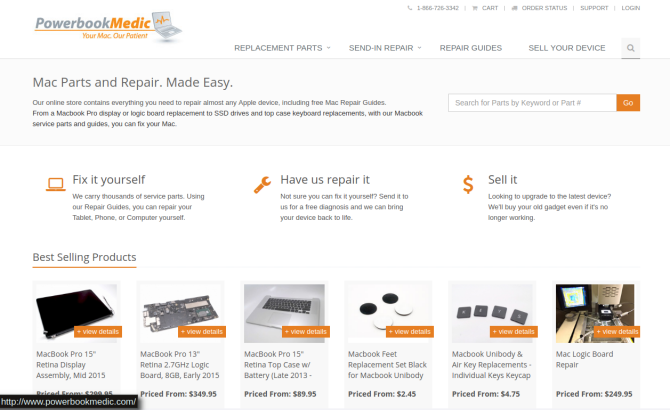
3. PowerbookMedic

PowerbookMedic Gadget Repair Website

As the name suggests, PowerbookMedic has been around since before Apple called its laptops MacBooks or even iBooks. But that doesn’t mean the site is filled with stagnant, outdated information. It remains a valuable tool for fixing current Apple hardware, including iPhones and iPads.

Don’t have an Apple product? PowerbookMedic isn’t entirely irrelevant to you. The site also has guides for Amazon Kindle devices. So if your Fire tablet or Kindle ereader has fallen on hard times, this resource could help you out.

PowerbookMedic doesn’t only sells parts—it offers to buy your current PC. The company will repair your machine and then sell it refurbished. If the folks at PowerbookMedic can’t make use of a part, they try to recycle what they can.

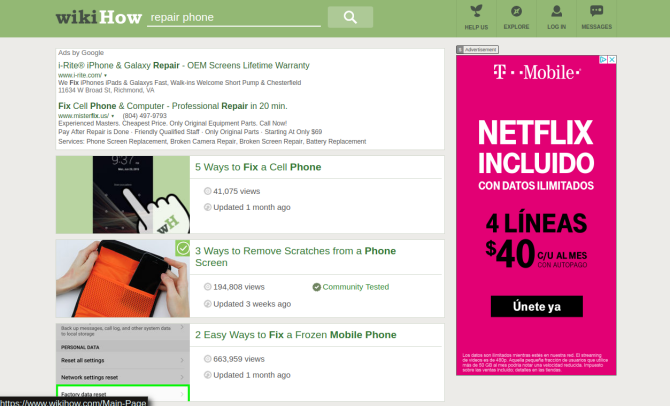
4. wikiHow

wikiHow Gadget Repair Website

wikiHow provides step-by-step instructions on how to do seemingly anything. But one task it doesn’t do is tell you how to fix exactly the component that’s broken on your model of computer or mobile device. Still, that doesn’t mean its useless for addressing your electronic woes.

Here you can find general guides that may work regardless of your model, such as how to revive a cell phone battery or how to fix an iPod jack. This is general know-how that may serve you well not only with your current headache, but potential future ones as well.

5. YouTube

Many of us have an easier time following along with a video than with text or photos. Fortunately, YouTube is packed with tutorials and clips of people fixing their own PCs. Most of the sites above even upload videos to YouTube.

Lots of the tutorials come from channels that don’t specialize in computer repair. These are often from individuals who at some point need to fix their own devices and decide to share their experience with the internet. Their instructions may be the best you can find when working with less common hardware.

Anyone can upload content to YouTube, so keep that in mind when considering whether to take a video’s advice. You may come across instructions that aren’t reliable, increasing the chance you will break your machine.

Rather Have Someone Else Do the Work?

Fixing a device takes time. You also run the risk of damaging the hardware further, and if anything goes wrong, you’re out of luck. So it makes sense if you don’t want to take that task on yourself.

Many shops exist for precisely this kind of work. Some of the sites listed above will take your gadget and fix it for you, as long as you’re willing to mail it in. PowerbookMedic will repair your Apple device, and it claims an average turnaround time of four business days (though Amazon hardware is not supported). SOSav serves those in the UK via the name Captain Repair.

Other shops offer brick and mortar locations in the US. CPR (Cell Phone Repair) Stores, despite the name, will also fix computers and game consoles at its over 450 locations across the US. uBreakiFix is another larger chain, with nearly 400 locations. iFixandRepair appears in 17 states.

At the rate businesses are appearing, there’s bound to be a smaller, local option somewhere in your nearest metropolitan area. Just make sure you avoid repair and tech support scams!

What If You Hit a Roadblock?

Some companies make their products hard to repair. They may design hardware to require tools that only company employees have. They may also refuse to create or provide instruction manuals to consumers or repair shops.

In some cases, you can get around this issue by buying from a different company. But sometimes there’s no other option, or the competition engages in the same practices. This is why people have come together to demand the right to repair.

If you live in the US and view having the ability to fix hardware as a right, check out repair.org, the website of the Repair Association. You may also want to check out iFixit.org, the activist side of iFixit, which provides plenty of relevant links and other resources.

Read the full article: Learn to Fix Your Own Gadgets With Help From These 5 Sites


from MakeUseOf https://ift.tt/2Kxd7os
via IFTTT

The 12 Best Reference Apps to Look Up Anything While On the Go

How to Securely Delete Cookies, Internet Cache, and More With PrivaZer

delete-cookies-caches

Staying secure online is important, as is maintaining your privacy. One way to do this is to manually delete your cookies and cache after every session, but this can prove hit-or-miss, not to mention time-consuming.

For some, a dedicated solution for PC deep cleaning is a better and more convenient option. Here’s how PrivaZer can help with that.

What Is PrivaZer?

Clean the Windows internet cache with PrivaZer

Developed to help keep your Windows PC clean, PrivaZer is an alternative to tools like CCleaner with a much more focused approach to cleaning and protection.

Whereas tools like CCleaner have a bunch of extra tools like a duplicate files finder and a disk space cleaner—which some users might consider bloatware—PrivaZer concentrates only on enhancing your privacy.

Different degrees of cleaning can be done with PrivaZer, but it is especially good at dealing with internet cache files, downloads, and cookies.

How Cookies Betray Your Online Privacy

Essentially text files storing user-specific data, cookies are useful for browsing the web, but they’re not exactly on your side.

Some sites use cookies to recognize you and perhaps issue a personalized greeting or content, others may keep you signed into a website and memorize some of your site settings. These settings are retained on your computer via cookies. These uses for cookies are benign and reasonable.

Then there’s the type of cookie that tracks your activity online, sharing your browser history with advertisers. Done with the aim of providing targeted advertising, you’ll have noticed this happening without realizing. This is why, when you browse a product on Amazon, all you see for the next week is adverts for the same item.

So, while slightly useful, you really need to kill cookies regularly. This, your internet cache, and more, can be wiped using a tool like PrivaZer.

The Two Versions of PrivaZer

Install PrivaZer on Windows

Available from privazer.com, PrivaZer comes in two versions: Free version and Donor’s version (which offers extra functionality, such as automatically cleaning internet activity after each session).

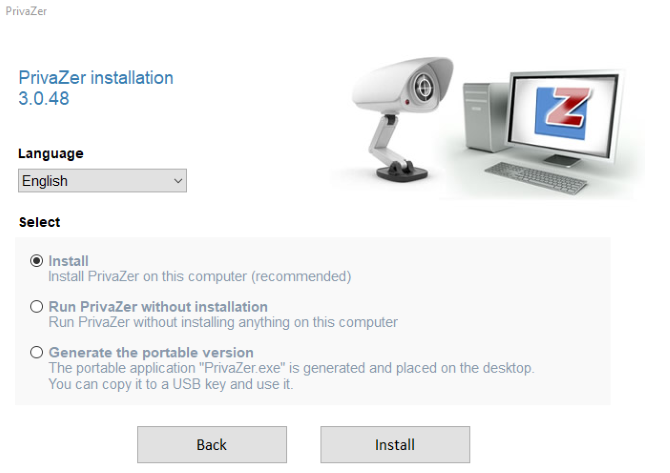
Each of these can be downloaded as a standard installation or as a portable version. Further, the standard version, when run, gives the option to install, or run without installation. And in case you made a mistake, there’s also the option to create a portable version from the installation wizard.

You may have spotted benefits for each option. A portable version of PrivaZer can sit on a USB flash drive, waiting to be run. It requires no installation, and as such can be used on any Windows system at any time. Need to investigate some slow performance? Installing something new could be time consuming, which is why running a portable version of PrivaZer is a good option. The same is true of the option to run without installation.

However, if you do choose to install PrivaZer rather than simply “run” it, you can guarantee extra features and improved results.

How to Run a Deep Clean With PrivaZer

Get started by heading to the website and downloading the PrivaZer free version. Launch the installer, and when prompted “What kind of computer user are you?”, select Advanced. (This can be changed later, if necessary.)

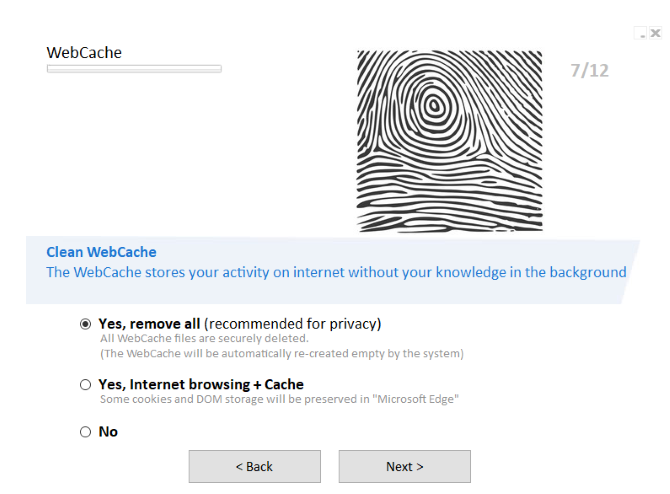
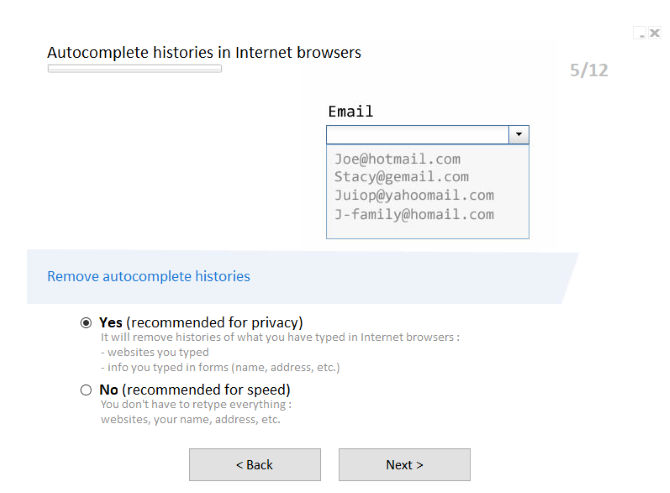
In the next screen, use the check boxes to select what sort of data you want cleaning. You’re looking for things like invalid shortcuts, office software history, photo software history, thumbnails cache, browser autofills for forms, cookies and web cache, Windows Start menu items, and more. (If you selected Basic user, meanwhile, you’ll be presented with a wizard-based approach to each, with recommended options to help.)

Delete browser autocomplete.

With your preferred items checked, select Ready to perform my first scan, and click OK. Select Start cleaning, then Scan to proceed, and wait while the deep clean completes. A progress box on the right will display how much data has been cleaned; you can speed things up by raising the priority using the link at the bottom of the window.

Once done, PrivaZer will have cleaned up much of the unwanted data on your PC. Even if it fell into the wrong hands, an intruder would have difficulty finding out what files you had used recently. Meanwhile, with deleted tracking cookies, your ad-focused shadow profile will need to be built from scratch. Note that regular deletion of these cookies will prevent the annoyance of targeted ads in perpetuity.

Device-Specific Scanning and Total Deletion

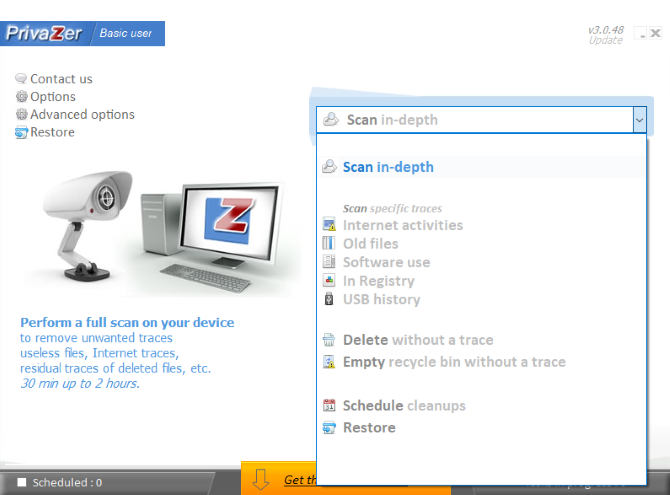
PrivaZer can also scan a particular device, and clean all “internet traces”. This option, and many others, can be found in the drop down menu on the main PrivaZer screen. With each function, the process is largely the same: select the type of clean, choose the data types/location to analyze, then click Scan to commence.

The results are invariably good, and you can even clean traces from your system registry, and USB devices. There’s even the option to run a scheduled cleanup (although this requires the installed version of PrivaZer).

Scan options in PrivaZer

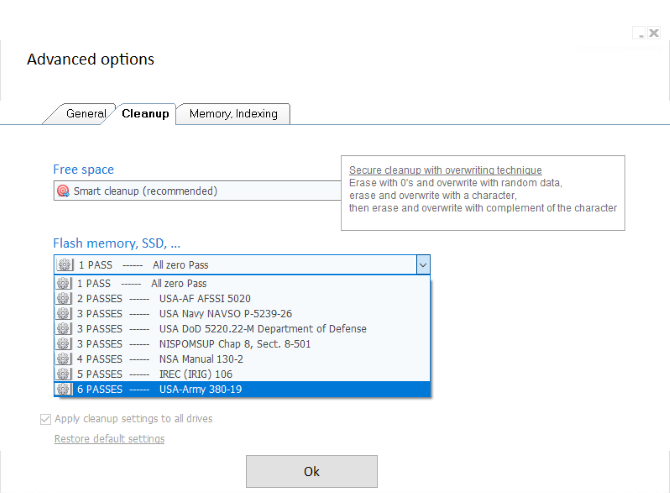
Meanwhile, the Advanced options screen gives you the opportunity to specify the depth of the clean. Flash memory/SSD (learn about how solid-state drives work), hard disk drives (labelled here as “magnetic disks”), and RAM can all be given multiple passes (up to 6 passes on flash and RAM, as many as 35 passes on HDD) to ensure total destruction of the data stored there.

This has multiple benefits, not least when wiping a data storage drive in order to sell it (or when selling the computer itself). Any previous data previously stored therein can be safely considered deleted if one of these options is used.

Secure deletion options in PrivaZer

To do this, open Advanced options > Cleanup, and make the selection, then OK. Select Delete from the dropdown menu, then select between Sensitive files and Sensitive folders. Click OK to browse for the files/directories/drive, then click Clean.

PrivaZer Protects Your Online Privacy

You don’t have to pay so much attention to tracking cookies and your internet cache. But whether you’re trying to maintain some online privacy, or simply want to avoid a loved one or housemate uncovering your online interests, cleaning up when you’re done is a good idea.

PrivaZer is just one way of doing this. There are many other tools for maintaining online privacy. The takeaway is this: if you don’t want to be tracked, cleaning your PC regularly is the best way of dealing with it.

Read the full article: How to Securely Delete Cookies, Internet Cache, and More With PrivaZer


from MakeUseOf https://ift.tt/2tMkvoQ
via IFTTT